14
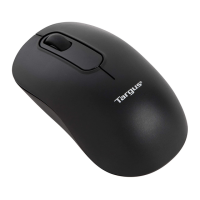
Targus Wireless Bluetooth Notebook Mouse
• Access the Bluetooth Configuration Panel:
› Right-click the Bluetooth icon, and then select
Advanced Configuration.
• Access the Quick Connect option:
› Right-click the Bluetooth icon, select Quick Connect,
and then select the type of service to which you wish
to connect.
• Start/Stop Bluetooth on this computer.
NOTE: F
OR A COMPLETE USER GUIDE WITH DETAILED INSTRUCTIONS ON
CONFIGURING
BLUETOOTH DEVICES, PLEASE REFER TO THE GUIDE LOCATED ON
THE
CD-ROM.
Bluetooth Connection Status
The Bluetooth Connection Status dialog box displays
information about the state of a connection and provides
a means to disconnect an active connection.
To display the Connection Status dialog box: in My
Bluetooth Places, from the Folders pane, select a device,
and then, in the right pane of My Bluetooth Places, right-
AMB01US-10.book Page 14 Sunday, October 30, 2005 11:29 PM


 To Next Page