16
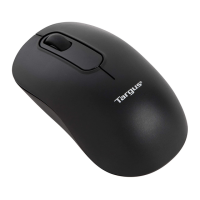
Targus Wireless Bluetooth Notebook Mouse
Start or Stop Bluetooth
To start Bluetooth
In the Windows system tray, right-click the Bluetooth icon
and select Start the Bluetooth Device. The Bluetooth icon
is blue in color with a white insert when the Bluetooth
software is running.
To stop Bluetooth
In the Windows system tray, right-click the Bluetooth icon
and select Stop the Bluetooth Device. The Bluetooth icon
is blue in color with a red insert when Bluetooth is
stopped.
Mouse Power Management
To power the mouse on and off, slide the on/off switch at
the bottom of the mouse to the desired position.
When power is on, the mouse goes into "sleep mode"
after 20 minutes of inactivity. To activate the mouse, click
any button.
To save battery power, turn off the mouse while traveling
or while not in use.
Operating Hints
For optimal performance and RF reception:
• Avoid using the mouse on a metal surface. Metals,
such as iron, aluminum or copper, shield the radio
frequency transmission and may slow down the
AMB01US-10.book Page 16 Sunday, October 30, 2005 11:29 PM


 To Next Page