EasyManua.ls Logo

Tascam FireOne - User Manual

Tascam FireOne
24 pages
Print Icon
To Next Page IconTo Next Page
Loading...
D00963220B
»
FireOne
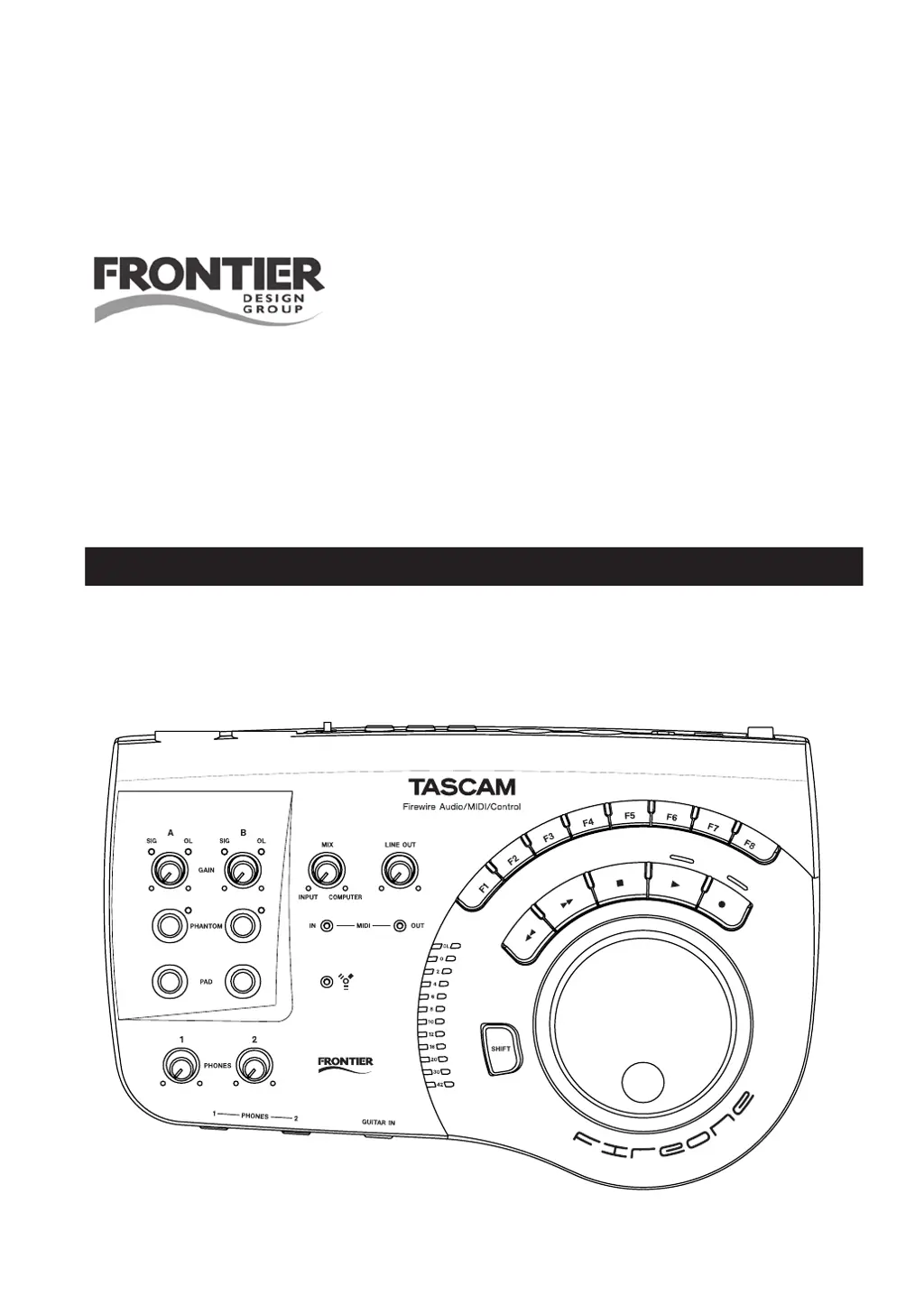
FireWire Audio/MIDI Control
OWNER'S MANUAL

Questions and Answers

  • H
    henryraymondAug 17, 2025
    How to troubleshoot no audio output on Tascam FireOne Electronic Keyboard?
    • H
      heather66Aug 18, 2025
      If you can't hear the audio output from your Tascam Electronic Keyboard, ensure the LINE OUT is connected to powered-on amplifier and speakers with appropriate volume. Adjust the FireOne LINE OUT knob. If using headphones, ensure they are properly connected and the PHONES volume is at a comfortable level. Set the FireOne MIX knob to your preferred mix of inputs and computer playback.
  • B
    Brett NelsonAug 20, 2025
    What to do if I can't hear input on Tascam Electronic Keyboard?
    • J
      James VillegasAug 20, 2025
      If you cannot hear the microphone or instrument connected to the inputs of your Tascam Electronic Keyboard, first check that the signal source is on, properly connected, and providing an adequate signal level (the FireOne SIG LED should flash). Adjust the FireOne input GAIN knob to achieve the best signal without causing overload. If the input signal is relatively low (like from a microphone), ensure that the PAD switch is OFF. If you are using a condenser microphone, turn on the FireOne's PHANTOM power for that input channel. Finally, make sure the FireOne MIX knob is set appropriately to hear inputs, computer playback, or a mix of both.
  • D
    Dr. Lisa KhanAug 22, 2025
    How to fix no playback from DAW on Tascam Electronic Keyboard?
    • T
      Tommy GeorgeAug 22, 2025
      If you're unable to hear playback from your host computer's DAW software through the Tascam Electronic Keyboard, first, ensure that the FireOne device is selected as the output destination in your host application software. Consult your host software's documentation for instructions. Also, verify that the FireOne MIX knob is set to COMPUTER or to your preferred mix of inputs and DAW playback.
  • D
    Dr. Jesus OrozcoAug 25, 2025
    Why is my Tascam FireOne Electronic Keyboard recorded audio distorted?
    • N
      nicholas21Aug 26, 2025
      If the recorded audio from your Tascam Electronic Keyboard is distorted, adjust the input trim control to prevent the OL (overload) LED from illuminating during recording. If the signal level is too high and easily triggers the OL light, engage the FireOne’s PAD switch to reduce the signal level on the affected input.
  • C
    Chad HarperAug 27, 2025
    How to fix FireWire light is OFF on Tascam FireOne?
    • S
      Stephanie HansenAug 28, 2025
      To resolve FireWire light being OFF on Tascam Electronic Keyboard, check the FireWire cable connection between the host and FireOne, and ensure the power is switched ON. If the issue persists, try using an external FireOne power supply, as the host computer's FireWire power might be insufficient. On Windows, the FireOne driver might not be loaded; try reinstalling the driver.
  • V
    Vincent HillAug 30, 2025
    How to rename MIDI ports on Tascam FireOne?
    • V
      Valerie GrantAug 30, 2025
      If your Tascam Electronic Keyboard's FireOne MIDI ports are displayed as “plug 1” and “plug 2”, run the “FireOne Setup.mpkg” installer from the CD-ROM. This will rename the MIDI ports to “FireOne MIDI” and “FireOne Control.”
  • K
    Kelly BrownSep 2, 2025
    How to eliminate clicks and pops in audio from Tascam Electronic Keyboard?
    • M
      Miss Dawn HoffmanSep 2, 2025
      If the audio from your Tascam Electronic Keyboard has clicks and pops, on Windows, adjust the latency setting in the FireOne control panel to increase buffering and prevent overruns. On Macintosh, adjust the latency (audio buffer size) setting in your audio application, if available.
  • A
    Amy HillSep 4, 2025
    What to do if FireOne doesn't appear in DAW software for Tascam Electronic Keyboard?
    • J
      Justin MillerSep 4, 2025
      If the FireOne from your Tascam Electronic Keyboard doesn't appear as an audio or MIDI device selection in your DAW software on Windows, check the Device Manager (Control Panel | System | Hardware). If “FireOne” is missing under “Sound, video, and game controllers,” rerun the “FireOne Setup” program and follow the instructions. On Macintosh, with the FireOne connected and powered ON, run the “Audio MIDI Setup” program (in /Applications/Utilities) and verify that FireOne appears in the “Properties For:” pop-up list. If not, check the FireWire cable connection and repower the FireOne.
  • M
    Matthew GarciaSep 6, 2025
    How to record from FireOne into computer using Tascam Electronic Keyboard?
    • E
      ellisjosephSep 6, 2025
      If you can’t record from your FireOne Tascam Electronic Keyboard into the computer, ensure that the FireOne device is selected as the input source for the tracks you are trying to record. Refer to the documentation for your host software for instructions on how to do this. Also, make sure that the SIG lights for the FireOne are indicating adequate signal levels for the incoming audio.
  • J
    James PriceSep 9, 2025
    Why is there no selection for FireOne in application's control-surface setup for Tascam Electronic Keyboard?
    • K
      kingnancySep 9, 2025
      If there is no selection for FireOne in your application's control-surface setup for Tascam Electronic Keyboard, install the FireOne plug-in appropriate for your DAW application. This applies to Cakewalk SONAR, Steinberg Cubase & Nuendo, and MOTU Digital Performer.

Summary

Important Safety Precautions

Declaration of Conformity

Formal statement regarding the device's compliance with regulations and FCC rules.

Important Safety Instructions

Introduction to TASCAM FireOne

Product Overview and Features

Overview of the FireOne's capabilities and key features for digital audio workstations.

Package Contents and Copyright

Details of items included in the package and copyright information.

Introduction: Placement, Conventions, and Requirements

Placement, Condensation, and Conventions

Guidelines for safe placement, avoiding condensation, and understanding manual conventions.

System Requirements for FireOne

Specifies the operating systems and software compatibility for the FireOne.

Introduction: Software and FireWire Notes

Software Application Guide and Updates

Information on using the FireOne with DAW software and obtaining driver updates.

FireWire Connection Notes and Warnings

Important details and precautions for connecting the FireOne via FireWire.

Features of the TASCAM FireOne

Top Panel Controls and Indicators

Detailed description of controls and indicators located on the FireOne's top panel.

Features: Rear Panel Connections

Rear Panel Connectors and Switches

Explanation of the various input/output connectors and switches on the rear panel.

Installation Guide

Control Panel Installation for Windows and Mac

Step-by-step instructions for installing the FireOne control panel software on Windows and macOS.

Control Panel Settings

Sample Rate and Buffer Size Configuration

Configuring audio sample rate and buffer size for optimal performance and latency.

Control Surface and Display Modes

Setting the control surface communication mode and jog/shuttle wheel display options.

Control Panel Settings: Lock and Mono Monitor

Sampling Rate Lock and Input Monitor Settings

Enabling sample rate lock and configuring mono input monitoring for the FireOne.

Connections and Audio Setup

FireWire and General Audio Connections

Connecting the FireOne to a computer via FireWire and general audio input/output setup.

Microphone Connections and Phantom Power

Connecting microphones, including condenser mics requiring phantom power.

Connections: Guitar and Analog Sources

Guitar and Keyboard;Line Input Connections

Connecting guitars and other analog audio devices like keyboards and drum machines.

Connections: Analog Record Player

Connecting an Analog Record Player

How to connect an analog record player, requiring a phono preamplifier.

Connections: Audio Outputs

Connecting Speakers and Headphones

Connecting powered speakers, amplifiers, and headphones to the FireOne.

Connections: MIDI and Sync

MIDI Connections for Controllers and Sync

Connecting MIDI keyboards, synthesizers, and sequencers for control and MTC sync.

Troubleshooting Guide

Host and FireWire Connection Issues

Resolving problems related to FireWire connectivity and device recognition by the host computer.

Control Surface Setup and Operation Issues

Troubleshooting control surface setup, MIDI port recognition, and button operation.

Troubleshooting: Audio Performance

Audio Output and Input Problems

Resolving issues with no audio output, distorted audio, or clicks and pops.

Block Diagram and Architecture

FireOne Internal Block Diagram

A visual representation of the FireOne's internal signal flow and component connections.

Technical Specifications

Inputs, Outputs, and FireWire Specs

Detailed specifications for audio inputs, outputs, FireWire, and footswitch connectors.

Specifications: Performance and Physical

Performance Metrics and Physical Dimensions

Technical performance data, power requirements, dimensions, and weight of the FireOne.

Tascam FireOne Specifications

General IconGeneral
BrandTascam
ModelFireOne
CategoryElectronic Keyboard
LanguageEnglish