IMPORTANT SAFETY INSTRUCTIONS
TASCAM FireOne 19
FireOne is a device dependent on a number of interrelated
software and hardware components. If you experience
problems with your FireOne, here are a few suggestions to
check rst:
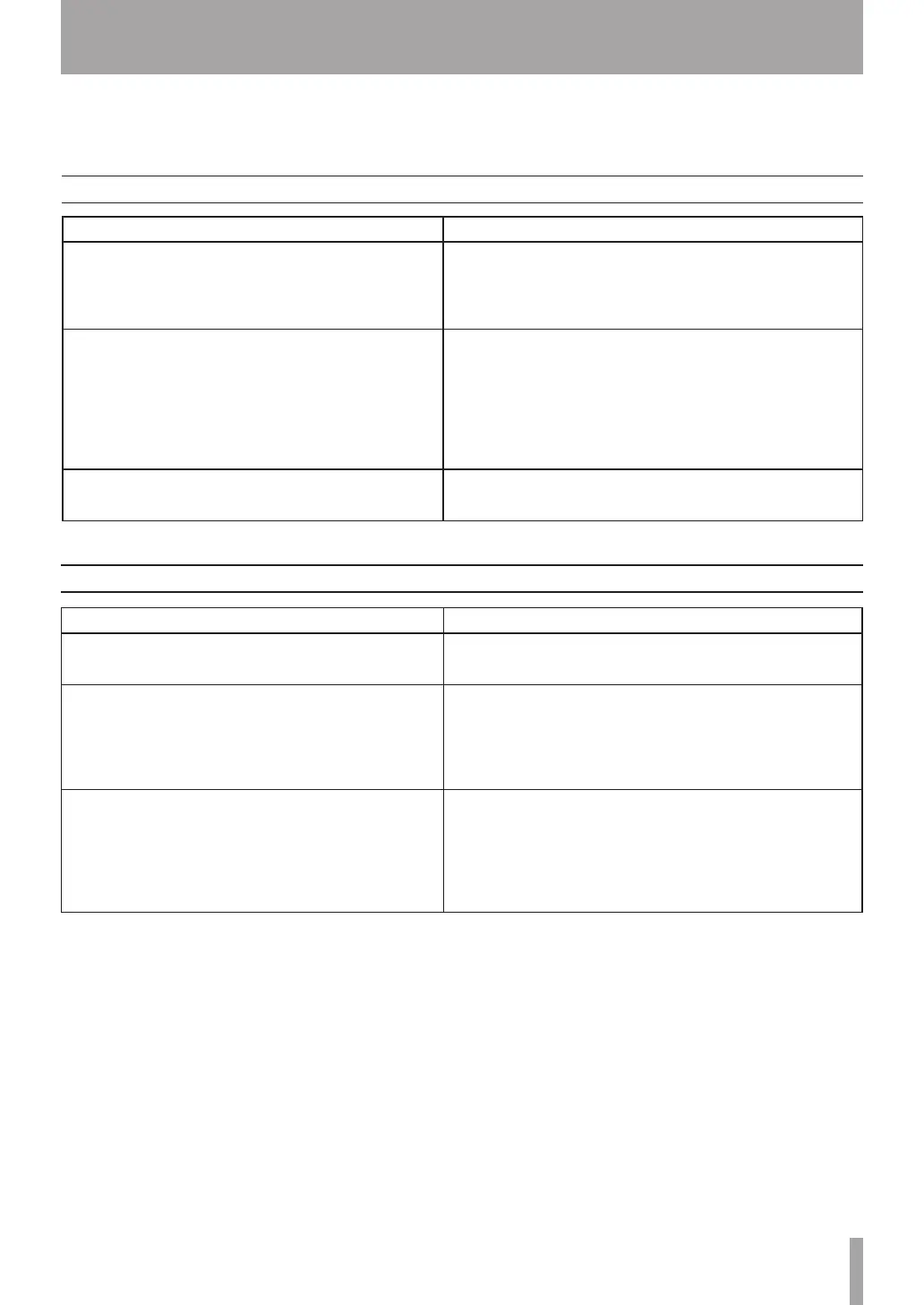
Host Connection troubleshooting
Problem Solution
FireWire light is OFF.
• Check FireWire cable connection between host and FireOne, and
make sure that power is switched ON.
• Try external FireOne power supply; host computer’s FireWire power
may be inadequate.
• [Windows] FireOne driver may not be loaded. Reinstall driver.
FireOne does not appear as an audio or MIDI device selection in
my DAW software.
• [Windows] Check Device Manager (Control Panel | Sytem | Hardware).
If “FireOne” does not appear under “Sound, video, and game control
lers” run the “FireOne Setup” program again and follow the on-screen
instructions.
• [Macintosh] With the FireOne connected to the computer and powered
ON, run the “Audio MIDI Setup” program (in /Applications/Utilities)
and verify that FireOne appears in the “Properties For:” pop-up list.
If not, check FireWire cable connection, and re-power the FireOne.
FireOne MIDI port names are displayed as “plug 1” and “plug 2”
• [Macintosh] Run the “FireOne Setup.mpkg” installer on the CD-ROM
which will rename the MIDI ports to “FireOne MIDI” and “FireOne
Control.”
Control surface troubleshooting
Problem Solution
No selection for FireOne in application’s control-surface setup
• Install the FireOne plug-in appropriate for your DAW application. This
applies to: Cakewalk SONAR, Steinberg Cubase & Nuendo, MOTU
Digital Performer.
FireOne MIDI ports do not appear as a selection in application’s
control-surface setup.
• Make sure FireOne is connected and powered-on.
• [Windows] Make sure FireOne appears under “Sound, video, and game
controllers” in Windows Device Manager
• [Macintosh] Make sure FireOne appears as a device in the “Audio MIDI
Setup” program’s “MIDI Devices” panel.
• See application software’s instructions for enabling MIDI ports.
FireOne is set up as a control surface; however, no buttons operate
the DAW software
• Make sure that the FireOne Control MIDI port is being used for control
surface input and output, and not the external FireOne MIDI port.
• Make sure that the appropriate control surface protocol is set in the
FireOne control panel. This will be Native in most cases (exception: Pro
Tools).
• Review the application-specific instructions for your DAW on the CD-
ROM or TASCAM web site.
6 - Troubleshooting



 To Next Page