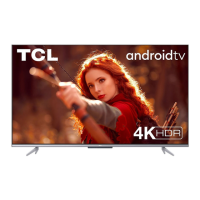
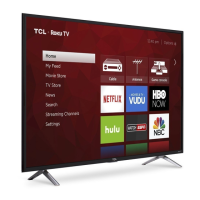
This document is an operation manual for a TCL LED TV, model 40D2900F. It covers general operation, advanced functions, and troubleshooting, providing users with instructions on how to set up, use, and maintain their television.
General Description and Precautions
The manual begins with important precautions to ensure safe and proper use of the TV. Users are advised not to block ventilation openings, insert objects into the cabinet, or attempt to open the unit themselves, as this could lead to electric shock or damage. It emphasizes the importance of protecting the screen from scratches or impacts. The appliance is not intended for use by young children or infirm persons without supervision, and children should be supervised to prevent them from playing with the appliance.
Regarding power and plug, the TV should be unplugged if it will not be used for a long period, if the power cord or outlet is damaged, or if the set has been impacted or dropped. The mains plug or appliance coupler serves as the disconnect device and should remain readily operable. The power cord and signal cable should be protected from being stepped on, overloaded, or exposed to moisture.
For the use environment, the TV should be placed on a stable surface with good ventilation, away from direct sunlight, damp, cold areas, and dust, to prevent overheating. It should not be exposed to dripping or splashing liquids, and no objects filled with liquids should be placed on it.
Cleaning instructions recommend using a soft, clean cloth and a special liquid cleaner for the screen and cabinet, avoiding excessive force or water and other chemical cleaners that could damage the screen surface.
For wall mounting, the manual warns that this operation requires two people and stresses the importance of ensuring the wall can support the TV's weight, following mounting instructions, installing on a vertical wall, using suitable screws, and arranging cables to prevent tripping hazards.
Important information regarding the TV's stability is also provided, highlighting that an unstable location can be hazardous due due to falling. Precautions include using manufacturer-recommended cabinets or stands, ensuring the TV does not overhang furniture edges, anchoring tall furniture, and educating children about climbing risks.
The TV features a power button (ن) to turn the TV on/standby and access a function system for Source, Channel, and Volume. Long pressing it puts the TV in standby. Volume buttons (◄ ►) increase/decrease volume and navigate functions within the system.
Various sockets are available, though their location and number may vary by model. USB sockets allow connection of USB devices. RCA AUDIO OUT sockets connect to compatible audio receivers. An SPDIF socket connects to compatible digital audio receivers. HDMI1 and HDMI2 sockets are for connecting PCs, DVD players, or satellite decoders, carrying uncompressed digital video and audio. YPbPr/VIDEO component sockets connect devices like DVD players, providing excellent picture quality by separating video into three parts. PC/AV/COMPONENT AUDIO IN sockets are shared by AV, VGA, and YPbPr sockets, connecting various equipment like video recorders and game consoles. A VGA socket connects to a computer. An ANTENNA IN socket connects to an outside aerial for analog and digital signals.
Remote Control Functions
The remote control provides access to most TV functions via on-screen menus. Key buttons include:
- Mute: Reduces/restores TV volume.
- (On/Off button): Turns TV on/off.
- 0-9: Enters channel numbers.
- Info: Displays status information.
- Return: Returns to the previous channel in TV mode.
- Source: Selects signal source.
- Menu: Brings up the menu system.
- ▲▼◄► (up, down, left, right direction buttons): Highlights items and adjusts menu controls.
- OK: Confirms selection.
- Option: Enters record function (note: U disk speed is slow, hard disk recommended).
- Exit: Exits the menu system.
- VOL +/-: Increases/decreases volume.
- CH +/-: Scans up/down through the channel list.
- Zoom +/-: Selects screen format (unavailable in USB mode).
- ECO: Enters energy-saving mode.
- Guide: Displays digital program information (digital mode only).
- Text: Teletext.
- Subtitle: Displays Subtitle Language menu.
- List: Selects Channel List.
- TV: Switches between DTV and RADIO in DTV mode; returns to DTV in other sources.
- Red, Green, Yellow, Blue buttons: Enter specific functions as hinted in corresponding modes (Blue button selects sound track mode in USB mode).
General Operation
Switching On/Off:
To switch on, insert two AAA batteries into the remote, connect the power cable to the TV and then to a mains socket, and connect an outside aerial to the ANTENNA IN socket. The TV will either turn on directly or enter standby. If in standby, press the power button on the remote or TV.
To switch off, press the power button on the remote or TV to enter standby mode (low energy consumption). To fully switch off, unplug the mains socket.
The main menu is accessed by pressing the Menu button. Users can navigate using direction buttons and OK to select options like Source, Setting, EPG, and PVR.
Selecting a Signal Source:
From the Source menu, users select their desired input (DTV, ATV, YPbPr, VGA, HDMI 1, HDMI 2, AV) using direction buttons and OK.
Accessed via the Menu button and Setting icon, this menu allows adjustments to Picture, Sound, Time, Option, and Channel settings.
Picture Settings:
- Picture Mode: Selects preset picture settings (Standard, Dynamic, Mild, User). Standard, Dynamic, and Mild modes restore backlight to default.
- Aspect Ratio: Adjusts picture scale (Auto, 4:3, 16:9, Zoom1, Zoom2, Panorama).
- Brightness: Adjusts picture brightness.
- Contrast: Adjusts difference between light and dark areas.
- Color: Adjusts color richness.
- Sharpness: Adjusts edge crispness.
- Tint: Adjusts red/green balance (NTSC video signal only).
- Color Temperature: Adjusts picture color temperature (Cool, Medium, Warm).
- Noise Reduction: Reduces picture noise (Off, Low, Middle, High).
- Screen: Available in VGA mode only.
- Back Light: Adjusts backlight brightness based on room lighting.
Sound Settings:
- Sound Mode: Selects preset sound settings (User, Standard, Music, Movie, Sports).
- Balance: Adjusts volume between left and right speakers.
- AVC: Automatic Volume Control (Off, On).
- SPDIF Mode: Selects SPDIF output (Auto, PCM).
- Surround Sound: (Off, Surround).
- EQ: Adjusts audio frequency settings.
Time Settings:
- Clock Mode: (Auto, Manual). Manual allows time adjustment.
- On Time: Sets a specific time for the TV to turn on, with options for Hour, Minute, Source mode, and Volume.
- Sleep Timer: Sets a period after which the TV enters standby.
- Auto Sleep: (On, Off). If On, the TV enters standby after 10 minutes without signal.
- Time Zone: Selects the user's time zone.
Option Settings:
- OSD Language: Selects the On-Screen Display language.
- Audio Languages: Selects audio language (DTV mode only).
- TTX Language: Selects Teletext language.
- Subtitle Language: Selects subtitle language (DTV mode only).
- Hearing Impaired: (On, Off) for hearing-impaired users (DTV mode only).
- Location: (Home or Shop Mode).
- Default setting: Restores factory default.
- Software Update (USB): Updates software via USB.
Channel Settings:
- Lock: Prevents unauthorized viewing with a password. Options include Set Password, Block Program, Parental Guidance. Default password is "0000". Parental Guidance limits viewing by age (DTV mode only).
- Auto Tuning: Searches and stores active channels automatically.
- DTV Manual Tuning: Manually searches and stores digital channels not found by auto tuning.
- ATV Manual Tuning: Manually searches and stores analog channels not found by auto tuning.
- Programme Edit: Deletes, moves, or skips channels.
Advanced Functions
Connect a USB device to a USB socket. From the main menu, select the Multimedia icon to access content. Users can toggle between Movie Show, Photo Show, Music Show, Text Show, and Game.
- Music Show: Browse and play music files from a USB device. Control options include Pause/Play, Fast Backward/Forward, Previous/Next, Stop, Repeat mode, Mute, Playlist, Info, and Goto Time.
- Photo Show: Browse and display photos from a USB device. Control options include Pause/Play, Previous/Next, Stop, Rotate, Music On/Off, Musiclist, Zoom In/Out, Repeat mode, Brightness, Contrast, and Info.
- Movie Show: Browse and play movie files from a USB device. Control options include Pause/Play, Fast Backward/Forward, Previous/Next, Stop, Repeat mode, Set A~B, Playlist, Info, Slow Forward, Step Forward, Goto Time, Brightness, and Contrast.
- Text Show: Browse and display text files from a USB device. Control options include Previous/Next Page, Previous/Next, Stop, Music On/Off, and Musiclist.
- Game: Enters the game function.
PVR (Personal Video Record):
Accessed via the PVR icon in the main menu (DTV mode only). Users can record favorite programs. The PVR File System menu includes Select Disk, Check PVR File System, USB Disk, Format, Free Record Limit, and Speed.
To record a program, use the Guide button to access the digital program guide, then the Red button to enter the submenu. Adjust settings, confirm with OK, and the recording will be stored in the Schedule list. A tool bar indicates recording progress. The Option button on the remote provides a shortcut for direct recording.
Recorded programs can be found in the USB/Movie folder under PVR.
EPG (Electronic Program Guide):
Connect a USB device and ensure the TV is in digital mode. Access EPG via the EPG icon in the main menu or the Guide button on the remote. The PROGRAMME GUIDE menu displays program information based on signal data.
Schedule List:
Allows users to perform scheduled recording and reminding. Programs can be added to the list, and the TV will automatically record or remind the user at the set time.
Attention and Frequently Asked Questions:
- Attention: Some non-standard mobile storage devices may not be recognized; standard devices are recommended. The system supports JPEG, BMP, PNG picture formats, H.264, MPEG4, MPEG2, MPEG1 video formats, and MP3 audio format. Non-standard coding methods may not be supported.
- Frequently Asked Questions:
- The system may not decode or play files normally if parameters (pixel, code rate, sampling rate) exceed system limits or if the file format is mismatched/harmed. Data rates exceeding 20Mbps are not supported.
- Avoid hot plugging/disconnecting USB devices during data transfer to prevent damage.
- Ensure stable power supply for mobile hard disks or digital cameras to avoid operational issues. Restart the device or replug it if problems occur.
- The system supports standard USB1.1 and USB2.0 devices (U-disks, MP3 players, mobile hard disks).
- USB2.0 standard external devices are recommended for better audio/video quality.
- Connecting two USB hard disks simultaneously may slow reading speed; connecting two U-disks or one USB hard disk and one U-disk simultaneously is suggested.
- Playing high-compression video may result in picture standstill or slow menu response.
- For USB devices with power supply needs (large hard disks, MP4), use external power to avoid power shortage.
Troubleshooting:
A list of common problems and their solutions is provided:
- No picture, no sound: Check fuse/circuit breaker, power outlet, power plug connection, and signal source.
- No color: Change color system, adjust saturation, try another channel.
- Remote control does not work: Change batteries, check battery installation, ensure main power is connected.
- No picture, normal sound: Adjust brightness/contrast, check for broadcasting failure.
- Normal picture, no sound: Increase volume, check mute setting, change sound system, check for broadcasting failure.
- Unorderly ripples on the picture: Caused by local interference; adjust antenna.
- Blank screen in VGA mode: TV may not recognize PC resolution; change to best or standard Windows resolution.
- Snowy dots and interference: Weak signal in fringe areas; install special antenna.
- Ignition: Black spots, horizontal streaks, or picture flutter/drift caused by interference from car ignition, neon lamps, electric drills; remove interference source.
- Ghost: Caused by reflected signals; change antenna direction/position.
- Radio frequency interference: Produces moving ripples, diagonal streaks, or loss of contrast; find and remove the source.
Base Installation:
Instructions for fixing the double support base onto the unit with screws are included.

 Need help?
 General

 To Next Page