This document serves as a user manual for the TCL T312D mobile phone, providing comprehensive instructions on its functions, usage, and maintenance.
Device Overview and Basic Operation
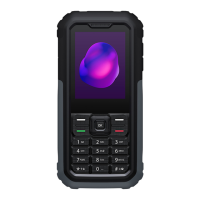
The TCL T312D is a feature phone designed for straightforward communication and essential utilities. Its physical layout includes a numerical keypad, navigation keys, and dedicated function buttons.
Keys and Connectors:
- OK key: Confirms options, accesses the app list from the Home screen.
- Left soft key: Confirms options, accesses the app list from the Home screen.
- Call key: Picks up/sends a call, enters the call log from the Home screen.
- Right soft key (Back key): Accesses Contacts from the Home screen.
- End key: Ends a call, hangs up/cancels dialing, returns to the Home screen (long press).
- Navigation key: Moves through menus (top, bottom, left, right). From the Idle screen, it provides quick access to Messages (Up), Camera (Down), Entertainment (Right), and Tools (Left).
- "5" key: Inputs "5" in idle screen, switches the torch on/off (long press).
- "*" key: Inputs "*" in idle screen, locks the screen (long press), inserts symbols in edit mode.
- "#" key: Inputs "#" in idle screen, switches vibration mode on/off (long press), changes the input method in edit mode.
- Torch: A light source.
- Headset connector: For connecting headphones.
- USB port: For charging and data transfer.
- Camera: For taking photos and videos.
- Speaker: For audio output.
- SOS key: A dedicated button for emergency functions.
- Volume key: Adjusts the device volume.
Getting Started:
To power on the phone, hold down the End key. To unlock, long press or press the Left soft key. The phone can be used for some features even without a SIM card. To power off, hold down the End key.
Battery and SIM/SD Card Installation:
The back cover needs to be removed to install the battery and SIM/micro SD card. The SIM card should be inserted with the chip facing downwards. The phone must be powered off before inserting or removing the SIM/micro SD card.
Charging:
Connect the charger to the phone and a power socket. Ensure the battery is correctly inserted. The mains socket should be easily accessible. To conserve energy, disconnect the charger when the battery is full, switch off Bluetooth or background applications when not in use, and reduce backlight time.
Core Functions
Home Screen and App List:
The Home screen displays the status bar with icons indicating phone status and new notifications. The App list, accessible via the Left soft key or OK key, provides access to all applications.
Wallpaper:
The Home screen wallpaper can be changed from Static wallpaper or More pictures options within Display settings.
Call Logs:
- Making a call: Dial the number and press the Call key, or select a contact from Contacts using the Right soft key and Navigation key. The Right soft key deletes incorrect digits. The End key hangs up.
- International call: Press
*+ twice to enter "+", then the international country prefix, full phone number, and Call key.
- Emergency call: Dial the emergency number and press the Call key. This may work without a SIM card or PIN depending on network/country.
- Answering/Declining a call: Press the Left soft key or Call key to answer; press the Right soft key or End key to decline.
- Accessing voicemail: Press and hold
1 to call voicemail. Follow prompts to set up the account.
Messaging (SMS/MMS):
- Writing a message: From the Home screen, select Messages > Write message. Enter the recipient's number or add from contacts. Use the navigation down key to enter text. Press OK key or Left soft key to send.
- Sending multimedia messages: From the Message screen, select Options > Add and choose an attachment (video, image, audio, etc.). An SMS automatically converts to MMS when media files are attached.
- Typing a message: In edit mode, use the Keypad to input numbers or long press keys for specific numbers. Predictive text input is available, or press
# to change the input method.
- Text input: For normal text, press a number key (2-9) repeatedly for desired characters. Press
# to choose Abc/abc/ABC/123 modes or writing language. Press *+ to insert punctuation or special characters. The Right soft key deletes characters.
- Message settings:
- SIM1/SIM2 Message centre: View message centre number.
- Message validity period: Set validity from 1 hour to Maximum.
- Status report: Enable or disable status reports.
- Reply path: Enable reply path.
- Coding management: Set character code (GSM-7 bit, UCS2, Auto).
- Save sent messages: Choose to save or not.
- Preferred storage: Set location for saved messages.
- Export SMS: Set path for SMS export.
- Auto signature: Apply an auto signature.
- Signature: Input your signature.
Contacts:
- Consulting contacts: Access via OK key (from Home screen, select Contacts) or Right soft key (from Home screen).
- Adding a contact: From the contacts list, select Options > New. Fill in details and press Left soft key to save.
- Editing contacts: Select a contact, press OK key for Details, then Options > Edit, and OK key to edit.
- Deleting a contact: From the contacts list, press Left soft key for Options, select Delete, and press OK key.
- Available options:
- New: Create a new contact on Phone or SIM.
- Write message: Send SMS to a selected contact.
- Call: Make a call to a selected contact.
- Delete: Delete the selected contact.
- Delete multiple: Delete multiple contacts.
- Import/Export: Import contacts to phone, export contacts from phone or SIM card.
- Send vCard: Send a contact via SMS/MMS/Bluetooth.
- Others: Speed dial (set speed dial contacts), Memory status (review phone/SIM memory), Own number (set name/mobile).
SOS:
From the Home screen, select SOS. Define emergency contacts, edit the pre-defined message, and activate the SOS mode. When activated (by pressing and holding the SOS key), it triggers an alarm, sends help messages, and dials pre-set emergency numbers.
Gallery:
Acts as a media player for viewing photos and videos. Offers further operations for pictures and videos. Access via OK key from Home screen, select Gallery.
Camera:
Equipped for taking photos and shooting videos. Access via OK key from Home screen, select Camera.
- Taking a picture: Position the object in the viewfinder, press OK key to take, Left soft key to save.
- Shooting a video: Press Left soft key, select More options > DV mode. Press OK key to shoot. Press Left soft key to save. View files in Gallery.
Tools:
- Alarm: Built-in alarm clock with snooze. Set up to three alarms.
- Clock: Displays time based on location. Choose other cities for time zones.
- Torch: Press OK key to turn flashlight on/off.
- Calculator: Use up, down, left, right, and Centre soft keys for operations (+, -, ×, ÷, =).
- Calendar: Keep track of meetings and appointments. Create new events by selecting a date, pressing OK key, filling information, and pressing Left soft key to save.
- Recorder: Records audio files, which are automatically stored.
- My files: Manages all files on the phone, including external microSD™ card and internal storage.
- Convert: Supports weight and length conversion.
Entertainment:
Offers various options including Music, FM radio, Facebook, Games, and Opera Mini. Access via OK key from Home screen, select Entertainment.
Settings and Maintenance
Settings Menu:
Access via OK key from Home screen, select Settings.
- Profiles: Adjust sound mode (Normal, Silent, Meeting, Indoor, Outdoor).
- Bluetooth: Exchange data (video, images, audio) with other Bluetooth devices after pairing.
- Phone settings:
- Time & date: Modify date/time, 12/24h format, date format. Auto update time available.
- Language settings: Customize display and writing languages.
- Shortcut Settings: Customize shortcuts for quick access to features.
- Auto power on/off: Set desired times and days for automatic power on/off.
- Power management: View battery level.
- Browser selection: Choose preferred web browser.
- Restore factory settings: Resets device to original state. Requires password (default 1234). All data and personalized settings will be deleted, so backup is recommended.
Display:
Set animation effect, wallpaper, auto lock, etc. Two display modes: Super icon mode (large, eye-catching icons) and 3x3 mode (traditional grid with smaller icons and text).
Security:
Protect phone by activating/changing PIN and password (initial 1234 or 0000).
- PIN: SIM card protection code requested on power-on.
- Modify PIN2: Protection code for certain SIM features (FDN). Update with a new 4-8 digit code.
- Phone locked: Unlock code requested on power-on.
- Modify phone password: Change phone's password (initial 1234).
Call Settings:
- Privacy: Lock applications (Call logs, Message, Camera, Contacts, My files, Calendar) with a password (initial 1234).
- Lock screen by end-key: Instantly locks screen when end key is pressed.
- Fixed dialing number: Restrict calls to certain numbers or prefixes. Requires PIN2 code.
- Dual-SIM: Manage two phone numbers on one device.
- Call forwarding: Activate, cancel, or verify status of call forwarding.
- Call waiting: Activate/deactivate notification of second incoming call. Check status of waiting calls.
- Call barred: Restrict certain types of incoming/outgoing calls.
- Hide ID: Conceal or mask identity during interactions.
- Others: Call time minute reminder, Auto redial, Vibration when connected, Reply SMS after reject.
Connections:
Set Network account, Data roaming, Network selection, etc.
STK (SIM Toolkit):
Provides SIM card management features and applications.
Call Filter:
Block unwanted calls and create custom blacklists.
Regulatory & Safety:
View information like Product model, Manufacturer name, IMEI, CU Reference.
About:
View Privacy and User Terms.
Troubleshooting
Before contacting service, consider these steps:
- Fully charge the battery.
- Avoid storing large amounts of data.
Phone won't switch on or is frozen:
- Check battery contacts, remove/reinstall battery, then turn on.
- Check battery power, charge for at least 20 minutes.
- Restart by pressing and holding End key.
- Remove/reinsert battery, then restart.
Phone turns off by itself:
- Check if phone is locked when not in use.
- Ensure End key isn't accidentally pressed when locking.
- Check battery charge level.
Phone won't charge properly:
- Use TCL battery and charger from the box.
- Ensure battery is inserted correctly.
- If battery is completely discharged, it may take 20 minutes for the indicator to appear.
- Charge under normal conditions (0°C to +40°C).
- When abroad, check voltage compatibility.
Phone can't connect to network or "No service":
- Try another location.
- Verify network coverage with operator.
- Check SIM card validity with operator.
- Manually select available network(s).
- Try later if network is overloaded.
Phone can't connect to the Internet:
- Ensure SIM card's internet access service is available.
- Check phone's Internet connection settings.
- Ensure you are in a place with network coverage.
- Try another location or later.
Invalid SIM card:
- Ensure SIM card is correctly inserted.
- Ensure SIM card chip is not damaged or scratched.
- Ensure SIM card service is available.
Unable to make outgoing calls:
- Ensure a valid number is dialed and Call key pressed.
- For international calls, check country and area codes.
- Ensure phone is connected to network and not overloaded/unavailable.
- Check subscription status (credit, SIM validity).
- Ensure outgoing calls are not barred.
- Ensure phone is not in flight mode.
Unable to receive incoming calls:
- Ensure phone is switched on and connected to network.
- Check subscription status.
- Ensure incoming calls are not forwarded.
- Ensure certain calls are not barred.
- Ensure phone is not in flight mode.
Caller's name/number not appearing:
- Check if subscribed to this service with operator.
- Caller may have concealed their name/number.
Can't find contacts:
- Ensure SIM card is not broken or inserted properly.
- Import all contacts from SIM card to phone.
Poor call sound quality:
- Adjust volume with Volume Up/down key.
- Check network strength.
- Ensure receiver, connector, or speaker are clean.
Unable to use manual features:
- Check with operator if subscription includes the service.
- Ensure feature doesn't require a TCL accessory.
Number from contacts can't be dialed:
- Ensure number is correctly recorded.
- Ensure country prefix is selected for foreign calls.
Unable to add a contact:
- Ensure SIM card contacts are not full; delete files or save to phone contacts.
Callers unable to leave voicemail messages:
- Contact network operator to check service availability.
Can't access voicemail:
- Ensure operator's voicemail number is correctly entered.
- Try later if network is busy.
SIM card PIN locked:
- Contact network operator for PUK code.
Phone can't be detected via Bluetooth:
- Ensure Bluetooth is on and phone is visible.
- Ensure devices are within Bluetooth detection range.
Transferring data between phone and PC:
Connect phone to PC via user data cable, select "SD card" on phone, then transfer data between memory card/SD card and PC.
Accessories
Standard accessories include a battery, charger, Quick Start Guide, and Clear LCD film. Accessories may vary by country. Only use TCL batteries, chargers, and accessories included with the device.



 To Next Page
 General