25
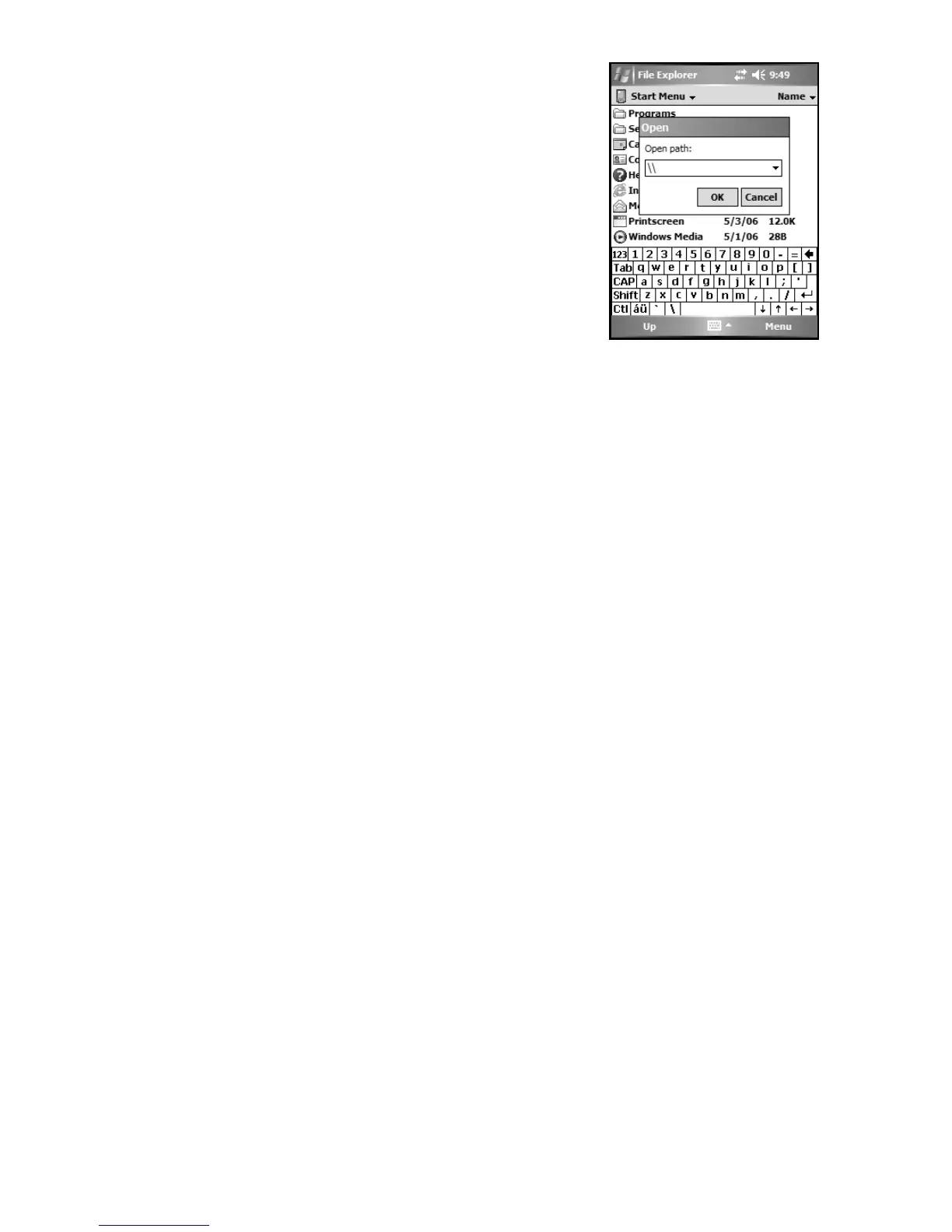
If you choose to create a Work connection,
open File Explorer on your unit. Tap Menu
/ Open Path / New Path to open a
window, allowing you to enter the name of
a computer on the network on which you
want to view file shares. Tap OK.
From here, you can browse the network
file shares and copy and paste files
between PCs on the network and the unit.
Exchange ActiveSync
Exchange ActiveSync, a component of Exchange Server,
facilitates data synchronization between your unit and an
Exchange server. This synchronization can occur over a network
connection, allowing you to update calendars, contacts, tasks and
the Inbox on your unit without directly connecting to a PC. The
server must be running Exchange Server 2003 SP2 or later.
To use Exchange ActiveSync, confirm with your system
administrator that an Exchange Server is available. The
administrator will provide you with a login name, password,
server name, and domain name. To configure Exchange
ActiveSync on your unit, tap Start / Programs / ActiveSync /
Menu / Add Server Source. Enter the server address and confirm
with your administrator whether the Exchange server requires an
encrypted (SSL) connection. Tap Next. Enter the login name,
password and domain name and tap Next. Choose the data types
you want to synchronize and tap Finish.
Troubleshooting WLAN connection problems
If the unit seems to be connected to the network, but you are
having difficulty using the network connection, tap Start /
Settings / Connections / Network Cards / Network Adapters,
and confirm that the connection is appropriately configured as
either a Work or Internet connection.


 To Next Page