11
2. A list of available networks will be displayed on the screen. Highlight the
desired network by using ▲ / ▼, then press OK to proceed.
3. Highlight “Password” and press OK to display the password prompt “Please
enter password”.
4. Press OK once again to show the on-screen keyboard. Use the ▲ / ▼/ /
buttons to select characters and press OK to enter them.
5. When finished, choose “return” on the on-screen keyboard close the
keyboard. Then press to submit your password and connect to the network.
6. If your password entry was unsuccessful, you can press the button to go
back to the previous screen and try again.
Once you are successfully connected, press OK/RETURN to go to the next step.
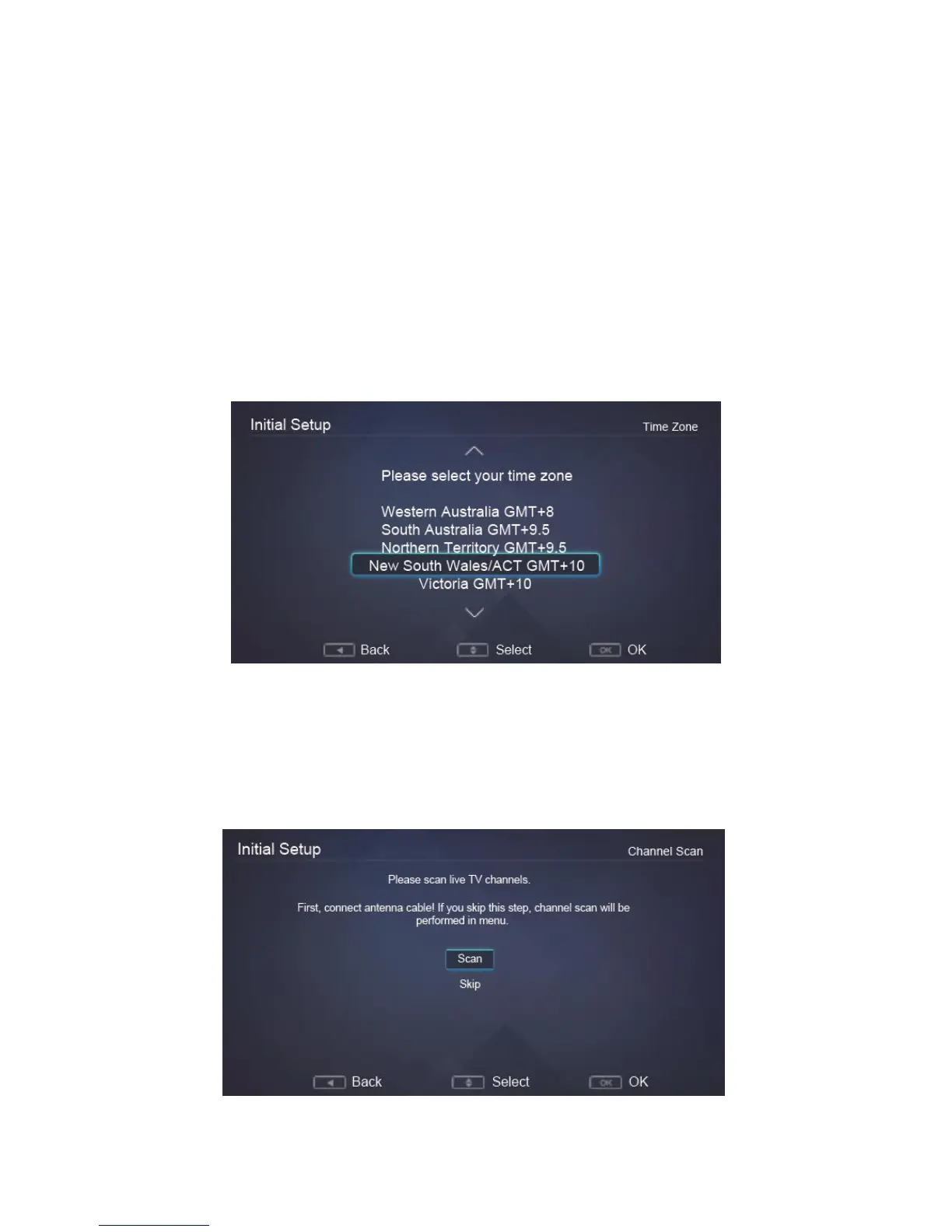
Step Five: Time Zone
▪ Use the ▲ / ▼ buttons to select your Time Zone and then press the OK button to go
to the next step.
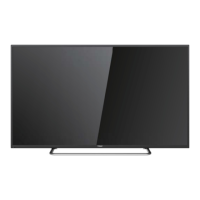
Step Six: Channel Scan
▪ Use the ▲ / ▼ buttons to select Scan and press the OK button to begin scanning for
digital TV stations. Scanning will take a few minutes. If you need to exit channel
tuning, press the EXIT button. You will be asked to confirm “Yes/No”. (You can
always rescan later from the TV Menu “Auto Tuning”.)
▪ When channel scanning is complete, your TV will show the first channel on the
channel list.
.



 To Next Page