Option
Menu system instruction
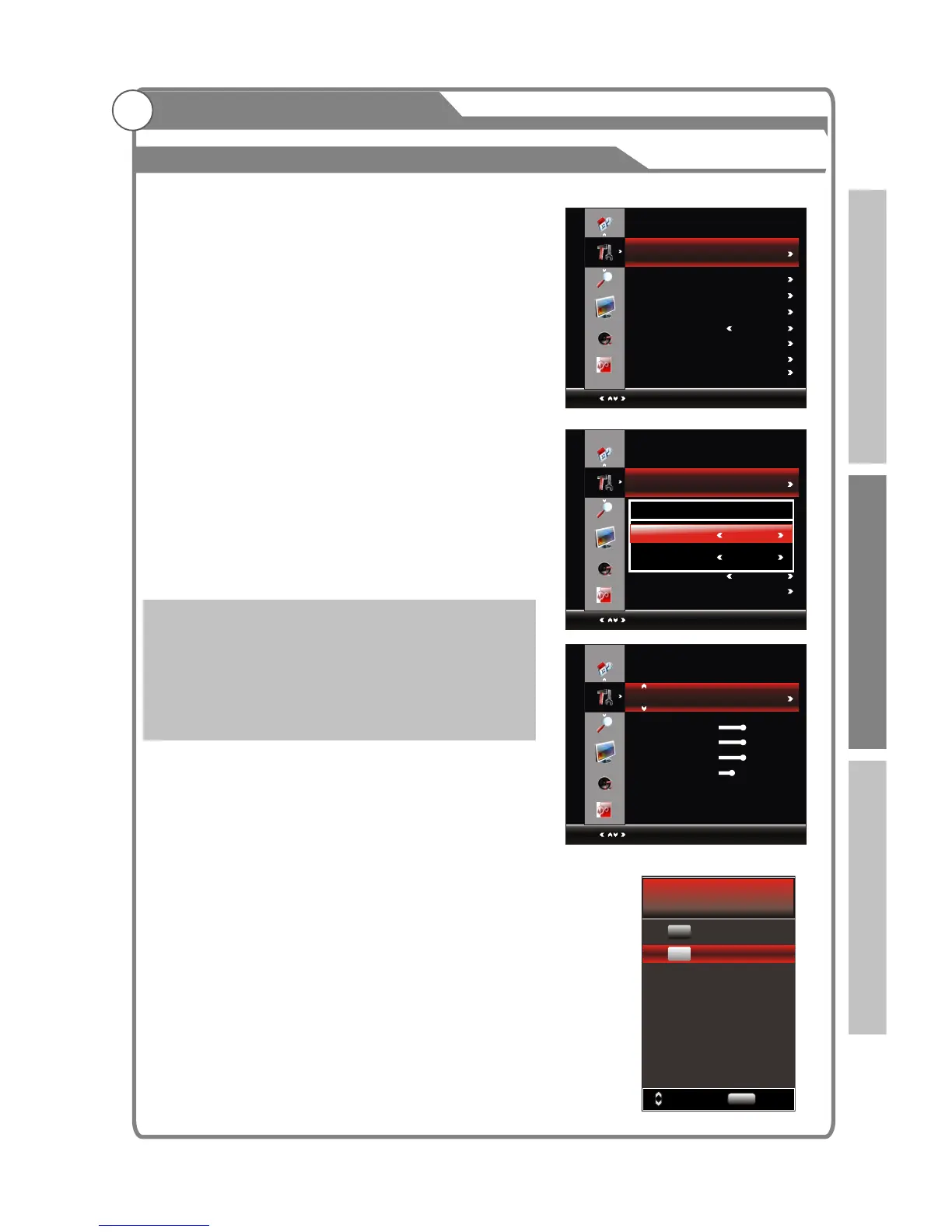
1. Press MENU key to display the main menu on the screen.
2. Press p/q key to select "Option" option.
3. Press u key to enter “Option” submenu.
1. Press p/q key to select “ " option.
2. Press OK or u key to display the OSD setting menu.
OSD Language: select the proper language
OSD Time : Set the preferred amount of time for
the OSD to be displayed on the screen.
Window
This option is only used when PC mode has signal.
1. Press p/q key to select “Window" option.
2. Press OK or u key to display the “Window" menu.
wAuto Adjust: Allows you to set the TV to self-adjust to
the incoming PC video signal. The fine, coarse and
position values are adjusted automatically
wH-Postion: Set horizontal of picture.
wV-Postion: Set vertical of picture.
wClock/Phase: Remove or reduce picture noise.
1. Press p/q key to select “ " option.
2. In the “ "setting page, you can
select primary and seconding languages.
3.In the "Audio languages" setting page, press
p/qkey to select the audio languages.
NOTE: This option is only used in DTV .
OSD Setting
You can modify the OSD set to suit your user
preferences.
OSD Setting
position
position
Audio languages
Audio languages
Audio languages
33
OPTIONOPTIONOPTION
Select
Select
Select
Menu:Exit
OSD Setting
OSD Setting
Auto Adjust
Window
Window
Audio Languages
Audio Languages
Noise Reduction MIDDLE
Hearing Impaired Off
Hearing Impaired Off
Lock
Lock
PVR File System
PVR File System
Menu:Return
Menu:Return
OSD Setting
OSD Language
OSD Time
English
Always
Audio Languages
MENU
ReturnSelect
H-Position
V-Position
Clock
Phase
50
50
50
25
DOLB Y
MPEG
English
English
Software update(USB)
Reset
Introduction Basic operation Reference



 To Next Page