Device and File Management
1. Press “Input” button to select “USB”. The screen will display the USB menu
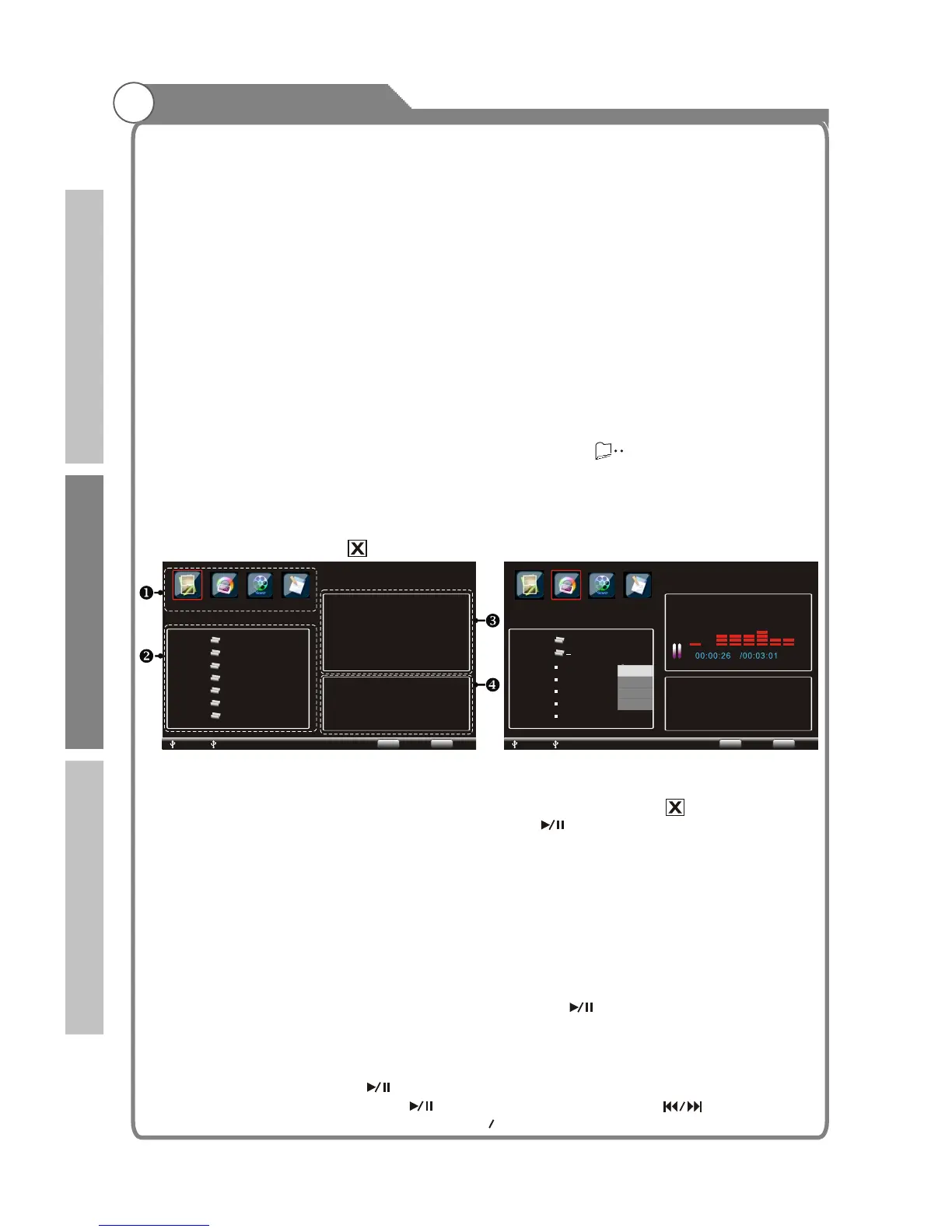
. The menu is into four sections, including: u File type section, v File list
section, w File preview section, x File information section. The system will search
the device automatically. If no USB device connects, the menu will display
.
2. Plug the USB device into the USB port, the system will automatically read and display
the device as 2. The file list section display the folders and picture files of the
first drive.
3. USB menu, press “ / button to select the file type: PHOTO/
MUSIC/MOVIE/TEXT. Press “OK” and “ / button to select the drive and
press “OK” button to show the file list.
4. In the file list section, press “ / button to select folder
Press “OK” button to enter this folder. Select “ ” press “OK” button to
return .
5.
.
Press “OK” button to show the submenu, you can select: “Play/Select/Select All/Deselect
all”, it will be signed as “ ”, if it has been selected.
Note:1.
Press “ ” “ ” or select all by
“OK” , then press “ ” to play.
2. When you select multi files, it will play in sequence.
3. If the USB device have only one drive, you can’t change the drive and the system
will select this drive as default.
4. You can select up to 200 files at one time.
Picture
1. Select “PHOTO”in the file type section, and press “OK” button to show the file list.
2. Select one file and press “ ” button to sign it. Press button to display the
picture file.
3. When more than one file is selected, they will at the speed of 5 seconds
per file.
4. If no file is signed, press “ ” button to display all the files in current directory.
5. When the file is playing, press “ ” button to play/pause ,press “ ” button to
switch to the next/previous file, press “ PgUp PgDn ” button to zoom in/out the picture(You
as per Figure
1 divided
'NO DEVICE'
at the bottom of the screen
per Figure
From the t u”
p q”
p q” (if your files are sorted into
folders, the folders will be displayed. If there are no folders, only the files will be
displayed). and
to the folder list
The file that is highlighted will be automatically displayed in the preview window.
PLEASE NOTE: Larger files will take longer to displayed in the preview window.
To play multiple files in sequence, the files must be selected first.
u button and assign each file you wish to view with
pressing on the submenu
u “ ”
cycle through
Digital Media Player
Figure 2
40
USB1
USB2
( )( )
( )( )
C: Page 1 / 2
Select
PHOTO
MUSIC
TEXT
MOVIE
Menu
BackEnter
OK
C:
RM Stream
Chattahoochee.MP3
Summertime.MP3
Wanted.MP3
Someday.MP3
Dallas.MP3
Play
Select
Select All
Deselect All
Album:
Title:
Bit Rate: 192K
Artist:
Sampling: 44K
Year:
Figure 1
USB1
USB2
( )( )
( )( )
C: Page 1 / 2
C:
Select
PHOTO
MUSIC
TEXT
MOVIE
RM Stream
MOVIE
RMVB Stream
H.264
RM HD Movie
.wd_tv
AVI
Menu
BackEnter
OK
Introduction
Basic operation
Reference


 To Next Page
 Loading...