Menu operation
The main interface
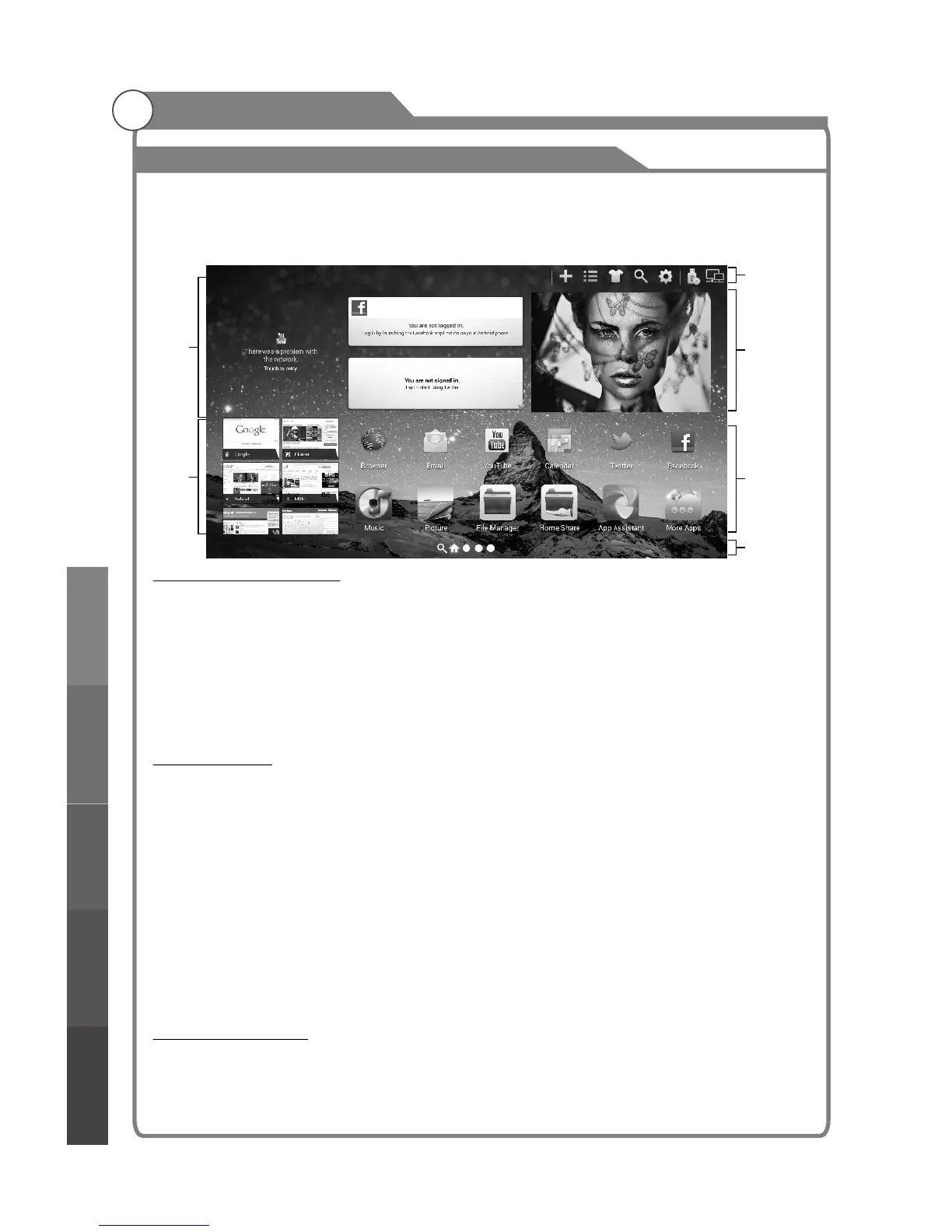
You will enter the home page directly after the TV is turned on. The page shows preset
apps and widgets for video, social medis and internet browsing. Press the MEDIA
CENTER button to return to the home page from other app / video modes.
Home page navigalion
Select: Press p q t u to select different objects on the menu and move between
pages. The currend selection is highlighed with an orange frame.
(Default selection: video mini frame)
Confirm: Press OK to confirm the selection and open it.
Use on-screen pointer: Press OSC to turn the pointer on/off. Press p q t u to
move the painter.
Options menu
There are some options on the top right corner:
1. Add shortcut: Place a new shortcut to an app onto a custom page. To remove a
shortcut, select the shortcut, press the MENU button and choose “Remove”.
Note: The home page cannot be changed.
2. All apps: View all installed apps in the Apps folder.
3. Change wallpaper: Choose from preinstalled wallpapers or add your own.
4. Search: Go to the Google search bar.
5. Settings: Access system settings and information.
6. Mass storage: View connected data storage devices.
7. Network: Access network options and set up internet connection.
Firmware Upgrade
In the Setting menu, go to System"SW Upgrade. (Fiemware version is shown in
System Info.)
Upgrade by USB: Use a firmware file from www.teac.comau saved on a USB drive.
Upgrade online: Download and install new firmware directly using the Internet.
Basic Operation
22
Basic operationMenu system
instruction
Digital Media PlayerTroubleshooting
Picture defects and
the reason
Social
media
widgets
Internet
browser
Options
Mini frame
(Video,
DTV by default)
App
shortcuts
Page
shortcuts



 To Next Page