English - 13 -
Signal” may be displayed if the antenna settings are
Media Playback via USB Input
You can connect 2.5” and 3.5” inch (HDD with external power
supply) external hard disk drives or USB memory stick to your
TV by using the USB inputs of the TV.
IMPORTANT!
before connecting them to the TV. Manufacturer will
Certain types of USB devices (e.g. MP3 Players)
or USB hard disk drives/memory sticks may not be
compatible with this TV. The TV supports FAT32 and
NTFS disk formatting.
Wait a little while before each plugging and unplugging
so may cause physical damage to the USB player
and the USB device itself. Do not pull out your drive
You can use USB hubs with your TV’s USB inputs.
External power supplied USB hubs are recommended
in such a case.
It is recommended to use the TV’s USB input(s)
directly, if you are going to connect a USB hard disk.
Note: Media Browser menu
USB device.
Media Browser
photo files stored on a USB storage device by
connecting it to your TV. Connect a USB storage device
to one of the USB inputs located on the side of the TV.
After connecting a USB storage device to your TV
Media Browser menu will be displayed on the screen.
You can access the content of the connected USB
device any time later from the Sources menu. Select
the related USB input option from this menu and press
OK. You can also press the Source button on the
remote and then select your USB storage device from
and press OK to display or play it back.
You can set your Media Browser preferences by
using the Settings menu. Settings menu can be
accessed via the information bar which is displayed
on the bottom of the screen while playing back a video
Info button
if the information bar has disappeared, highlight the
gear wheel symbol positioned on the right side of
the information bar and press OK. Picture Settings,
Sound Settings, Media Browser Settings and
Options menus will be available. The content of the
Settings menu may change according to the type of
Sound Settings
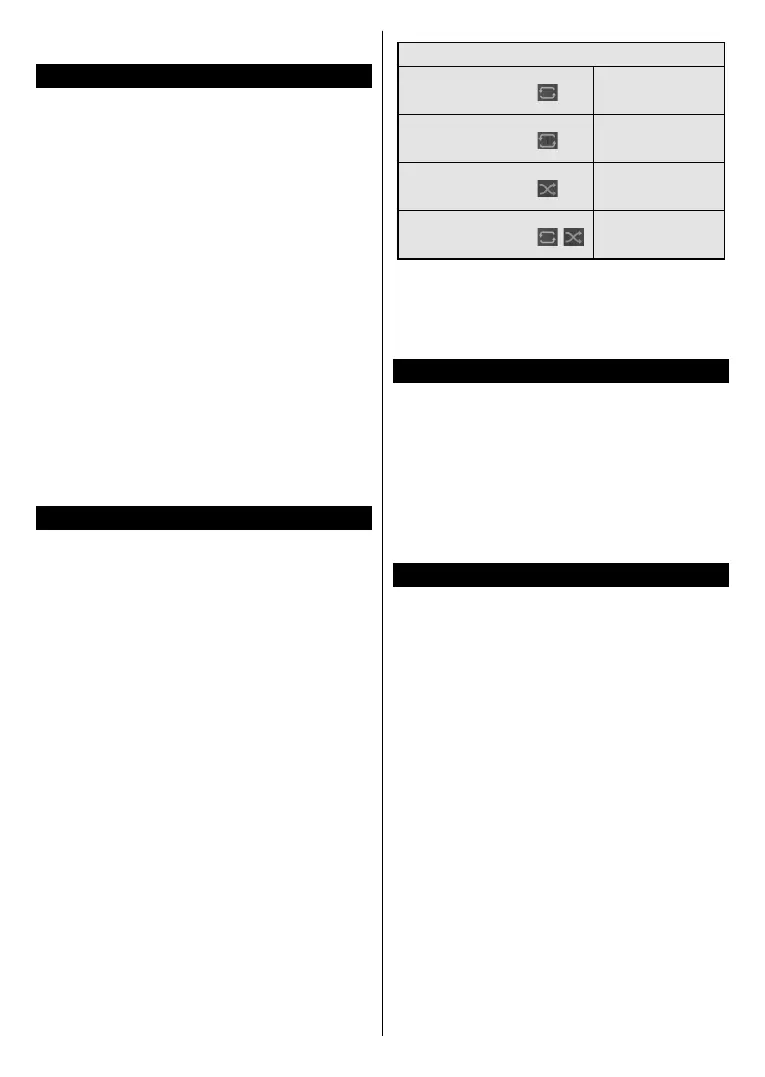
Loop/Shue Mode Operation
Start playback and activate
continuously played in
original order
Start playback and activate
played continuously
(repeat)
Start playback and activate
played once in random
order
Start playback and activate
,
continuously played in
the same random order
To use the functions on the information bar highlight the
symbol of the function and press OK. To change the
status of a function highlight the symbol of the function
and press OK as much as needed. If the symbol is
marked with a red cross, that means it is deactivated.
FollowMe TV
With your mobile device you can stream the current
broadcast from your smart TV using the FollowMe
TV feature. Install the appropriate Smart Center
application to your mobile device. Start the application.
For further information on using this feature refer to
the instructions of the application you use.
Note: Depending on model, your TV may not support this
function. The application may not be compatible with all mobile
devices. UHD (4K, Ultra HD) channels are not supported and
both of the devices must be connected to the same network.
CEC
This function allows to control the CEC-enabled
devices, that are connected through HDMI ports by
using the remote control of the TV.
The CEC option in the Settings>System>Device
Settings menu should be set as Enabled
the Source button and select the HDMI input of the
connected CEC device from the Sources List menu.
When new CEC source device is connected, it will be
listed in source menu with its own name instead of
the connected HDMI ports name(such as DVD Player,
Recorder 1 etc.).
The TV remote is automatically able to perform the
main functions after the connected HDMI source has
been selected. To terminate this operation and control
the TV via the remote again, press and hold the “0-
Zero” button on the remote control for 3 seconds.
You can disable the CEC functionality by setting the
related option under the Settings>System>Device
Settings menu accordingly.
The TV supports ARC (Audio Return Channel). This
feature is an audio link meant to replace other cables
between the TV and an audio system (A/V receiver or
speaker system).



 To Next Page