5
Non contractual document subject to change in case of typographical errors (Mktg0710) COPYRIGHT SOPEG 2010)
ENGLISH
2. Using the “Left/Right” keys on the remote, select the
“Files” icon and press “Enter”.
3. The screen will ask “Resize?”
4. Select the option you want using the “Left/Right” keys on
the remote, and press “Enter”. Your file is then copied.
If your memory card contains one or more folders, you can copy
them in full. They will be stored in the internal memory’s “Root”
folder, and you can read each independently of the others
- Copy your photos from the thumbnail mode
Using this method, you can copy all or a selection of photos, with
the ability to resize them to the frame’s resolution in order to
optimize internal memory capacity.
1. Press the “Exit” key on your remote as many times as
necessary for the mode selection screen to come up.
2. Select the removable medium (memory card or USB key)
storing the photos to be copied using the “Left/Right” keys
on the remote. Press “Enter”.
3. Using the “Left/Right” keys, select photo mode and press
“Enter”. The slideshow will then start.
4. Press the “Exit” key on the remote to access the
thumbnails.
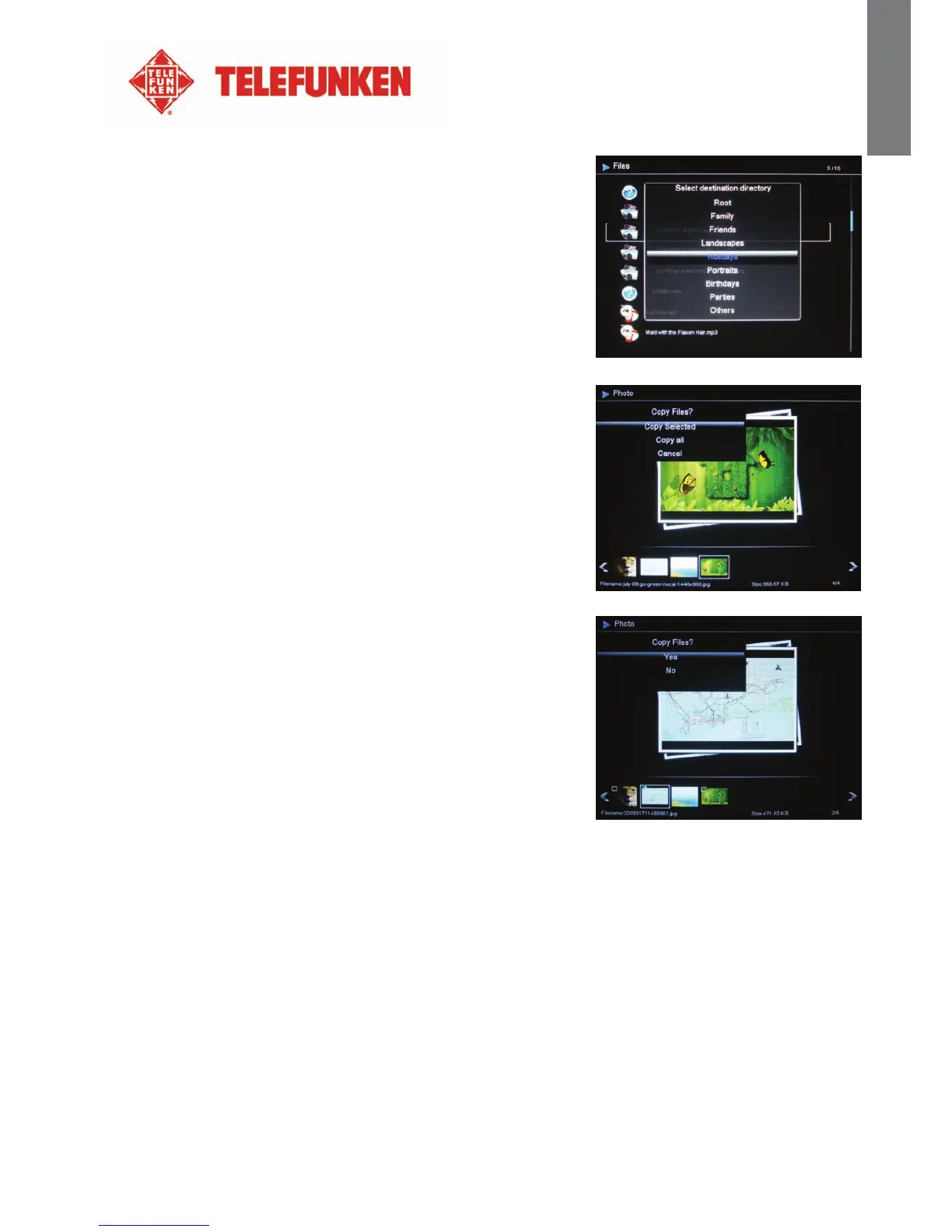
5. Press the “Copy/Del” key. The screen will display “Copy
files?” Select “Yes” and press “Enter
”.
6. The thumbnails will appear, with a check box in the upper
left corner of each picture. Select photos to be copied using
the “Left/Right” keys on the remote, pressing “Enter” for
each photo you wish to select. (If you choose “Copy all”,
every thumbnail will show a tick mark.
7. Press the “Copy/Del” key, a confirmation message will
appear.
8. Press “Enter” to confirm your selection, then select the directory you want to copy your pictures.
Press “Enter”.
The screen will show a dialog box asking you if you want to resize your images.
9. Select the desired option using the “Up/Down” keys on the remote and confirm the choice by
selecting “Confirm”. Press “Enter”. Your photos are now copied into the internal memory and sized
to the frame’s resolution.


 To Next Page