14
Tip: Call logs can be also directly accessed by pressing the key from the main
screen. In this case missed, dialled, received, and rejected calls will be shown
together.
6.6 Using phonebook (Contacts)
You can store contact information for your Contacts both on your SIM card and your phone. The
phone memory can hold up to 300 contacts.
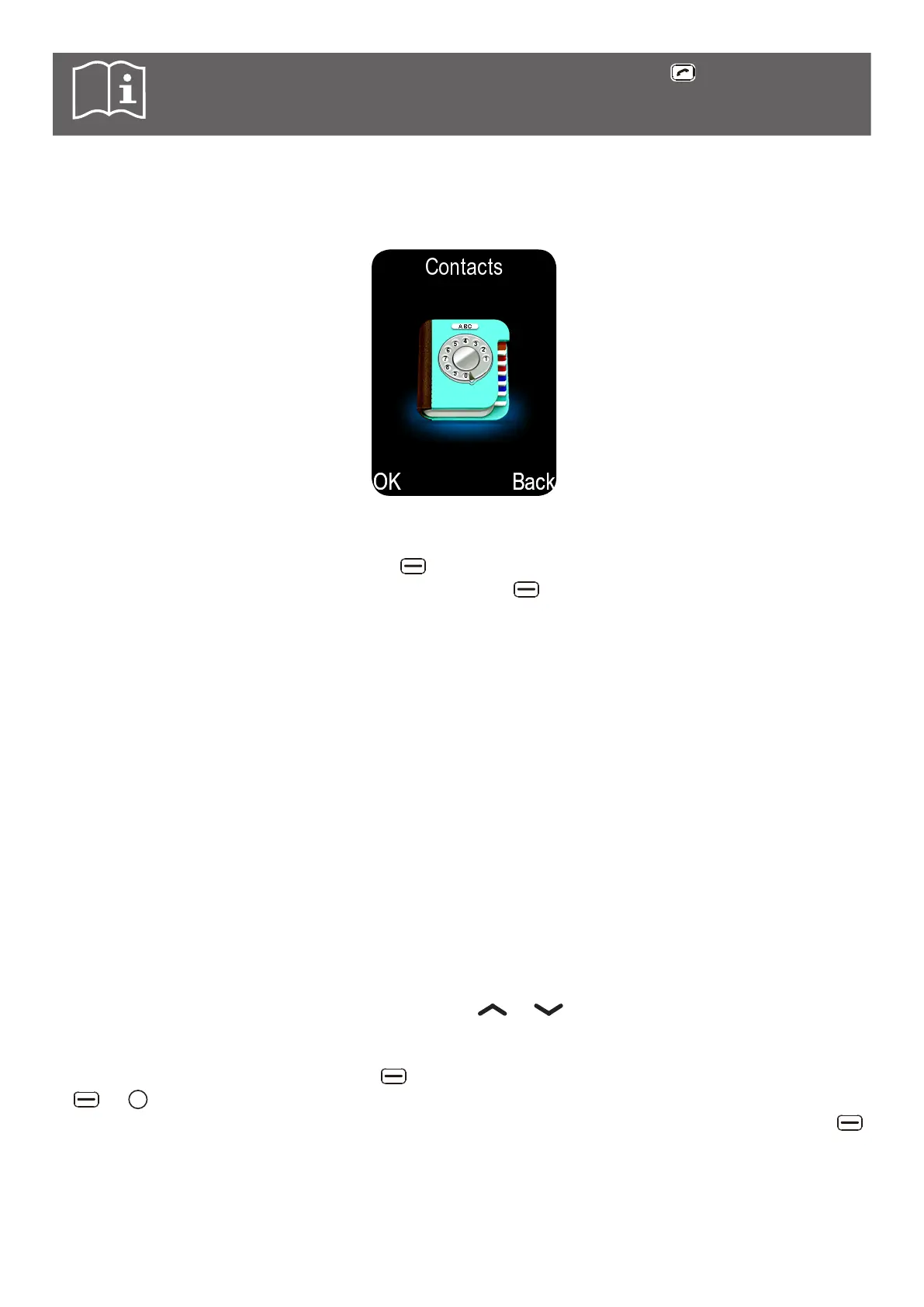
To access your Contacts, press the right key from the main screen or enter the main menu
and select Contacts. When in Contacts, press the left key to see available options:
View contact
Display and edit the name and number of the selected contact.
New contact
Add new number to contact list via saved in the phone or SIM
card.
Write message
Send SMS or MMS message to selected contact.
Call
Call selected contact.
Delete
Delete selected contact from contact list.
Delete multiple
Mark several contacts to delete them at once.
Copy/Move
Copy or move contacts from SIM card to phone.
Import/Export
Import or export contacts to or from another folder.
Add to/remove from
blacklist
Add or remove the selected contact from the blacklist.
Others
Access to set Speed dial number (Assign selected contact to a
direct memory key: M1 & M2; or to numbers 2 to 9) and allows for
checking memory status.
Quick search
1. In the Contacts menu, press any numeric key between 0 - 9, to access the search box.
2. Use the keypad to input the name of a contact. The relevant contacts will be listed on the
screen as the selection is narrowed down. Press or to select desired contact.
To add a new contact
1. In the Contacts menu, press the left key, scroll down to New contact, then press the left
or key. Select where (in the phone or SIM card) to save the contact.
2. Select the item (Modify icon, Name, Mobile, Default ringtones) to be modified, press the left
key and select Edit, then use the keypad to enter the information. All these options are available
if contact is created on Phone memory. If contacts are created on the SIM card, only "Name"
and "Mobile number" options are available.



 To Next Page