© 2011 TeleType Co.
81
Working with My Points
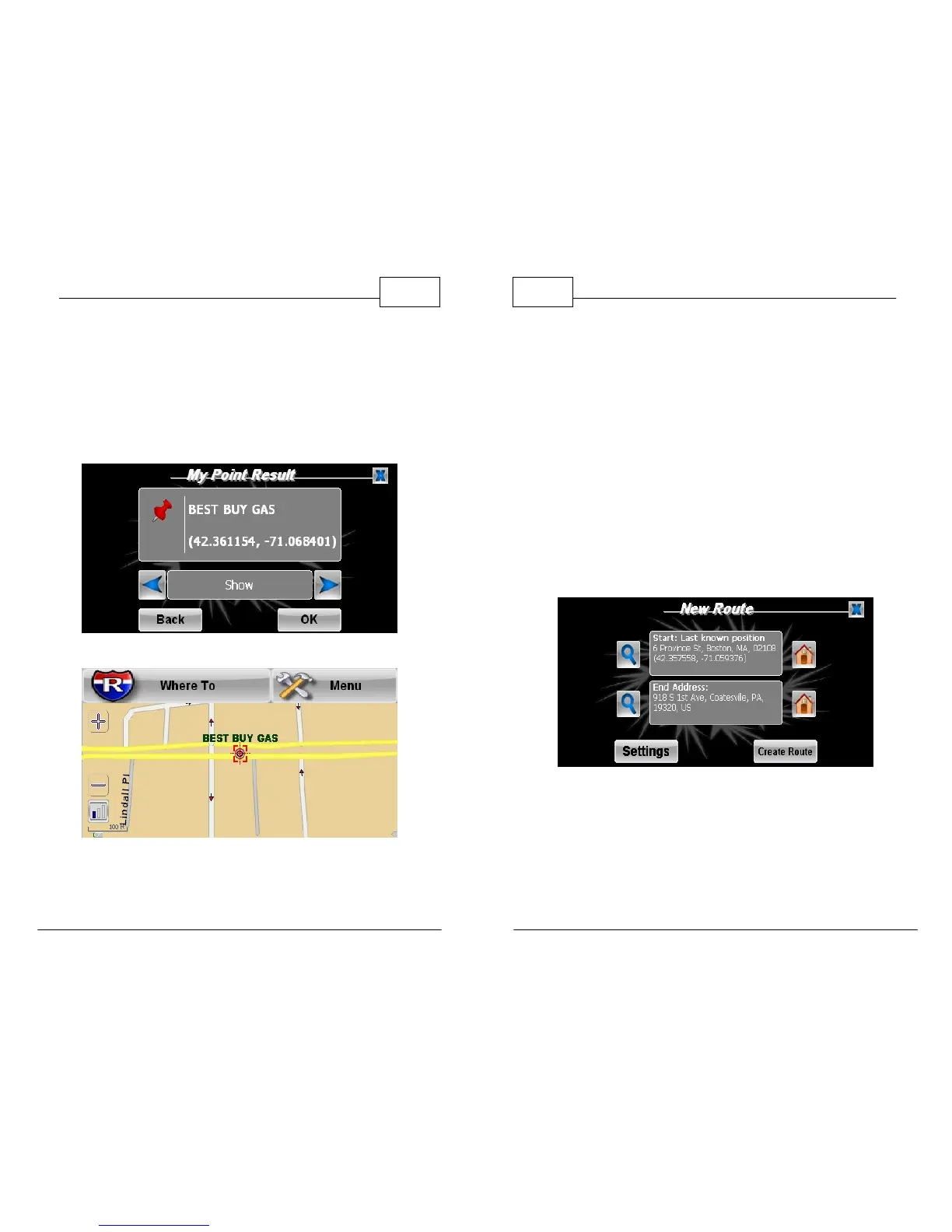
5. To view your edited My Point, press the check
mark icon next to it. Select the <Show> option
displayed in the text field and press <OK>. This
will take you to the map with your My Point
centered on the screen.
Find Result - Show My Point
Icon Indicates Your My Point
WorldNav Navigation Software
82
© 2011 TeleType Co.
3.5 Route Via
Using your My Points feature, it is possible to create
a route with an unlimited number of stops by
selecting the <Truck Via> option in your Route
Settings. You can route via an address, Service, My
Point or intersection.
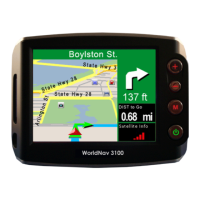
To create a route with VIA points, select <Menu>,
<Route Menu>, <New Route>. Once you have your
route selected, tap the <Settings> button.
New Route
1. Use the right or left arrow icons to select
<Truck Via> in the middle panel. Press <OK>.



 To Next Page