© 2011 TeleType Co.
87
Navigation Preferences
pressing the icon once. A gray "X" icon will
display when the feature is not activated.
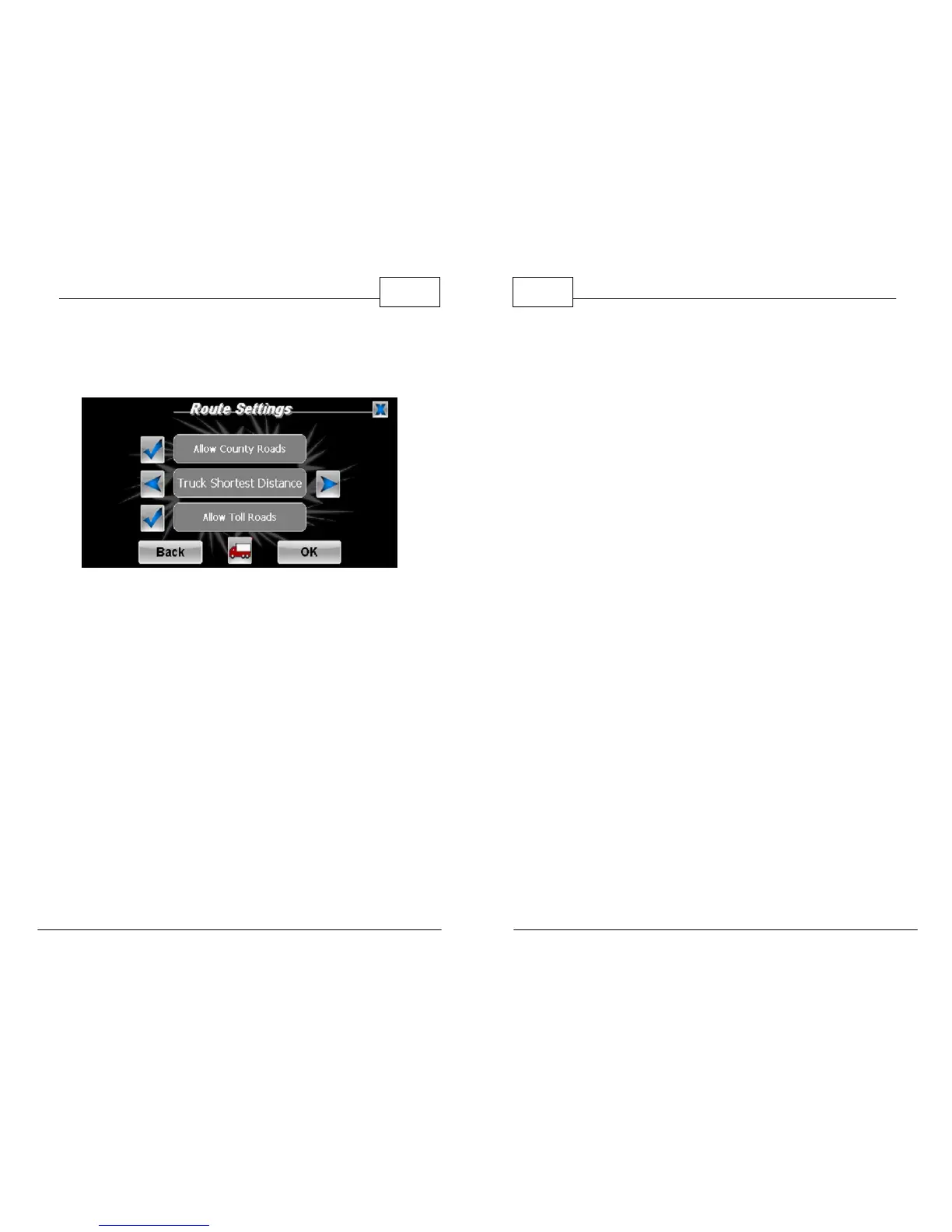
Route Settings
3. You also have the choice of several route
methods depending upon the product you are
using. Use the arrow icons to choose the
desired method of routing. In most cases the
route will change based on your choice; in
other cases the same route will be generated
regardless of the setting. You can select from:
• Truck Freeways - favors highways - it will route
around major cities
• Truck Quickest - will result in the fastest route,
usually results in a route taking the least time
• Truck Shortest Distance - will result in the
WorldNav Navigation Software
88
© 2011 TeleType Co.
shortest route, likely to require more turns but
may save gas due to shorter distance
• Truck Emergency - disregards all road
restrictions EXCEPT low bridges
•
Truck Via My Points - allows a route to be
created through user-defined points
To insure that you will be routed using roads that
are suitable for trucks, be sure to keep the routing
setting on Trucks. The default truck configuration
is: 13' 6" height, 53' length, 8'5" width, 80,000 lbs,
no Hazmat. To change this configuration follow the
steps below.
4. Press the Truck logo found at the bottom
(middle) of the Route Settings screen. Here
you can select <Weight>, <Dimensions> and
<HazMat>.


 To Next Page
 Loading...