© 2011 TeleType Co.
93
Navigation Preferences
4.3 Selecting Navigation Panel
Preferences
The GPS will display vital information on your
Navigation Panel. The name of the next street you
must turn onto is displayed at the top. The distance
to your next turn, as well as a directional arrow, are
shown on the upper right section. A checkered flag
will appear in the same section when you reach
your destination. The two other information areas
in the bottom right of the Navigation Panel can be
customized. There are two ways to access your
Navigation Panel Preferences.
1. Press <Menu>, right arrow two times, and then
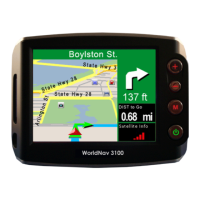
press <Nav Panel>. You can choose to display
Big Panels, Big Map, Hide Panels or See
Through Panels. You can also choose two
values to be displayed in both the Upper and
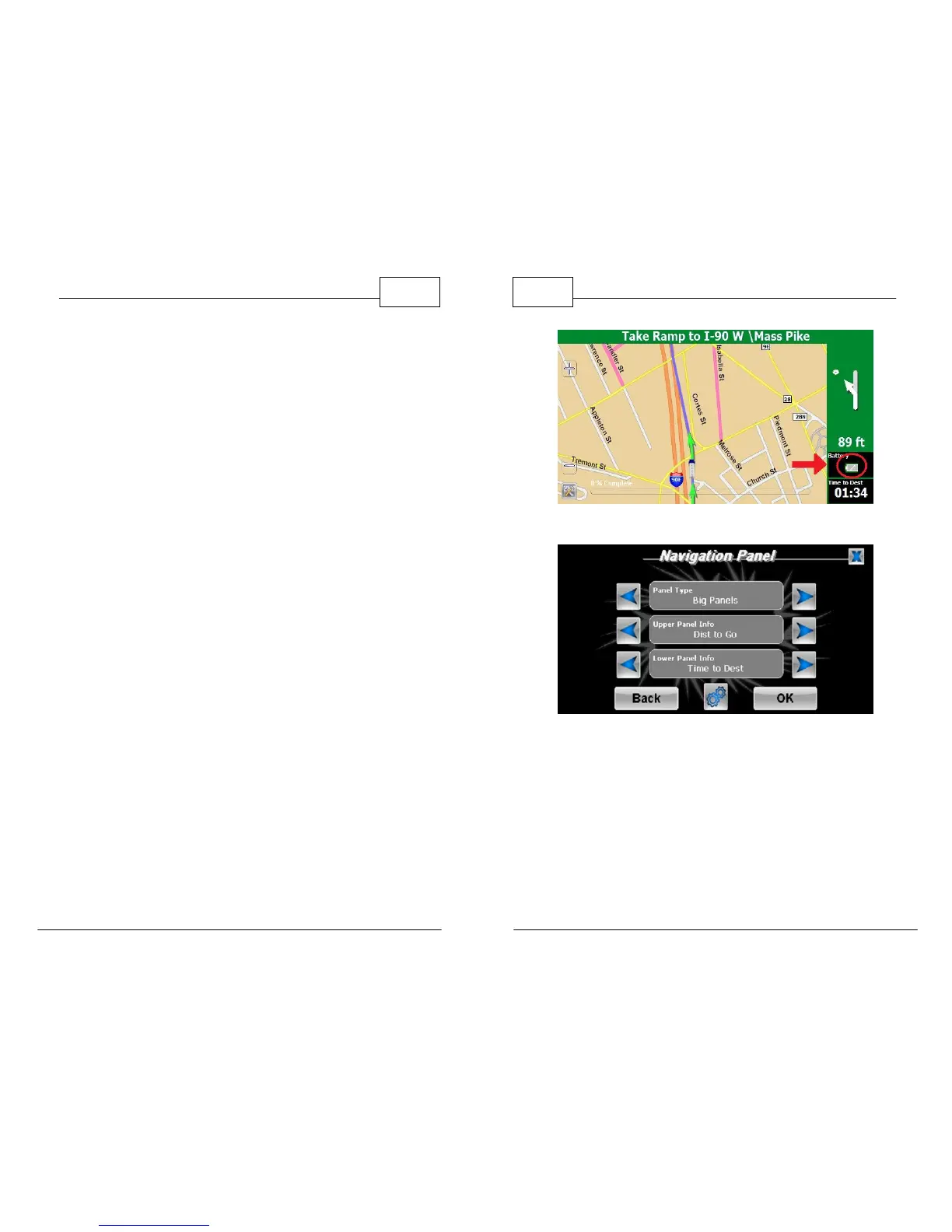
Lower Panel. For a quicker way to access your
NavPanel Preferences while in navigation
mode, tap the upper panel (indicated below).
To hear a repeat of the upcoming navigation
instruction, tap the upper right hand portion of
the screen.
WorldNav Navigation Software
94
© 2011 TeleType Co.
Press Upper Panel Icon
Navigation Panel Preferences
2. In the Navigation Panel Menu, you can scroll
the Upper and the Lower panel to select one of
the following trip information items:
•
Arrival time: Estimated time of arrival
• Via Arrival time/VAT: Estimated time of arrival



 To Next Page