How to Set a Bank
1 Start at the Select Task menu or One Cent Display.
2 Press and release the Menu button.
3 Options will be highlighted, press and release the Enter button.
4 Set Banks is highlighted, press and release Enter.
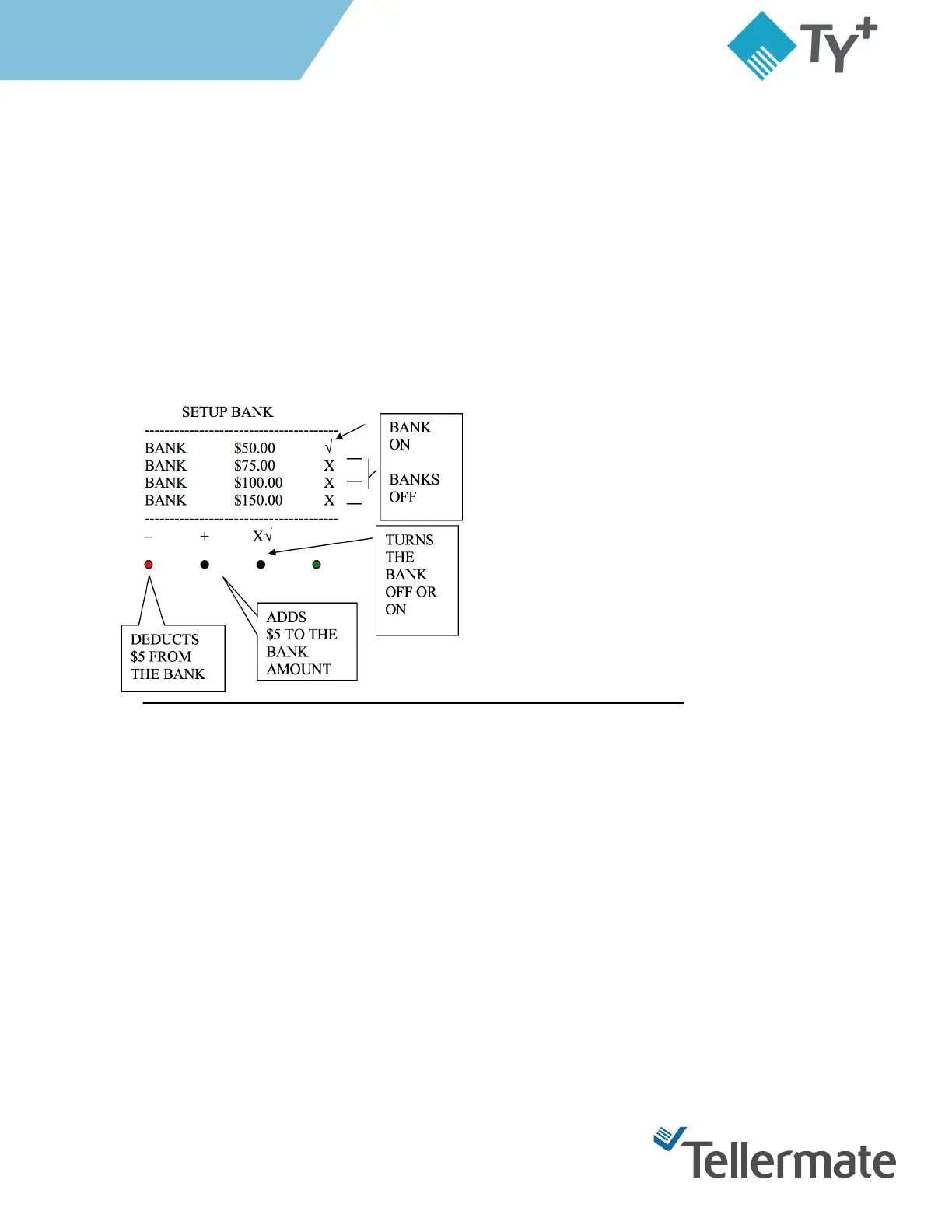
5 There are four banks to choose from.
6 To increase the bank from the current setting press and release the Black "$" button under the Plus (+) Sign
on the bottom of the screen.
7 To decrease the bank amount, press and release the Red "On/Off" button.
8 When finished, just press and release the End button Three times.
Enable Auto Add/ Scroll
1 Start at the One Cent Cup in the function you want to make the Auto Add turned on.
2 The screen will display four options.
3 Using the Bill button highlight the Auto Scroll option



 To Next Page