EasyManua.ls Logo

Telstra BUZZ - Page 123

Telstra BUZZ
133 pages
Print Icon
To Next Page IconTo Next Page
To Previous Page IconTo Previous Page
Loading...
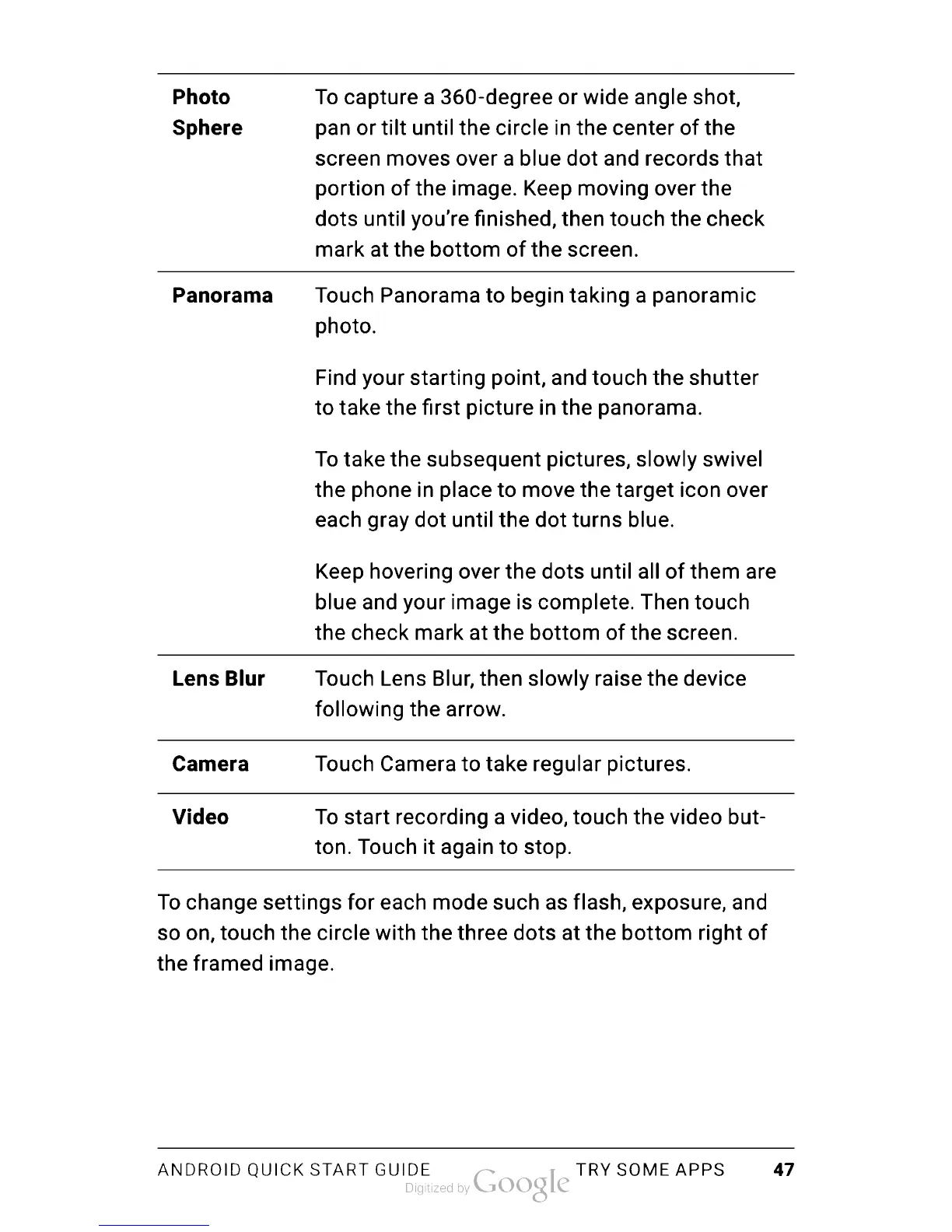
Photo
Sphere
To
capture
a
360-degree
or
wide
angle
shot,
pan
or
tilt
until
the
circle
in
the
center
of
the
screen
moves
over
a
blue
dot
and
records
that
portion
of
the
image.
Keep
moving
over
the
dots
until
you’re
finished,
then
touch
the
check
mark
at
the
bottom
of
the
screen.
Panorama
Touch
Panorama
to
begin
taking
a
panoramic
photo.
Find
your
starting
point,
and
touch
the
shutter
to
take
the
first
picture
in
the
panorama.
To
take
the
subsequent
pictures,
slowly
swivel
the
phone
in
place
to
move
the
target
icon over
each
gray
dot
until
the
dot
turns
blue.
Keep
hovering
over
the
dots
until
all
of
them
are
blue
and
your
image
is
complete.
Then
touch
the
check
mark
at
the
bottom
of
the
screen.
Lens
Blur
Touch
Lens
Blur,
then
slowly
raise
the
device
following
the
arrow.
Camera
Touch
Camera
to
take
regular
pictures.
Video
To
start
recording
a
video,
touch
the
video
but
ton.
Touch
it
again
to
stop.
To
change
settings
for
each
mode
such as
flash,
exposure,
and
so
on,
touch
the
circle
with
the
three
dots
at
the
bottom
right
of
the
framed
image.
ANDROID
QUICK
START
GUIDE
TRY
SOME
APPS
47

Table of Contents

Related product manuals