Need help?
Do you have a question about the Tenda TX2 Pro and is the answer not in the manual?
Controls WPS negotiation and router reset functions.
Details on LAN, WAN, and IPTV ports for connectivity.
Complies with FCC radiation exposure limits for uncontrolled environments.
This document provides a quick installation guide for a Dual Band Wi-Fi 6 Router, specifically covering models RX2 Pro/TX2 Pro/RX1 Pro/TX1 Pro/RX2/TX2/RX1/TX1. It outlines the steps for connecting the router, setting up internet access, and provides details on LED indicators, ports, buttons, and frequently asked questions. The guide emphasizes ease of setup and offers troubleshooting tips for common issues.
The device functions as a Dual Band Wi-Fi 6 Router, designed to provide internet access and manage network connections. It supports Wi-Fi 6 technology, offering faster, safer, smoother, and smarter network performance. The router can be connected to a modem or directly to an Ethernet jack for internet access. It features multiple LAN ports (1, 2, and IPTV/3) for connecting wired devices such as computers, switches, game machines, and set-top boxes. The IPTV/3 port is a LAN port by default but can be configured to serve as an IPTV port when the IPTV function is enabled. The router also includes a WAN port for connecting to a modem or Ethernet jack.
The device supports both 2.4 GHz and 5 GHz Wi-Fi networks, allowing for flexible connectivity options for various devices. It can automatically detect the internet connection type, simplifying the initial setup process. For internet access requiring PPPoE, the router allows users to manually enter their username and password or import them from an original router.
A key feature is the WPS/RST button, which serves a dual purpose: initiating a WPS negotiation process for quick, password-free connection to a Wi-Fi network, and resetting the router to its factory default settings.
The router is designed for straightforward installation and use. Users can connect to the router's Wi-Fi network using a smartphone or other Wi-Fi-enabled device, or via an Ethernet cable to a computer. The initial setup can be performed through a web UI by navigating to tendawifi.com in a browser or by using the Tenda WiFi App. The app provides a convenient way to manage the router, including remote management capabilities once configured.
For optimal Wi-Fi performance, specific positioning guidelines are provided: placing the router in an elevated, open, and unobstructed location, positioning all antennas upright, and keeping it away from metal obstructions and strong interference sources like microwaves or refrigerators.
The setup process is guided, starting with powering on the router, connecting the WAN port, and then connecting client devices. The web UI or app prompts users through steps like detecting the internet connection type, entering ISP details if necessary (e.g., PPPoE username and password), and setting the Wi-Fi name, Wi-Fi password, and router login password. The system automatically detects the connection type, and if no further configuration is needed, users can simply proceed. If PPPoE is required, the interface guides users to input the necessary credentials.
After configuration, users can connect their Wi-Fi-enabled devices using the newly set Wi-Fi name and password, or wired devices to the LAN ports. The Tenda WiFi App allows for easy management of the network, including remote access.
The device incorporates several features to assist with maintenance and troubleshooting. LED indicators provide visual feedback on the router's status:
The WPS/RST button is a critical maintenance tool. A short press initiates WPS, while holding it down for about 8 seconds (until the LED blinks fast) resets the router to its factory defaults, which is useful for troubleshooting persistent issues or reconfiguring the device.
The FAQ section addresses common problems such as inability to log into the web UI, failure to access the internet after configuration, and issues with the Tenda WiFi App detecting the device. It also provides instructions on how to reset the router and troubleshoot problems with 5 GHz Wi-Fi networks. For example, if internet access fails, users are advised to check cable connections, log into the web UI to review Internet Settings, and ensure client devices are properly connected and configured to obtain IP and DNS addresses automatically.
The device is designed for indoor use only. It is recommended to use the included power adapter. The mains plug serves as the disconnect device and should remain readily operable, with the power socket installed near the device for easy access. These guidelines contribute to safe operation and ease of maintenance. The manual also provides a QR code for "Product Documents" (datasheet and user guide) for more detailed information and support.
 General
| DSL WAN | No |
|---|---|
| Ethernet WAN | Yes |
| WAN connection type | RJ-45 |
| Wi-Fi band | Dual-band (2.4 GHz / 5 GHz) |
| Wi-Fi standards | 802.11a, 802.11b, 802.11g, Wi-Fi 4 (802.11n), Wi-Fi 5 (802.11ac), Wi-Fi 6 (802.11ax) |
| Top Wi-Fi standard | Wi-Fi 6 (802.11ax) |
| WLAN data transfer rate (max) | 1000 Mbit/s |
| WLAN data transfer rate (first band) | 300 Mbit/s |
| WLAN data transfer rate (second band) | 1201 Mbit/s |
| Cabling technology | 10/100/1000Base-T(X) |
| Networking standards | IEEE 802.3, IEEE 802.3ab, IEEE 802.3u |
| Ethernet LAN data rates | 10, 100, 1000 Mbit/s |
| Ethernet LAN interface type | Gigabit Ethernet |
| Number of guest networks (2.4 GHz) | 1 |
| Security algorithms | WPA2-PSK, WPA3, WPA3-SAE |
| Ethernet LAN (RJ-45) ports | 3 |
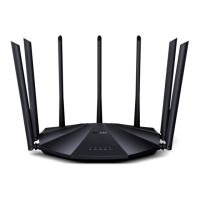
| Product type | Tabletop router |
| Product color | Black |
| LED indicators | System |
| Transmit power | 23 dBmW |
| Antennas quantity | 5 |
| Antenna gain level (max) | 6 dBi |
| Certification | FCC |
| Output current | 1 A |
| Output voltage | 12 V |
| AC input voltage | 100 - 240 V |
| Power source type | AC |
| AC input frequency | 50 - 60 Hz |
| Storage temperature (T-T) | -40 - 70 °C |
| Operating temperature (T-T) | 0 - 40 °C |
| Storage relative humidity (H-H) | 5 - 90 % |
| Operating relative humidity (H-H) | 10 - 90 % |
| Cables included | LAN (RJ-45) |
| Sustainability certificates | CE, RoHS |
 Weight and Dimensions
| Depth | 144.3 mm |
|---|---|
| Width | 238.9 mm |
| Height | 40.3 mm |


 To Next Page