Need help?
Do you have a question about the Teradek Bolt 4K 750 and is the answer not in the manual?
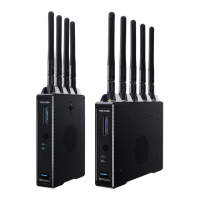
Details the physical characteristics and ports of the Bolt 4K transmitter unit.
Details the physical characteristics and ports of the Bolt 4K receiver unit.
Explains how to configure the array panel antenna for optimal video transmission.
Provides basic operational steps for powering on and using the Bolt 4K system.
Instructions for connecting power adapters and video cables to the devices.
Guidelines and cautions for using non-Teradek power cables with Bolt 4K.
Information regarding the use and compatibility of 12G-SDI cables.
Overview of the device pairing process for transmitters and receivers.
Step-by-step guide for pairing devices using the front panel menu.
Instructions for pairing devices using the Bolt Manager software via USB.
Instructions for pairing devices wirelessly using the Bolt mobile application.
Overview of the Bolt App's capabilities for managing and monitoring Bolt 4K.
Steps to enable and establish a Bluetooth connection between devices and the Bolt App.
Explains the different status screens available on the transmitter.
Overview of how to configure transmitter settings via the display or app.
Details various wireless configuration options for the transmitter.
Explains Broadcast Mode for the Bolt 4K MAX transmitter for multicast operation.
Discusses the use and performance benefits of vertical and horizontal antennas.
Provides guidance on optimal antenna placement for performance.
Describes mounting options for Bolt 4K devices when not using a dual mount.
Describes mounting options for Bolt 4K devices using a dual mount battery plate.
Allows selection between 20MHz and 40MHz operating modes for optimal performance.
Lists available frequencies and allows manual selection for stable connections.
Process for pairing transmitters and receivers, ensuring they communicate.
Process for removing paired devices from the system's registry.
Controls the OLED display operation, including dimming and invert intervals.
Resets all configurable options to their original factory default values.
Displays the model and serial number of the device for identification.
Shows the current firmware versions installed on the device.
Explains the different status screens available on the receiver.
Overview of how to configure receiver settings via the display or app.
Allows switching between paired transmitters for camera feed selection.
Configures receiver to use a specific frequency, bypassing auto-switching.
Allows selection between 20MHz and 40MHz operating modes for the receiver.
Lists available frequencies for the receiver and allows manual selection.
Indicates the quality and reliability of the received signal based on interference.
Allows selection of various HDMI output modes and color space settings.
Contains settings for applying 3D LUTs to video output for color grading.
Configures audio settings, including beep on record and muting options.
Explains how to down-convert 4K video to HD for display on an HD monitor.
Clarifies that Bolt 4K is not compatible with previous generation Bolt systems.
Details supported SDI metadata and ancillary data passthrough from cameras.
Troubleshoots issues where the Bolt App does not display the Bolt 4K unit.
Recommends using 6G/12G capable SDI or HDMI 2.0 cables for reliable operation.
Details the supported AC adapter specifications for powering Bolt 4K devices.
Discusses the possibility of user-installed battery plates on Bolt 4K units.
States that the manual is for user information and efforts have been made for accuracy.
Warns about sensitive electronic components and handling precautions against ESD.
Provides information on FCC compliance for digital devices and interference limits.
Declares compliance with European directives and provides a link to the full text.
 General
| Latency | < 1 ms |
|---|---|
| Wireless Frequency | 5 GHz |
| Encryption | AES-256 |
| Wireless Range | 750 feet (line of sight) |
| Supported Video Inputs | HDMI |
| Supported Video Outputs | HDMI |

 To Next Page