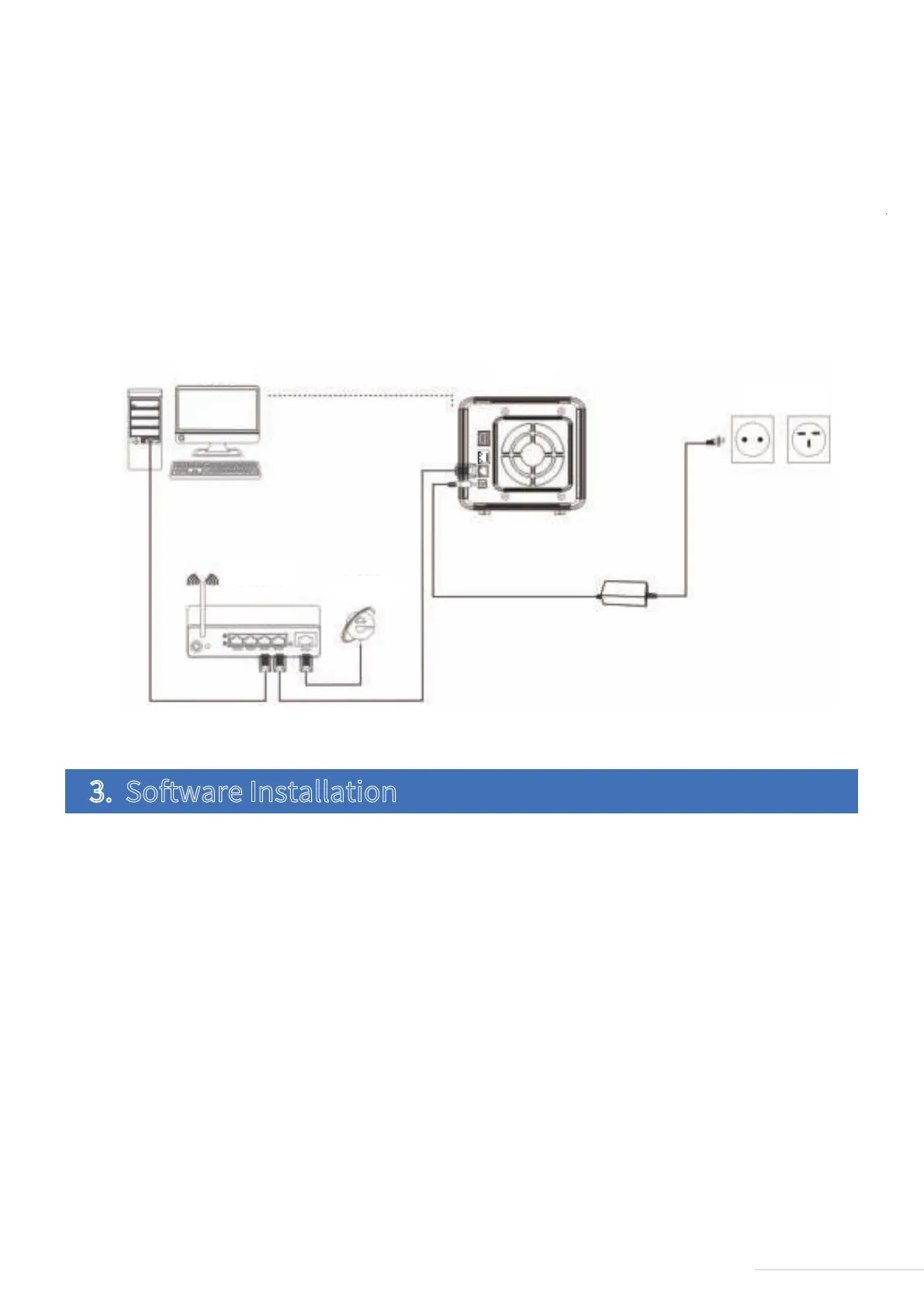
Step 3:
Press the power button to power on TNAS.
Step 4:
If the hardware indicator is always red, this indicates that the hard drive is functioning abnormally. The
hard drive may be damaged, or the hard drive may not be compatible with the TNAS device. If this
happens, please re-install or replace the hard drive and try again.
Step 5:
If the hard drive indicators and network indicators display a normal connection, your TNAS hardware is
ready.
To ensure that TNAS functions properly, please install some necessary software.
TNAS PC is a desktop application designed for TNAS devices. It helps you to quickly search, log in, or set up
your TNAS. The application is available in both Mac OS and Windows OS versions.
1. Visit www.terra-master.com and click “Download”
2. Select your TNAS model
3. Locate TNAS PC using the download checklist
4. Choose a version that works for you and click “Download”
5. Install the TNAS PC application you just downloaded onto your computer
Please follow the instructions below to download the TNAS PC application:
3.1 TNAS PC
3. Software Installation
Computer
Router
Network
Power
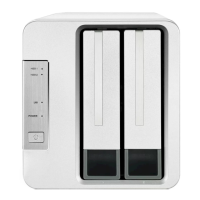
F2-210
5
Model:F2-210



 To Next Page