Scroll Buttons
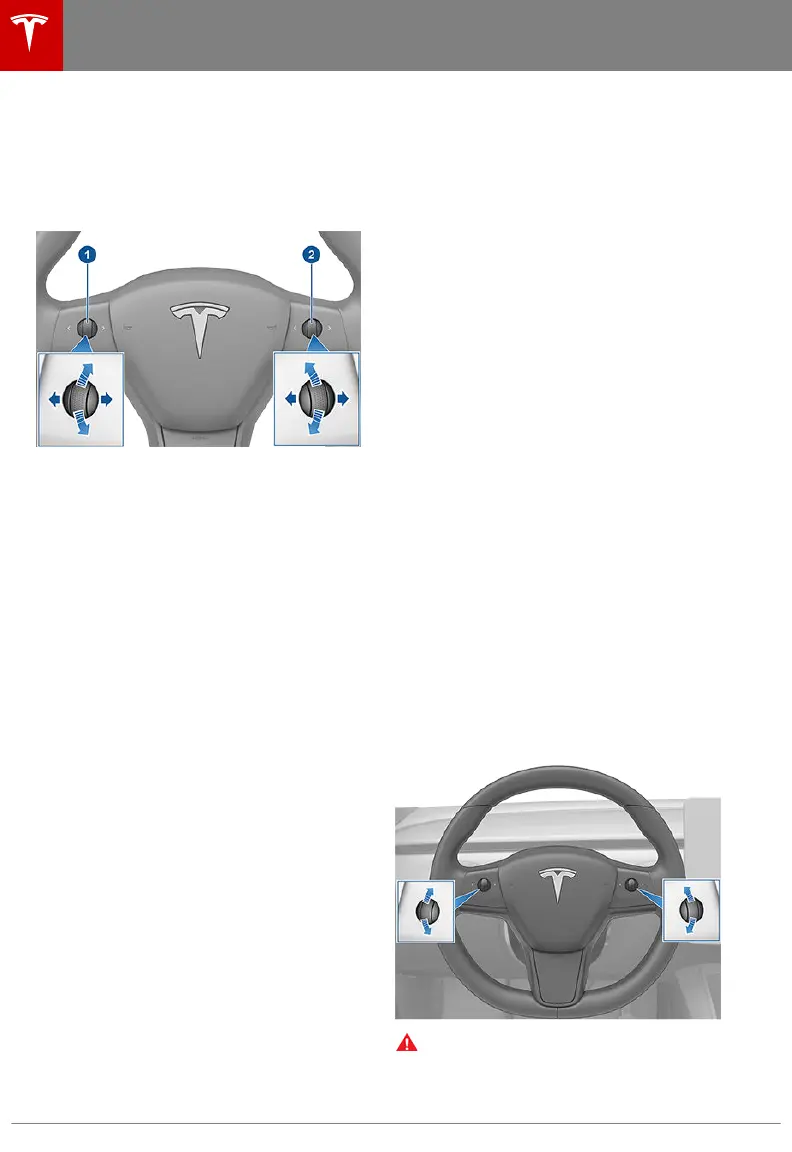
A scroll button is located on each side of the
steering wheel. Each button has a wheel that
you can roll up and roll down. You can also
press a button straight in, to the right, or to
the left, typically using your thumb.
Note: The arrows associated with the scroll
buttons are backlit in low ambient lighting
conditions. To turn this backlighting on or
o,
touch Controls > Lights > Settings > Steering
Wheel Lights.
1. Use the left scroll button to:
• Control the volume. Press the scroll
button to mute/unmute the volume,
roll the scroll wheel up to increase the
volume, or down to decrease the
volume.
Note: The scroll button adjusts the
volume for media, navigation
instructions or phone calls based on
what is currently in use. As you adjust
volume, the touchscreen displays the
volume level and whether you are
adjusting volume for media,
navigation or phone calls.
• Push the scroll button to the right to
go to the next/previous song, station,
or favorite (depending on what's
playing). Push the scroll button to the
left to go to the previous.
• Adjust the position of the left exterior
mirror (see Adjusting Exterior Mirrors
on page 38).
• If equipped with the premium
package, adjust the height/tilt angle
of the steering wheel (see Adjusting
Steering Wheel Position - Premium
Package on page 36).
2. Use the right scroll button to:
• Speak a voice command. Press the
button to initiate a voice command
(see Using Voice Commands on page
97).
• Adjust the position of the right
exterior mirror (see Adjusting Exterior
Mirrors on page 38).
• If equipped with the premium
package, move the steering wheel
forward/rearward (see Adjusting
Steering Wheel Position - Premium
Package on page 36).
The scroll buttons feature back lighting that
can be turned on or
o by touching
Controls > Lights > Settings > Steering Wheel
Lights.
To restart the touchscreen, press and hold
both scroll buttons until after the touchscreen
turns black, releasing when the Tesla logo
appears. See Restarting the Touchscreen on
page 39.
Adjusting Steering Wheel Position
- Premium Package
To adjust the steering wheel, touch Controls >
Quick Controls > Adjustments > Steering
Wheel. Use the scroll buttons on the steering
wheel to move the steering wheel to the
desired position:
• To adjust the height/tilt angle of the
steering wheel, roll the left scroll button
up or down.
• To move the steering wheel closer to you,
or further away from you, roll the right
scroll button up or down.
Warning:
Do not make steering wheel
adjustments while driving.
Steering Wheel
36 Model 3 Owner's Manual



 To Next Page