WARNING: If you turn o Require
Lane Change Confirmation,
Navigate on Autopilot notifies you
of upcoming lane changes and o-
ramps, but it remains your
responsibility to monitor the
environment and maintain control
of Model X at all times. Lane
changes can occur quickly and
suddenly. Always keep your hands
on the wheel and your eyes on the
driving path in front of you.
NOTE: The touchscreen displays route-based
lane changes at the top of the map's turn-by-
turn direction list to notify you that an
upcoming lane change is needed to stay on
the navigation route.
Operating Navigate on
Autopilot
Once enabled, the Navigate on Autopilot
button appears on the map’s turn-by-turn
direction list whenever a navigation route is
active and the route includes at least one
controlled-access highway. When enabled,
the Navigate on Autopilot button is blue and
the turn-by-turn direction displays the
Autosteer icon next to the maneuvers (such
as
o-ramps) that Navigate on Autopilot will
handle.
NOTE: If Enable At Start Of Every Trip is
turned
o, you must touch the Navigate on
Autopilot button to enable it for each
navigation route.
Navigate on Autopilot activates and
deactivates as appropriate, based on the type
of road you are driving on. For example, if
Autosteer is active and Navigate on Autopilot
is enabled, Navigate on Autopilot
automatically becomes active when you reach
a controlled-access highway on your
navigation route.
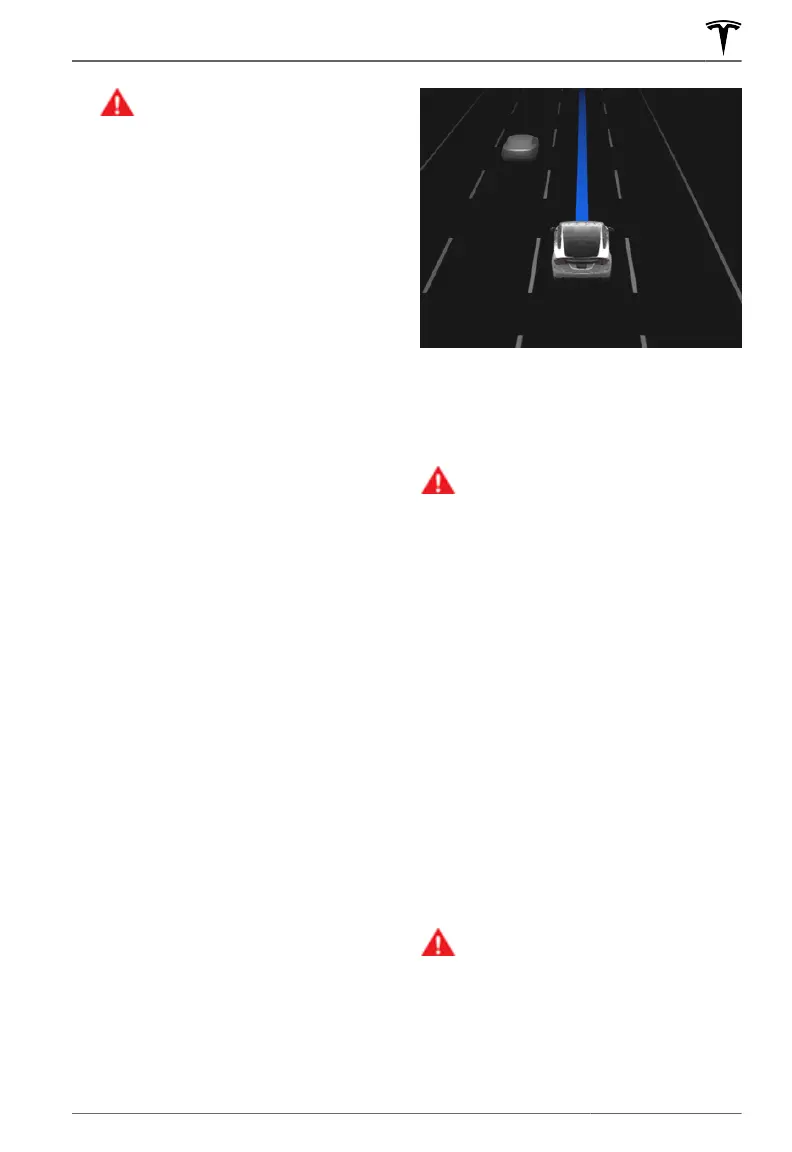
Whenever Navigate on Autopilot is active, the
instrument panel displays the driving lane as
a single blue line in front of Model X:
When Navigate on Autopilot is active and you
approach an
o-ramp or interchange along
your navigation route, the appropriate turn
signal engages and Autosteer maneuvers
Model X onto the o-ramp or interchange.
WARNING: Never depend on Navigate
on Autopilot to determine an
appropriate lane at an o-ramp. Stay
alert and perform visual checks to
ensure that the driving lane is safe and
appropriate.
When you leave a controlled-access highway
(for example, you take an exit or you enter a
section of the navigation route that is no
longer supported), Navigate on Autopilot
reverts back to Autosteer— a chime sounds
and the
instrument panel displays the driving
lane lines in blue (instead of the single blue in
front of
Model X).
NOTE: When determining navigation routes,
and maneuvers at interchanges, Navigate on
Autopilot considers whether or not you want
to use High Occupancy Vehicle (HOV) lanes.
Therefore, ensure the
Use HOV Lanes setting
is appropriate for your circumstances (see
Maps and Navigation on page 164). If the
setting is
o, Navigate on Autopilot never
uses a HOV lane, regardless of time of day. If
the setting is on, Navigate on Autopilot uses
HOV lanes, whenever applicable.
WARNING:
When Navigate on
Autopilot deactivates, Autosteer
remains active. Always be prepared to
take appropriate action.
Navigate on Autopilot
119Autopilot















 To Next Page