
 Need help?
Do you have a question about the Texas Instruments TI-15 and is the answer not in the manual?
Covers power, display, clearing, basic arithmetic, fractions, memory, and modes.
Details integer division, fraction handling, percents, roots, powers, and Pi.
Explains Op1/Op2 for repeated operations and using Fix for rounding.
Covers Auto/Man modes, levels, types, feedback, scoreboard, and Man mode specifics.
Details Place Value features and common error conditions and their handling.
Provides battery replacement steps, troubleshooting advice, and support contact.
Illustrates basic arithmetic, fractions, percents, stored operations, and problem solving.
Covers product service contacts, warranty terms, performance, and software licensing.
Demonstrates examples of Stored Operations, Memory usage, and Fix key rounding.
Shows examples for Problem Solving modes and Place Value features.
Provides the company's address in the USA and its official website for calculators.
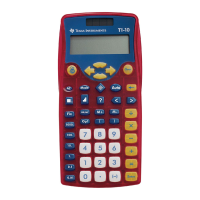
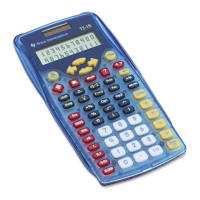
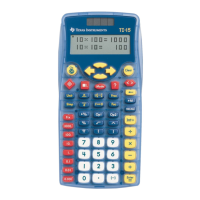
The TI-15 is a calculator and arithmetic trainer designed to assist with mathematical operations and problem-solving. It features a two-line display, each capable of showing up to 11 characters. Longer entries wrap to the second line and then scroll. For fractions, the display is limited to one line and scrolls if the problem exceeds its capacity. Results exceeding the screen's capacity are shown in scientific notation, while extremely large or small numbers trigger overflow or underflow errors.
The calculator operates using both battery and solar power, functioning in well-lit areas with its solar cell and in other light settings on battery. It includes an Automatic Power Down (APD) feature that turns off the device after approximately 5 minutes of inactivity, retaining the display, pending operations, settings, and memory. To reactivate, simply press the On key.
Basic operations are straightforward: press On to turn on the calculator and Off to turn it off. The TI-15 uses the Equation Operating System (EOS™) to evaluate expressions, following a standard order of operations: parentheses, functions preceding arguments, fractions, exponentiation and roots, negation, multiplication (including implied multiplication) and division, addition and subtraction, conversions, and finally, Enter to complete all operations.
For clearing and correcting, the Clear key deletes the character to the left of the cursor, or clears from right bottom to left top in fractions. Pressing Clear alone clears the display and any error conditions, but does not clear memory. To clear memory, press MR/MC twice. To reset the calculator completely, hold down On and Clear simultaneously for a few seconds until "MEM CLEARED" appears, restoring all default settings. This can also be done via the Mode menu.
The TI-15 offers several display indicators:
►M means ►M has been pressed.M indicates a non-zero value in memory.Op1, Op2 indicates an active stored operation function.I indicates the Integer Division function is active.n/d shows division results in fraction format.→ indicates a fractional result can be simplified.↑↓ indicates more entry history or menus are available, or that an entry/menu extends beyond the screen capacity.The Mode menu allows users to configure various settings:
n/d for decimal or fraction display.? to show or hide in Op.OP1 OP2 to clear stored operations.N Y to select or reject Reset.U n/d n/d to select fraction format (mixed or simple).Man Auto for simplification procedure (manual or automatic).1 2 3 for difficulty level in Problem Solving.+ - × ÷ ? for type of operation in Problem Solving.-1- for Place Value function.The n/d key is used to designate the numerator and denominator of a fraction. Both must be integers, and if the denominator exceeds 1000, results are displayed in decimal format. The Unit key separates the whole number from the fraction in a mixed number. The Frac key accesses a menu to specify how fraction results are displayed: U n/d (default mixed numbers) or n/d (simple improper fractions). It also allows selecting simplification methods: Man (manual) or Auto (automatic reduction to lowest terms). N/D→n/d indicates that fraction results can be simplified, and Simp enables manual simplification. Fac displays the factor used in the last manual simplification step. U converts between mixed and improper fractions, and FD converts between fractions and decimals.
The % key calculates a percent after entering a value, or converts a decimal or fraction to a percent.
The √ key calculates the square root of a number, requiring parentheses to close the expression. The ^ key raises a number to a specified power.
The π key enters the value of pi, stored internally to 13 digits. Results may display symbolically or numerically.
Pressing M after a calculation stores the displayed result in memory, replacing any existing value. M displays on the screen when memory contains a non-zero value. To recall the value, press MR/MC once. To clear memory, press MR/MC twice.
Op1 and Op2 can store an operation with a constant value for repeated use. To store, press Op1 or Op2, enter the operator and number, then press Op1 or Op2 again. Initialize with a starting value. Subsequent presses apply the operation. The computation appears on the first line, and the result on the second. The computation line can be hidden via Mode Enter. A counter shows how many times Op1 or Op2 has been pressed. To clear stored operations, go to Mode, select Op1 or Op2, and press Enter.
The Fix key, combined with place value keys (e.g., 1000., 100., 10., 1., 0.1, 0.01, 0.001), rounds results to a specified number of places. The internally stored value is not rounded, and calculated values are padded with zeros. Fix must be pressed each time the number of places changes. Fix alone removes fixed-decimal setting.
?):This function allows practice and testing of arithmetic skills in either Auto or Man mode.
In Auto mode, the TI-15 presents problems with one missing element (e.g., 5+2=?, 5+?=7, or 5?2=7). Users can select the problem type and difficulty level (1, 2, or 3) via the Mode menu. After entering an answer, "Yes" or "No" is displayed, indicating correctness and whether the correct solution is less than or greater than the entered answer. If three incorrect answers are entered, the correct answer is shown, and a new problem is presented. A scoreboard tracks performance, displaying after every fifth problem, resetting after 100.
In Man mode, users compose their own problems, entering non-negative integers and indicating missing elements with ?. The TI-15 indicates the number of solutions (one, multiple, or zero). Problems with one missing element allow three tries. Problems with two missing elements (e.g., ?+?=5) have multiple solutions and remain until manually cleared. For inequalities, > or < can be used, and only one try is given. To exit Problem Solving, press ? again.
house icon):In Man mode, this function helps determine the place value of a digit, or how many ones, tens, hundreds, thousands, tenths, hundredths, or thousandths a number contains, or which digit is in a specified place.
To determine place value: after entering a number, press house icon and then the digit to find its place value. For repeated digits, pressing the digit again shifts to the next occurrence to the left.
Via the Mode menu, users can select 11- to find how many of a certain place value are in a number, or -1- to find which digit is in a specified place. The answer appears briefly, then clears. Clear is needed before analyzing a new number. To exit, press Clear again.
Arith Error: Arithmetical error.Syn Error: Syntax error.÷0 Error: Attempting to divide by zero.Mem Error: Error storing entry in memory.Op Error: Error following steps for Op1 or Op2.Overflow Error: Overflow.Underflow Error: Underflow.
In some cases, Clear restores the last display before the error message. Errors appear in history.To replace the battery, place the calculator face down, remove screws from the back, and carefully separate the front from the back. Replace the old battery with a new one. Avoid contact with other components. After replacement, press On and Clear simultaneously to reset the TI-15. Dispose of old batteries properly.
Review instructions, ensure calculations were performed correctly, and reset the calculator (On + Clear). Check the battery for freshness and proper installation. If the unit doesn't turn on, the screen goes blank, or unexpected results occur, change the battery. To continue using the TI-15 until the battery can be changed, expose the solar panel to brighter light and reset the calculator.
 General
| Display Type | LCD |
|---|---|
| Display | Single Line |
| Digits | 10 |
| Display Digits | 10 |
| Power Source | Battery |
| Color | Blue |
| Manufacturer | Texas Instruments |
| Model | TI-15 |
| Product Type | Calculator |
| Functions | percent, square root |





 To Next Page
