**** ****
**** ****
- Installer Manual -
22
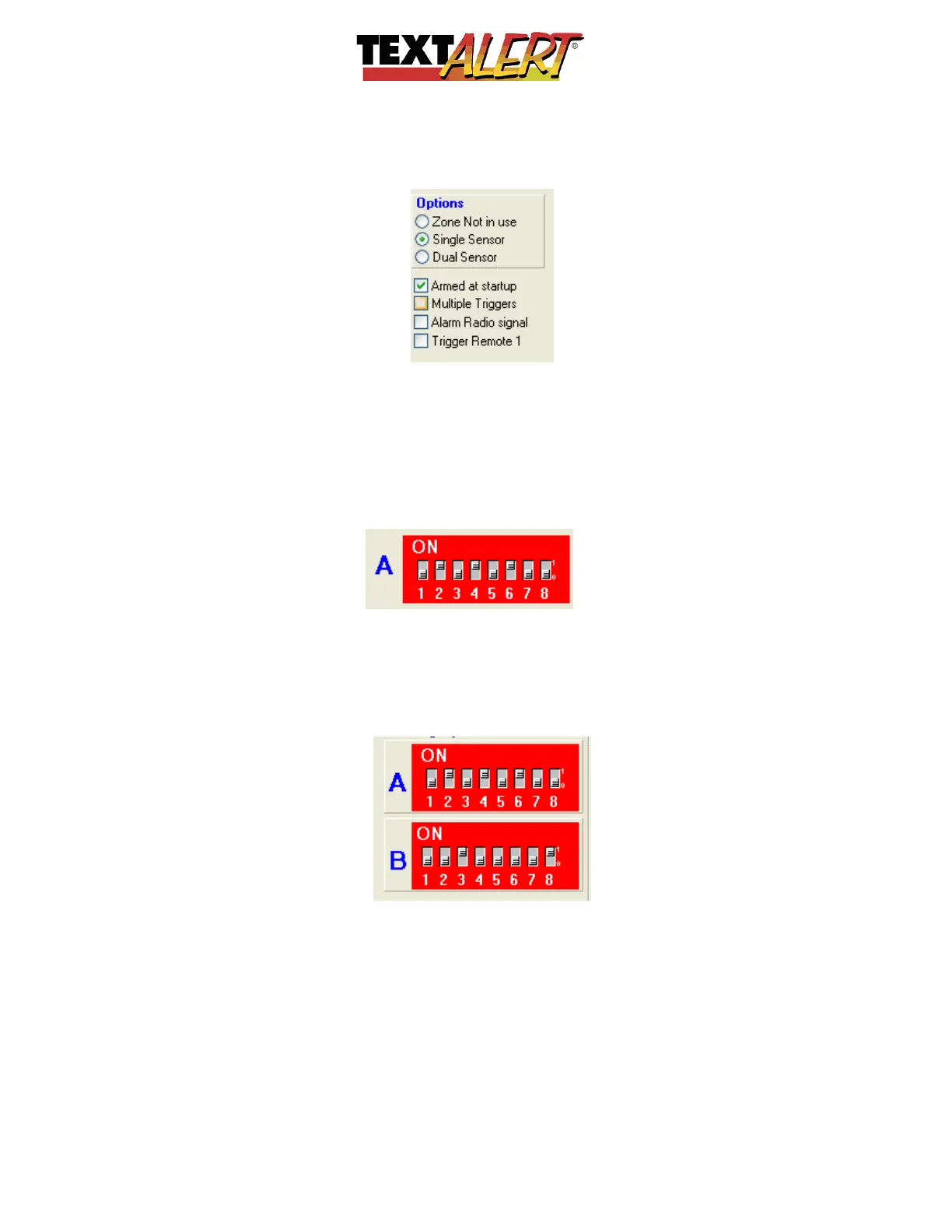
Options: As you select each of the options, other related options will then become visible.
You’ll notice that the “Options” screen has two sections – the top one selects the configuration
of sensors you wish to use for a zone. The lower section allows you to select what will
happen after the zone is triggered.
If you select “Single Sensor” – you simply match the physical dipswitch setting on any Voice
Alert transmitter to match the dipswitches on the computer illustration. When they match and
TextAlert receives a signal from that transmitter, it will follow the actions that you set for that
zone.
• If you choose to use a dual sensor setup for a particular zone then you will see two sets
of dipswitches appear on the software. When a zone is set to ‘Dual’ then a second “B”
set of dipswitches appear; and both sensors must be triggered within a certain time
frame before the zone message is sent.
The Dual sensor option is designed for areas where a person will move along a path, up
a driveway or down a back alley and will trigger more than one sensor/transmitter.
“Trigger Window” box appears when dual option is selected. This allows you to set
the amount of time it should take an intruder to move from sensor A to B. If it would
take the average person, say, 10 seconds to walk up the driveway past both A and B,
then you’d perhaps set the time at 25 to 40 seconds to send the SMS if someone stays
longer than they should.


 To Next Page
 Loading...