
 Need help?
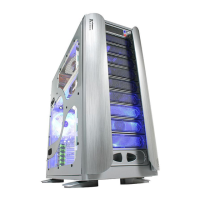
Do you have a question about the Thermaltake Armor-VA8000SWA and is the answer not in the manual?
Provides detailed specifications for the computer case models.
Step-by-step guide on accessing the interior of the computer case.
Instructions for installing optical drives or other 5.25-inch bay devices.
Guide for installing 3.5-inch Hard Disk Drives into the chassis.
Details on removing and repositioning the fan cage for HDD mounting.
Instructions for installing 3.5" HDDs specifically within the 12cm fan cage.
How to install devices using a 5.25" to 3.5" drive tray adapter.
Installing 3.5-inch devices into a drive tray that includes a power button.
Steps for correctly installing the power supply unit into the case.
Guide on mounting a fan to the top of the computer chassis.
Instructions on detaching fans and their holders from the case.
Overview of the case's air cooling features and fan placements.
Information about installing BTX upgrade kits for motherboard compatibility.
How to use the tool-free mechanism for PCI slot expansion cards.
Guidance on correctly seating the motherboard within the chassis.
Connecting front panel LEDs and switches to the motherboard.
Connecting front panel USB 2.0 and Firewire ports to the motherboard.
Connecting front panel audio jacks (ear and microphone) to the motherboard.
Instructions for connecting the chassis intrusion switch.
Details about an optional Thermaltake Silent Purepower power supply.
 General
| Model | Armor-VA8000SWA |
|---|---|
| Material | Steel |
| Expansion Slots | 7 |
| Motherboard Compatibility | ATX, Micro-ATX |
| Power Supply | Not included |
| Front Ports | 2 x USB 2.0 |
| Cooling System | 1 x 120mm fan (front), 1 x 120mm fan (rear) |
| Type | Full Tower |

 To Next Page