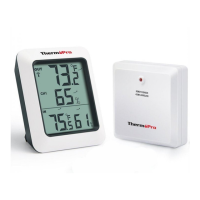
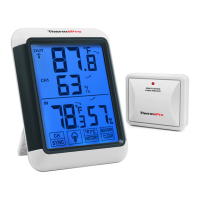
2. Once the batteries are installed in the base station, the RF indicator (located on the upper left of the
base station display) will flash for 3 minutes, indicating that the base station is in synchronization mode: it is
waiting for remote sensors to be registered.
3. Set the CHANNEL selector (on the back of the remote sensor unit) to position 1 or 2 or 3. The unit is pre-set
Channel 1 and you can always leave it unchanged unless you have purchased more than 1 remote sensor.
4. Press and hold ON/OFF button on the back of the remote sensor for 2 seconds to turn on the remote
sensor. Then wait for a moment until the temperature of the remote sensor display on the base station that
indicates the synchronization is complete.
3. If the synchronization is not successful after 3 minutes when the batteries are installed in the base station
and the RF indicator no longer flashes, press and hold the CHANNEL/SYNC button on the left bottom of
the base station LCD display for 3-4 seconds until the RF indicator flash again to set it back in synchronization
mode;
5. If you have additional remote sensors, repeat the above steps to synchronize the additional remote sensors
(up to 3 remote sensors can be registered with one base station). Please note the additional sensors should be
set to a different channel.
6. If you have registered more than one sensor, press the CHANNEL/SYNC button on the base station to
select the remote channel you want displayed permanently on the base station. Press CHANNEL/SYNC button
until you observe a circular arrow on the base station LCD display under the channel number, then the unit will
auto-scroll, changing from channel to channel every 5 seconds.
Place the Base Station and Remote Sensor
1. The indoor base station (receiver) should always be placed in a well ventilated indoor area and located
away from vents, heating or cooling elements, direct sunlight, windows, doors, or any other openings.
2. The remote sensor (transmitter) can be placed on a flat surface indoor or outdoor. Make sure the sensor is
within the wireless distance from the base station and with minimal obstructions. Although the remote sensor
is designed to be rain-proof, it still must be always put in a dry place to avoid direct rainfall.
3. The base station and remote sensor can both be wall mounted.
Maximum & Minimum Recorded Temperature & Humidity
1. Press MAX/MIN/Clear button once to display the highest indoor temperatures/humidity and outdoor
temperatures recorded. MAX is shown on the display.
2. Press MAX/MIN/Clear button again to display the lowest indoor temperatures/humidity and outdoor
temperatures recorded. MIN is shown on the display.
3. To clear and reset the max/min records, press and hold MAX/MIN/Clear for 3 seconds.
4. When the MAX or MIN records are shown on the LCD display, press ALL-TIME/24 button once to select the
data record time interval between ALL TIME or 24 hours.


 To Next Page
 Loading...