23
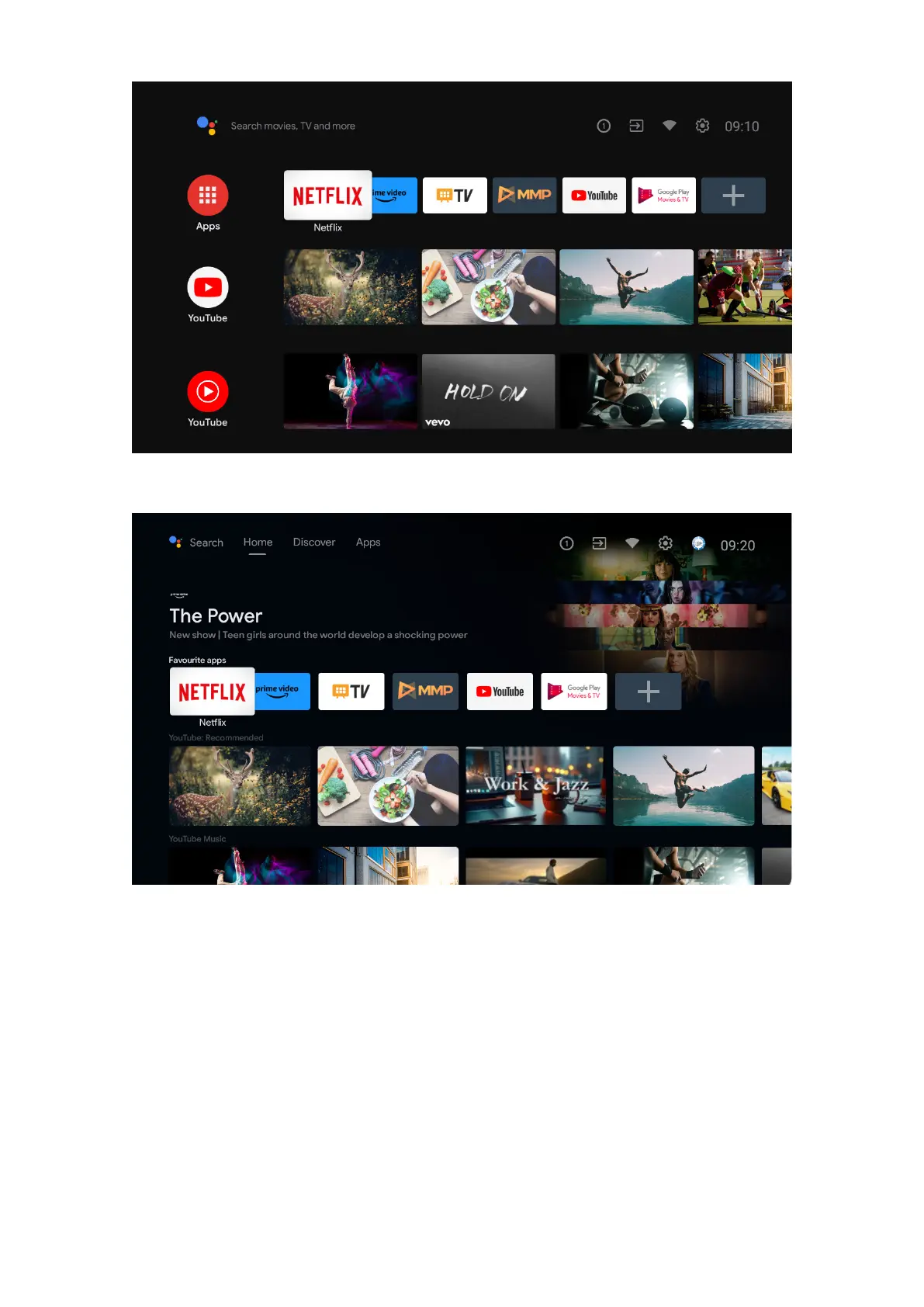
*Some countries home screen UI may display dierent as above image, please refer to your product for details.
The available options of the Home Screen are positioned in rows. To navigate through the Home Screen options,
use the directional buttons on the remote. Apps, YouTube, Google Play Movies & TV, Google Play Music and
Google Play related rows and rows of the applications you have installed might be available. Select a row then
move the focus to the desired item in the row. Press OK button to make a selection or to enter a sub-menu.
On the upper left of the screen, search tools will be located. You can choose either to type a word to start a
search via the virtual keyboard or try voice search option if your remote has a built-in microphone. Move the
focus to the desired option and press OK to proceed.
On the upper right of the screen, Notications, Inputs, Network & Internet (will be named as Connected or Not
Connected according to the current connection status), Settings and the current time will be displayed.
First row will be the Apps row. Live TV and Multimedia Player apps will be available alongside with other apps.
Highlight Live TV and press OK to switch to Live TV mode. If the source was previously set to an option other
than TV, press the Source button and select the TV to watch live TV channels.



 To Next Page