EN 10
English
Chapter 4 - Using your TV
Accessing channels
Using the numeric buttons: press the corresponding
numeric buttons on the remote control to access the
channels.
Using the P+/- buttons: press the P+/- buttons on
the remote control or the corresponding buttons on
the TV set to scroll through the channels.
Watching connected devices
Repeatedly press SOURCE on the remote control
or OK on the TV set to toggle between TV and
other input sources. To resume TV viewing, press
any numeric button to enter the channel, while P+/-
will cycle through all TV channels and other input
sources.
Note: Not all models have OK button on the set.
Volume
Volume control: press the V+/- buttons on the remote
control or the corresponding buttons on the TV set to
increase or decrease the volume.
Sound mute: press the
button to temporarily mute
the sound. Press this button again or the V+ button to
restore it.
Using TV menus
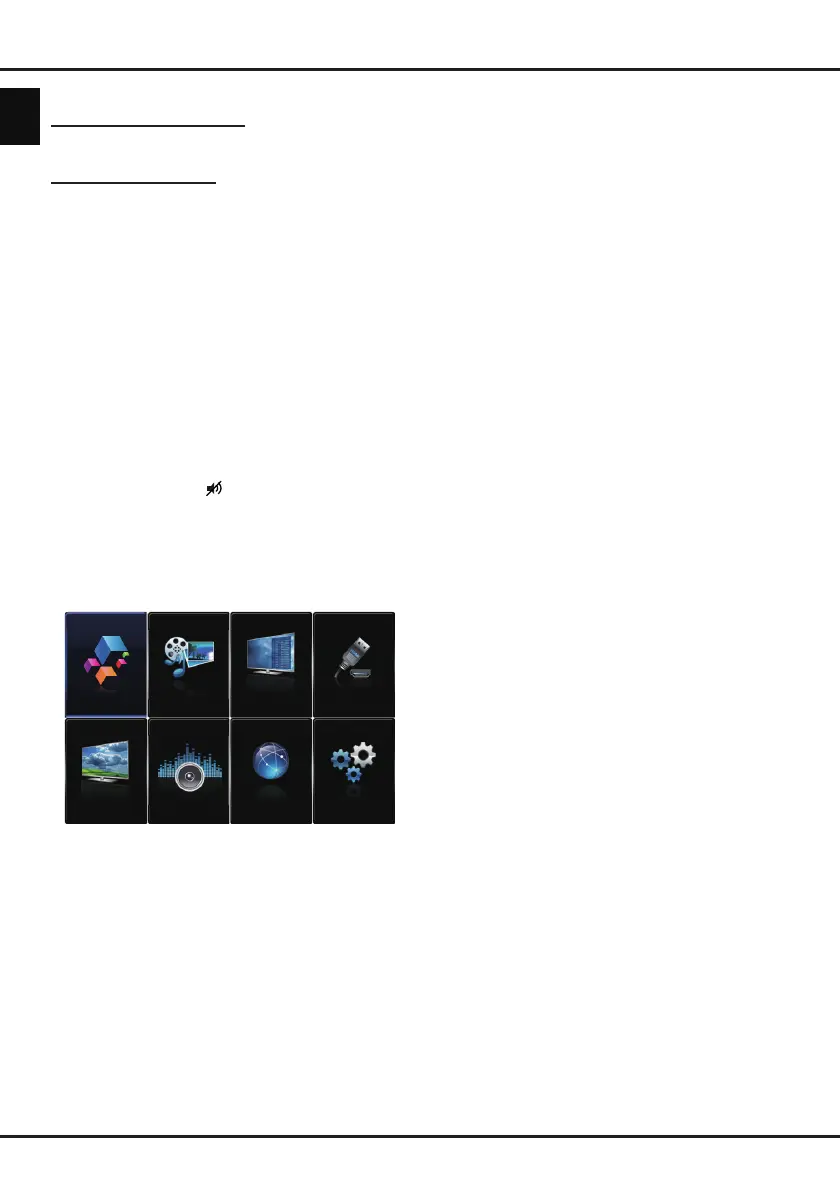
1. Press MENU to display the main menu. (Refer to
Figure 3.)
Media
PictureSound NetworkSettings
Smart TV Channels Source
Figure 3
2. Press ▲/▼/◄/► to select the desired item, then
press OK to open the corresponding submenu.
3. In submenus, use ▲/▼ to select menu options,
use ◄/► to set functions or change values. Use
OK to activate a setting. Use OK/► to open the
corresponding submenu.
4. Press MENU to return to the previous menu.
5. Press EXIT to close the menu.
Note: Some options may not be available for
certain signal sources.
Selecting menu language
You can choose your preferred menu language
following the instructions below.
1. Press MENU to display the main menu.
2. Press ▲/▼/◄/► to select Settings > Setup, then
press OK to enter.
3. Select Language and press OK/► to enter.
4. Press ◄/► to select your desired language in the
Language menu to display the menus.
5. Press EXIT to close the menu.



 To Next Page