6
• We recommend you adjust the antenna vertically to
ensureoptimal reception.
• In many cases, the signal strength varies depending on
the installation location. To improve reception, choose an
installation location near awindow.
• Press the button on the transmitter ()until you are
in DABmode (alternatively the button ()ofthe
remote control).
• Forarst-time installation, an automatic station search takes
place; alternatively,press the button ()tostart the
automatic station search ().
• Press and hold or to view alist of
available stations.
• Press or to select astation from the
station list (alternatively the or button ()
on the remote control).
• Conrm your selection by pressing the Info button (6) or wait
until the station is automatically adjusted.
• To program the quick-selection buttons ,press
and hold one of the favourites buttons ()onthe station you
would like to storeasapreset.
• Press the to view or storeyour complete
favourites list. Forthis purpose, rst select stations you wish
to storeand press the .Use the
buttons to search for an empty station preset ‘
’. The station is automatically stored in this preset.
• To get additional DAB+ station information, press the
button ()repeatedly (for example, programme information,
DAB+ frequency,signal information, transmission quality,
time, date, signal strength of the transmitter,etc.).
The signal strength display of the weakest DAB+
station may be helpful in adjusting the rodantenna or
positioning the transmitting station.
• Press the Input button ()repeatedly until you areinFM
mode (alternatively the button ()ofthe remote
control).
• Press and hold or for the automatic
station search to stop at the nearest station with astrong
reception. Alternatively,you can manually set atransmission
frequency by briey pressing the or
button. This is also possible using the buttons ()
on the remote control.
• To storethe desired stations, you can now storethe
transmission frequency.
• To program the quick-selection buttons ,press
and hold one of the favourites buttons ()onthe station you
would like to storeasapreset.
• Press the button ()toview or storeyour complete
favourites list. Forthis purpose, rst select stations you wish
to storeand press the button (). Use the TUNE +/-
buttons to search for an empty station preset ‘
’. The station is automatically stored in this preset.
The preset number (for example, P4) is shown in the upper-
left area of the LCDdisplay ().
• To get additional RDS station information, press the
button ()repeatedly (for example, programme information,
frequency,STEREO/MONO, time, date, etc.).
• Press and hold the transmitter’s button ()for one
second to switch on the transmitter.
• Press the button ()repeatedly until you arein
mode.
• Press and hold the button ()for about 2–3 seconds
until ‘’appears in the LCDmenu.
• Press or to select your setting. Press
the button to conrm each of your entries. Use the
button to end your entries/changes.
• The following menu items areavailable:
Conrm your selection by pressing the Info button ().
Set the following information in the order listed:
Set Time/Date
Auto Update
Set 12/24 hour
Set date format
Select the Factory Reset menu item.
Conrm your selection by pressing the button .
Press or to choose between YES and NO.
Conrm your selection by pressing the button .
Softwareupdate only for authorised dealers
Select the SW Version menu item.
Conrm your selection by pressing the button .
The current softwareversion is displayed.
• Make surethat the power supply unit is correctly connected
to the wall socket and to the transmitter’spower socket.
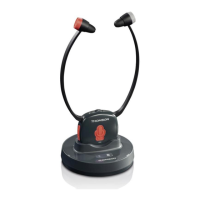
• Check whether the headphones areon.
• The headphone charge level may be too low,inwhich case
you need to fully charge the batteries.
• Make surethat the desired TV set or audio device is switched
on and playing sound.
• The headphone volume may be too low.
• The audio signal may be too low.Increase the volume on
your playback device.
• Make surethat the transmitter and receiver (headphones) are
paired >Point8.1.


 To Next Page
 Loading...