Your programming is now erased.
• Note:
Your programming is not saved: you must carry out the programming again after each restart or
disconnection of your wheel.
TROUBLESHOOTING AND WARNING
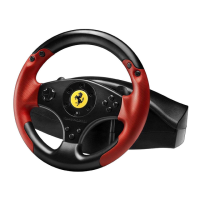
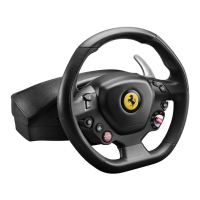
• My wheel doesn’t function correctly or appears to be improperly calibrated:
- Switch off your computer or your console, completely disconnect your wheel and all of its cables, then
reconnect everything and restart your game.
- In your game’s “Options / Controller / Gamepad” menu: Select the most appropriate configuration
(according to the default or programmed mapping on your wheel).
- Please refer to your game’s user manual or online help for more information.
- Never move the wheel or pedals when connecting your wheel, to avoid any calibration problems.
• My pedal set doesn’t function correctly:
- Reconfigure your wheel in your game’s “Options / Controller / Gamepad” menu.
- You can also use your wheel’s mapping function to assign new functions to the pedals to resolve this
type of problem.
• My wheel’s steering is not responsive enough:
- Switch your wheel to “High sensitivity” mode.







 To Next Page
