This document is a Quick Start Guide for the TieJus ZS-GQ2 PTZ Security Camera, designed to make your life smarter and safer. The camera supports both wired and Wi-Fi connections and offers 24/7 recording.
Function Description:
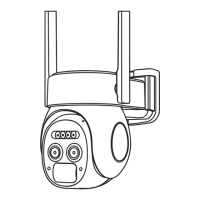
The TieJus ZS-GQ2 is a PTZ (Pan-Tilt-Zoom) security camera designed for surveillance and monitoring. It offers features such as motion detection, two-way audio, and local/cloud storage for video recordings. The camera is managed through the ZUMIMALL App, allowing users to view live feeds, receive alerts, and manage recordings remotely. Its PTZ capabilities enable users to adjust the viewing angle and monitor a wider area. The camera is equipped with LED lights and a lens for clear image capture, even in low-light conditions. It also includes a speaker for two-way communication.
Important Technical Specifications:
- Model: ZS-GQ2
- FCC ID: 2AZL7-ZY-C6
- Connectivity: Wired, Wi-Fi (2.4GHz only, 5GHz not supported)
- Storage: Micro SD Card (for video clips) or 7-day free cloud service
- Power: Power Adapter (included)
- Motion Detection: PIR Body Detection with adjustable sensitivity (Low, Mid, High)
- Audio: Two-way audio communication
- Indicator Lights: Working Status Light (Red for Wi-Fi connection/network problem, Blue for Wi-Fi connected/firmware update)
- Reset: Reset button for factory settings
- Mounting: Screws set included for installation
- Recommended Installation Height: 2-3 meters
- Recommended Distance from Router: 10-15ft (when connecting to network)
- PIR Detecting Distance:
- Low: 3-16ft (1-5 meters)
- Mid: 16-32ft (5-10 meters)
- High: 32-49ft (10-15 meters)
Usage Features:
- Quick Start: The guide provides a step-by-step process for setting up the camera, from unboxing to installation and app integration.
- App Control (ZUMIMALL App):
- Account Registration: New users need to sign up with an email address.
- Device Addition: Cameras are added to the app by scanning a QR code.
- Live View: Users can view live video feeds from their cameras.
- PTZ Control: The app allows users to pan, tilt, and zoom the camera to adjust the viewing angle.
- Two-Way Audio: Users can communicate through the camera using the intercom button in the app.
- Motion Detection Alarm Setting: Sensitivity of PIR body detection can be adjusted (Low, Mid, High) to reduce false alarms.
- Alarm Notifications: The app sends notifications with sounds when motion is detected. Pictures/videos are automatically stored in the Micro SD Card or Cloud.
- Record/Playback/Delete: Users can view recorded alarm messages, playback videos, and delete recordings. Screenshots and manually recorded videos are saved in the phone's Pictures & Videos and can be shared.
- Multi-Device Management: The app supports managing multiple cameras and viewing up to four cameras live simultaneously.
- Multi-User Sharing: The camera can be shared with other users by scanning a QR code or inputting an account ID, provided both accounts are registered in the same country.
- Reset Functionality: The camera can be reset by pressing the reset button for 5-10 seconds until a 'Boogu' sound is heard, allowing for reconnection or troubleshooting.
- Installation Tips:
- Use the provided screws for mounting.
- Adjust the viewing angle as needed.
- Avoid installing the camera facing strong lights, mirrors, windows, or swimming pools to prevent false alarms.
- Do not place the camera too close to busy traffic areas.
- Keep the camera away from outlets (air conditioner vents, humidifiers, projector vents) and wireless devices (microwave stoves, Wi-Fi routers) to avoid interference.
- It is not recommended to install the camera vertically towards moving objects, as this may affect motion detection.
- Maintain an angle of more than 10 degrees between the sensor and detected objects for optimal performance.
- The motion sensor is more sensitive to side-to-side movement than direct movement towards or away from the camera.
Maintenance Features:
- Troubleshooting Guide (FAQ): The manual includes a comprehensive FAQ section to address common issues:
- Network Connection Issues: Check Wi-Fi name/password, ensure 2.4GHz Wi-Fi, and place the camera near the router.
- Connecting to a New Network: Remove the camera from the app, reset it, and reconnect.
- Resetting the Camera: Instructions for performing a hard reset.
- Frequent Alarm Information: Reduce motion detection sensitivity, check for interfering objects in the detection range.
- Motion Detection Failures: Ensure good network condition (Wi-Fi signal > 70%), enable motion detection, increase sensitivity, and confirm motion occurs within the detection range.
- No Alarm Video Recording: Verify camera trigger, correct Micro SD card insertion/recognition, or cloud service subscription.
- No Alarm Push: Check phone notification settings for ZUMIMALL app, enable alarm push in app settings, turn on push sound in "My" interface, ensure motion detection is on, restart phone, clear cache, and check network.
- Unable to Play Local History Playback: Check Micro SD card status in settings, reinsert, format in app, or use a new card.
- Unable to Play Cloud Playback: Ensure cloud service is enabled and open the cloud storage button.
- Device Offline: Check power, Wi-Fi network, signal strength (consider extender if far from router), delete and re-add camera, and ensure app/device firmware are updated.
- ZUMIMALL App Crashes: Re-download app, check phone OS version, clear phone cache.
- Unable to Register Account: Ensure app access to cellular data/WLAN, enter unregistered account with correct format.
- Unable to Share Device: Ensure accounts are registered in the same country.
- No Sound During Two-Way Talk: Open speaker button in app, adjust intercom volume, turn on phone media volume, release intercom button to listen.
- Noise During Two-Way Intercom: Maintain a certain distance (more than 1-2 meters) between camera and phone to avoid whistling.
- Blurry Live Video: Check lens for dust, try different resolutions, re-add camera after reset.
- White Spots in Night Live Broadcast: Avoid pointing the lens directly at strong light sources.
- Customer Support: Email address (Tech@tiejus.com) and distributor email (distributor@tiejus.com) are provided for product service. Users are encouraged to provide the SN number and problem description for efficient support.
- Online Resources: Web (www.tiejus.com) and Facebook (www.facebook.com/zumimalloffice) links are provided for more information.

 Need help?
 General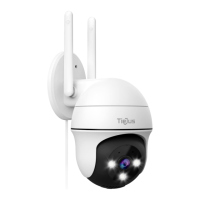

 To Next Page