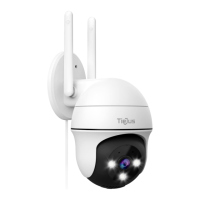
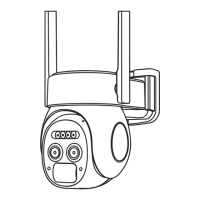
The TieJus ZS-GX1S is a battery-powered, wireless Wi-Fi outdoor security camera designed to make your life smarter and safer. It offers a range of features for home surveillance and peace of mind.
Function Description:
The ZS-GX1S is primarily a surveillance camera that combines artificial intelligence and a security system. It is designed for outdoor use, providing real-time monitoring, motion detection, and two-way audio communication. The camera records video clips, which can be stored locally on a Micro SD card or in the cloud. It sends alarm notifications to your smartphone when motion is detected, ensuring you are aware of any activity in the monitored area. The camera is built to be easy to use, with a focus on quality and convenience for smart home integration.
Important Technical Specifications:
- Power Source: Battery-powered. The camera has a built-in high-capacity battery, offering 2-3 months of use based on 15 wake-ups per day and 10 minutes of video playback daily.
- Charging: DC 5V 2A charger. A full charge takes 6-8 hours.
- Connectivity: Wireless Wi-Fi, supporting 2.4GHz networks only (5GHz is not supported).
- Storage: Supports Micro SD card for local video clip storage. Also offers 7-day free cloud service.
- Motion Detection: PIR (Passive Infrared) Body Detection with adjustable sensitivity from 1 to 10.
- Detection Distance:
- LOW (1-3 sensitivity): 13-16ft (4-5 meters)
- MID (4-7 sensitivity): 16-23ft (5-8 meters)
- HIGH (8-10 sensitivity): 23-42ft (8-13 meters)
- Audio: Two-way audio communication with microphone and speaker.
- Indicators:
- LED Indicator (for Wi-Fi connection status, network problems, firmware updates)
- Charging Indicator (red for charging, blue for 100% charged)
- Components: Camera Lens, IR Lamp, White Light, PIR Sensor, Antenna, Camera Mode Indicator, Microphone, Reset Button, LED Indicator, Speaker, Power Button, SD Card Slot, USB Port.
Usage Features:
- Easy Setup: Download the ZUMIMALL App, register an account, and follow the steps to add the camera. The process involves resetting the camera, connecting to Wi-Fi, and scanning a QR code.
- App Control: Manage the camera through the ZUMIMALL App, which allows for live viewing, accessing history, cloud storage, screenshots, two-way talk, recording, motion detection on/off, light control, siren activation, and album access.
- Motion Detection Alarm: The camera triggers alarms only when body motion is detected. Alarm notifications are pushed to the app, and pictures/videos are automatically stored.
- Two-Way Audio: Long-press the intercom button in the app to speak through the camera, and release to listen.
- Recording Time: Adjustable recording length (e.g., 10, 20, or 30 seconds) for alarm videos.
- Alarm Plan: Set weekly/daily alarm schedules, allowing the camera to trigger and record only during specified time periods.
- Multi-Device Management: Add and manage multiple cameras within the app.
- Multi-User Sharing: Share camera access with other users by scanning a QR code or entering an account ID. Permissions can be customized (viewable only or allow control).
- Power Saving Settings: Configure alarm intervals and shooting intervals to avoid repeated alarms and manage battery consumption.
- Monitoring Area Guidance: Recommendations for optimal camera placement to maximize PIR sensor effectiveness and avoid false alarms. It is suggested to install the camera with an angle of more than 10 degrees between the PIR sensor and detected objects, and to avoid vertical installation towards moving objects.
Maintenance Features:
- Reset Function: A dedicated reset button allows for easy device reset (press for 5-10 seconds).
- Firmware Updates: The camera supports firmware updates, indicated by a slowly blinking blue LED.
- Battery Management: The app sends reminding messages when the battery is below 20%, prompting timely charging.
- Troubleshooting (FAQ): The manual provides solutions for common issues such as:
- Unable to connect to network (check Wi-Fi name/password, ensure 2.4GHz, camera near router).
- Connecting to a new network (remove camera from app, reset, reconnect).
- Resetting the camera (long press reset button until "Boogu" sound, wait for red flash).
- Charging issues (charge for 8-10 hours with 5V/2A adapter, check indicator light).
- False alarms (reduce sensitivity, check detection range, use humanoid algorithm).
- No alarm video recording (check if triggered, SD card inserted/recognized, cloud service).
- No alarm push (check phone settings, ZUMIMALL app permissions, push sound, motion detection, restart phone, clear cache, network).
- Unable to play local history playback (check SD card status, reinsert, format, use new card).
- Unable to play cloud playback (ensure cloud service enabled, check cloud storage button).
- Device offline (check device status, Wi-Fi network, camera distance from router, Wi-Fi signal extender, delete/add camera, check app version).
- Short battery life (reduce sensitivity, reduce two-way intercoms, set alarm interval/plan, check for interfering objects, cold weather impact).
- ZUMIMALL app crashes (re-download latest version, check phone system, clear cache).
- Unable to register an account (ensure app access to cellular data/WLAN, correct format).
- Unable to share device (accounts must be in same country, UK users cannot share with US users).
- No sound heard when device is talking (open speaker button, adjust intercom volume, turn on phone media volume, release intercom button).
- Noise during two-way intercom (distance between camera and mobile phone, normal phenomenon).
- Live video is blurry (clean lens, try different resolutions, re-add camera).
- Live broadcast at night has white spots (when light source is directly on lens, avoid pointing lens at strong light source).
- Customer Support: Email for product service (Tech@tiejus.com) and distributor inquiries (distributor@tiejus.com). Web and Facebook links are provided for more information. Users can also send SN numbers and problem descriptions for support.

 Need help?
 General

 To Next Page