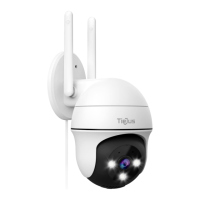
This document describes the TieJus PG1 PTZ Security Camera, a wired/Wi-Fi, weatherproof device designed to enhance smart home security. The camera is identified by FCC ID: 2A7TD-BW4.
Function Description:
The TieJus PG1 PTZ Security Camera is designed for surveillance, offering features such as pan, tilt, and zoom (PTZ) control, motion detection, and night vision. It can be connected to a mobile application for remote monitoring and control, allowing users to view live feeds, record video, and receive alerts. The camera supports both wired and Wi-Fi connectivity and is built to be weatherproof, making it suitable for outdoor use. It also includes an alarm sound function and the ability to capture screenshots.
Important Technical Specifications:
- Connectivity: Wired and Wi-Fi (2.4GHz wireless network only; 5GHz networks are not supported).
- Power: Can be charged via a power adapter or solar panel (Type-C port).
- Storage: Supports TF cards (FAT32 format only, recommended capacity 2-128GB, Class 4 and above high-speed TF card). Cloud storage is also available.
- PTZ: Pan, tilt, and zoom capabilities.
- Night Vision: Built-in IR LED lights for clear night vision in dark environments.
- Motion Detection: Includes human shape detection and activity zone settings.
- Audio: Supports intercom functionality.
- Reset: Features a reset button for device configuration.
Usage Features:
- Easy Installation: Users are advised to choose a location with an unobstructed field of view and good Wi-Fi signal. For solar panels, a location with plenty of sunlight is recommended.
- APP Control: The camera is controlled via a dedicated mobile application. Users need to download the app by scanning a QR code, register an account, and then add the device.
- Device Connection: The camera can be added to the app by scanning a QR code on the camera or by selecting "QR code not found" and then "WiFi camera" in the app.
- Voice Broadcast Instructions: The camera provides voice prompts for various statuses:
- "Normal start": "Network connection is successful, please open the APP to add a device."
- "Normal reset": "The reset is complete, the device is about to restart."
- "Abnormal reset": "Reset failed, please reset after connecting to the Internet or delete the device on the APP."
- "QR code network configuration": "Identify broadcast ding~"
- "Alarm broadcast": "Alarm sound."
- Camera Reset: To reset the camera, press and hold the reset button for 3-5 seconds until a voice prompt confirms "reset is complete, the device will be restarted soon."
- Device Sharing: Users can share camera access with family and friends through the app by generating a QR code. Permissions for shared users can be managed, allowing them to either view video only or also set functions.
- Monitoring Functions:
- Super HD: For high-definition viewing.
- Sound: Audio monitoring.
- Intercom: Two-way communication.
- PTZ Control: Horizontal and vertical cruise, pre-position settings, and PTZ correction.
- Night Vision: Toggle night vision on/off.
- Siren: Activate an alarm sound.
- White Light: Control white light.
- Screenshot: Capture still images.
- Record: Manually record video.
- Motion Detection: Configure motion detection settings, including human shape detection and activity zones.
- Caretaker Function: If the camera deviates from its guard position for 1 minute, the gimbal automatically returns to the designated position.
- Dual Lens Zoom: The camera supports dual lens zoom functionality.
- Sleep Mode: Users can select different working modes to optimize battery usage.
- Sleep mode: The device is usually in sleep, waking up via motion detection or app. Battery consumption is low.
- Deep sleep mode: Only motion detection wakes up the device; the app cannot. This mode consumes the least battery power.
- Functional Power Consumption Settings: Allows adjustment of motion detection frequency, video recording length, and human shape detection to reduce power consumption.
Maintenance Features:
- Warranty Service: A free 1-year warranty extension can be activated by sending the order number and SN number via email to Tech@tiejus.com within 30 days of receiving the camera.
- Troubleshooting (FAQ):
- Wi-Fi Connection Issues:
- Ensure "Location Permission" is set to "Allow while in use" on iOS 13+ devices.
- Use 2.4GHz Wi-Fi network; 5GHz is not supported.
- Set Wi-Fi authentication to WPA2-PSK or lower-level security with a password.
- Place the camera close to the router if the signal is weak.
- Ensure correct Wi-Fi account and password.
- If QR code configuration fails, try AP network configuration (connecting to the camera's Wi-Fi hotspot and returning to the app).
- Avoid overly complicated Wi-Fi passwords with special characters.
- Restart the router if connection issues persist.
- Provide the router's nameplate label if further assistance is needed.
- Equipment Failure: Long press the power button to restart. If no response, open the USB silicone cover, long press the reset button, then long press the power button to restart.
- TF Card Recognition Issues:
- Check if the TF card capacity is displayed in "System Settings" > "TF Card Recording Settings" in the app.
- Use a brand TF card, FAT32 format only.
- Ensure the TF card is recognized by a computer.
- Recommended capacity: 2-128GB.
- Use a high-speed TF card (Class 4 and above).
- Try inserting and unplugging the TF card several times.
- Try another TF card.
- Allow about 30 seconds for the camera to recognize the TF card after insertion.
- Customer Support: Contact Tech@tiejus.com for product service. Distributor inquiries can be sent to Distributor@tiejus.com. Further information is available on their website (www.tiejus.com), Facebook (www.facebook.com/zumimalloffice), and YouTube (www.youtube.com/@TieJus).

 Need help?
 General

 To Next Page