Preliminary Setup
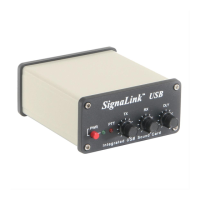
• Before you can adjust the audio levels, the
SignaLink USB must be connected to the computer
and radio. Both the SignaLink USB and the radio
should be powered ON and a communication
program that you have selected should be installed
on your computer. Note that you will be using the
communication program to generate the audio tones
that are used to adjust the level controls, so CW
programs should NOT be used unless they have a
continuous "Tune" mode. A PSK-31 program like
DigiPan is ideal for making these adjustments.
• Set the SignaLink USB’s TX level control to
minimum (fully counter-clockwise), and the RX
level control to 50%. The DLY control can be set to
minimum for now.
Communication Program Setup
• Start your communication program and configure
its Transmit and Receive sound card setting to the
SignaLink USB's “Speaker - USB Audio Codec”
and “Line - USB Audio Codec” sound card. This is
normally done through the program's “Configure”
or “Setup” menu. Note that this setting may be
labeled as the “Input” and “Output”, or “Playback”
and Capture” sound card, or something similar.
• The SignaLink USB does NOT use a Serial Port
(COM Port) for PTT or any other function, so you
should NOT select one in your communication
program. Serial Port selection should be set to
“NONE”, “COM0”, or the equivalent. If your
program has you select the “PTT type”, then this
should be set to something like “VOX”, “External”,
or “Alternate PTT Method” to allow the SignaLink
to control PTT.
TIP: If you're not sure how to configure your
communication program, then please see the SignaLink
Support page of our website for detailed configuration
information.
Radio Setup
CAUTION – Before proceeding, be sure that your radio is
connected to a low SWR antenna or dummy load.
Radio setup varies widely from one model to the next. We
have tried to cover the most common setup items here but
we may have missed something for your specific radio.
Please check the “Digital Operations” section of your radio
manual for any additional setup information that may be
needed.
• If the SignaLink USB is connected to your radio’s
Mic jack, then set the radio to “USB” or “LSB” as
needed. USB is used for PSK31, CW and most
digital modes. LSB is used for RTTY and some
other modes. Note that your radio's RTTY mode is
for FSK only and will not work with the SignaLink.
• If the SignaLink USB is connected to your radio's
Data or Accessory Port, then you will likely need to
select a special mode such as “Data”, “USB-D”,
“LSB-D”, “User”, “Packet”, “DIG”, etc. If you are
not sure which mode to use, or how to select it, then
consult your radio manual.
• Select a filter that is appropriate for the digital
mode that you will be operating. PSK31 uses a
wide filter (2.7kHz – 3kHz is ideal). Other digital
modes use different bandwidths. If you're not sure
which filter to use, then consult your program's
documentation or an online resource.
• Set the radio’s Mic Gain control to 50%. Note that
if the SignaLink is connected to the radio's Data or
Accessory Port, then this control may not have any
effect on power output.
• Set the radio’s RF Power control to provide
maximum power (this will be adjusted to a suitable
level later using the SignaLink's TX knob). Note
that the RF Power control might be labeled
“Forward Power” or “Carrier Power”. Newer radios
usually have a menu setting instead of a knob.
• The radio’s Speech Processor / Compressor and
VOX features should be turned OFF.
• All noise reduction (noise blanker, notch filter, DSP
filtering, etc.) should be turned OFF, or you may be
unable to decode any signals.
Transmit Audio Adjustment
• Put your communication program in Transmit.
Note that a program that stays in Transmit until you
manually switch it back to Receive is required for
this step (a PSK31 program like DigiPan works
well). This is because the SignaLink's sound card
must be in use when you open the software volume
controls, or Windows may not display them
properly. Modes that automatically switch back
and forth between Transmit and Receive (Packet,
CW, EchoLink, etc.) are not recommended for this
step.


 To Next Page
 Loading...