8
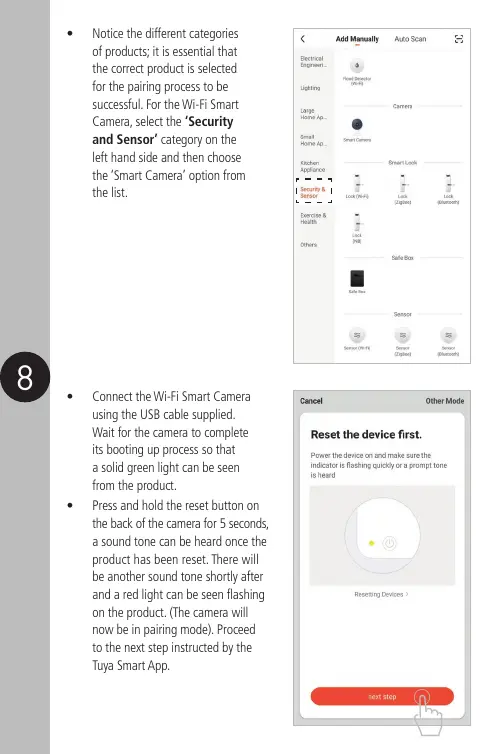
• Notice the different categories
of products; it is essential that
the correct product is selected
for the pairing process to be
successful. For the Wi-Fi Smart
Camera, select the ‘Security
and Sensor’ category on the
left hand side and then choose
the ‘Smart Camera’ option from
the list.
• Connect the Wi-Fi Smart Camera
using the USB cable supplied.
Wait for the camera to complete
its booting up process so that
a solid green light can be seen
from the product.
• Press and hold the reset button on
the back of the camera for 5 seconds,
a sound tone can be heard once the
product has been reset. There will
be another sound tone shortly after
and a red light can be seen flashing
on the product. (The camera will
now be in pairing mode). Proceed
to the next step instructed by the
Tuya Smart App.


 To Next Page
 Loading...