First Use (Continued)
66
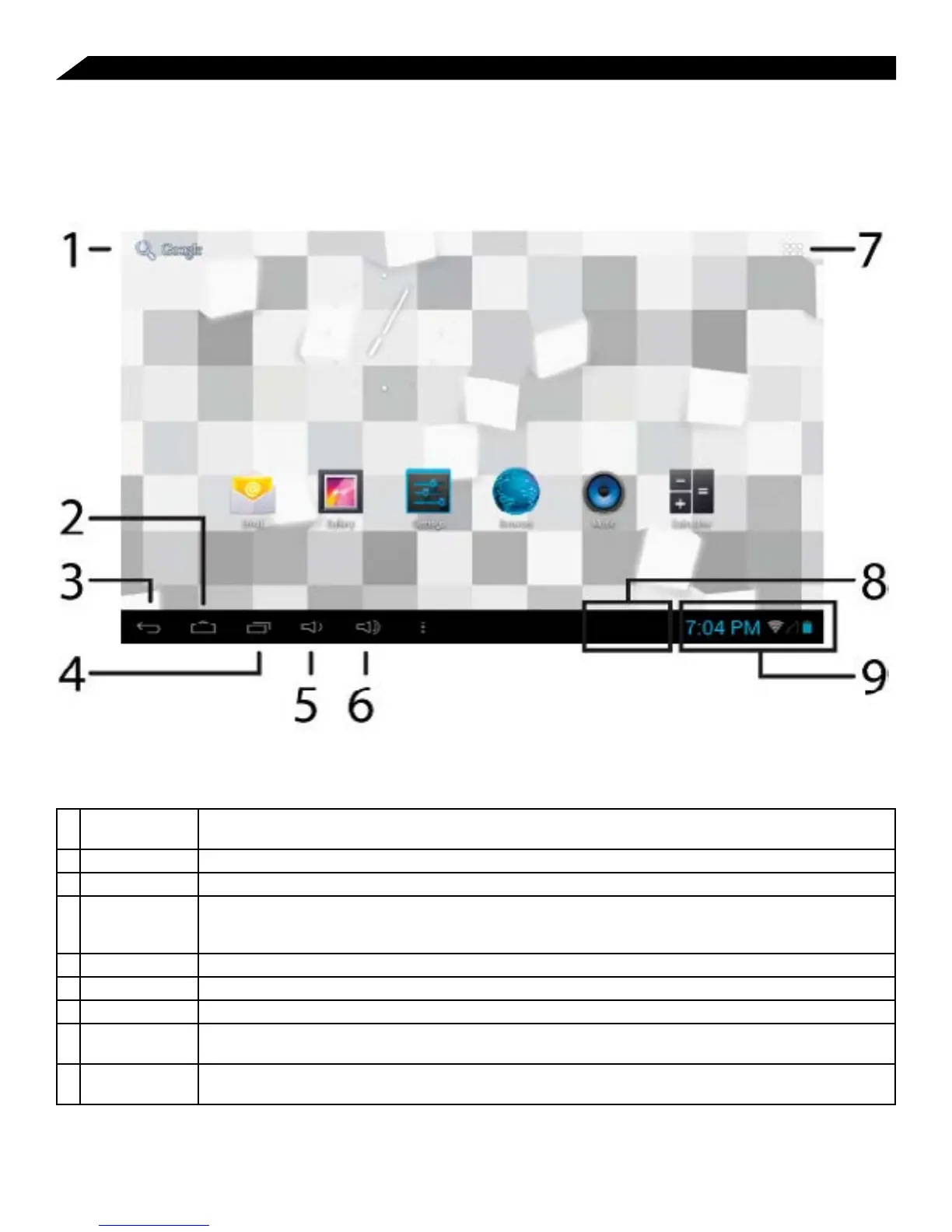
1 Google Search Opens to the Google Search page, which allows you to enter an internet search using the keyboard
or voice control.
2 Home Icon Returns you to the center/main Home screen.
3 Back Icon Opens the previous screen visited, whether in an application or while using the internet.
4 Open Apps Opens a list of apps (applications) recently used. Any application in the list can be selected simply
by touching it, or removed by swiping it left or right. SPECIAL NOTE: If an application is not used after
a certain length of time, it will begin to shrink, and eventually fade from this menu.
5 Volume Down Reduced volume from music or other audio sources.
6 Volume Up Increases volume from music or other audio sources.
7 Launcher Tab Opens a list of all apps and widgets installed on the tablet. See "More on the Launcher Tab" below.
8 System
Notifications
Opens a status window, which will give you details on the state of your tablet, incoming messages,
updates, WiFi and Bluetooth connections and other tablet system related information.
9 Status Icons A quick-look at the status of the tablet, including network connections, battery life, volume and time.
Tapping on the Status icons will give you the System Notifications pop-up window.



 To Next Page