5
Plug the orange cord into the wall outlet. (From Step 3)
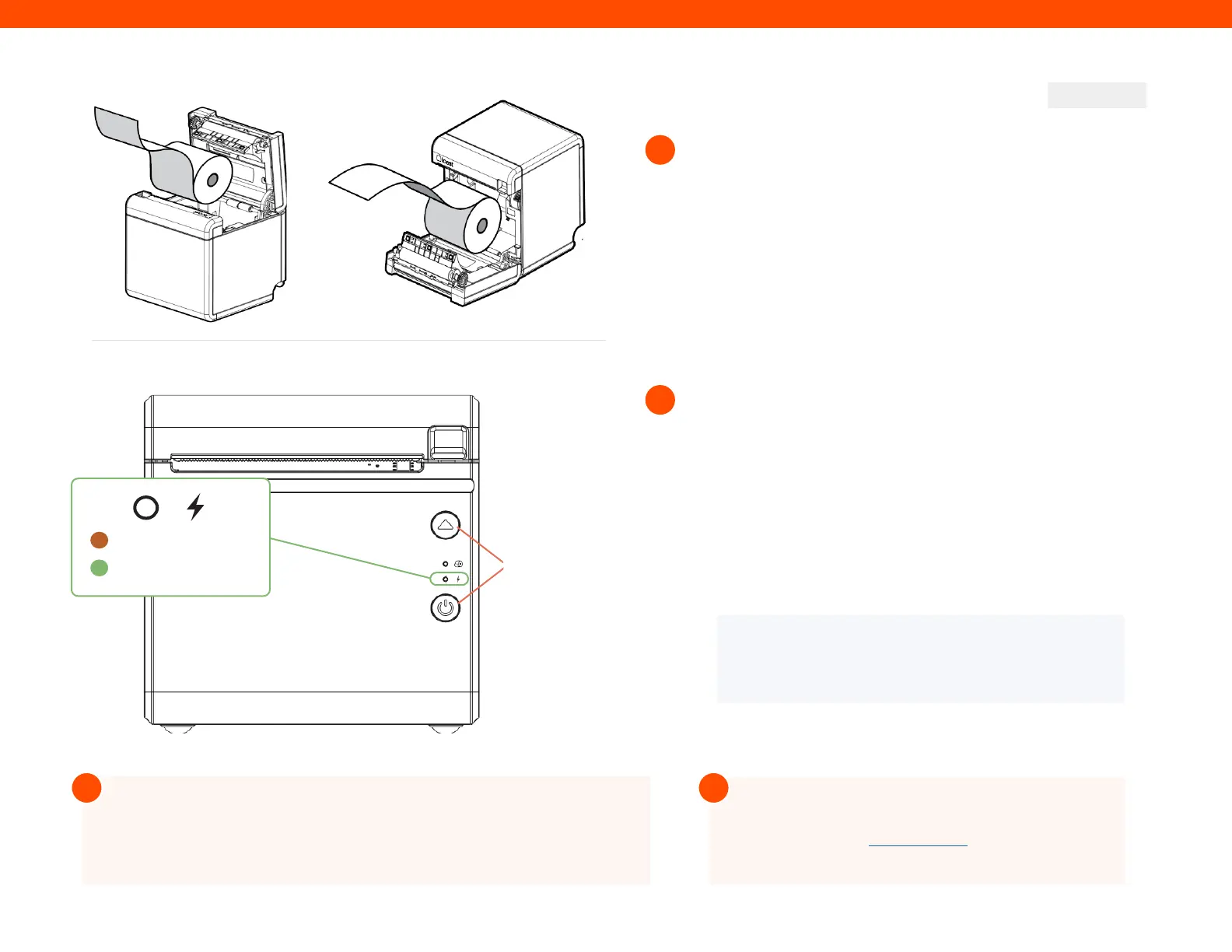
Then, hold the power button until the LED is amber. This
puts the printer into Sleep mode so you can configure it.
Hold the Feed button and the Power button at the same
time, then release the Power button. Your Toast Printer
will print out the printer’s test form and the amber LED
will turn green.
B
A
B
A
Toast Flex + Toast Printer
CONTINUED
Next, it’s time to load the printer paper! To do this:
6
7
Configure your Toast Printer to start working! To do this:
Pull the latch on the front of the Toast Printer
and open the cover.
Insert the full size roll of 80 mm thermal
paper. The paper should exit on the opposite
side of the cover. See the images to the left
on how to position the paper correctly.
Close the Toast Printer cover.
NOTE If the paper feeds but doesn’t print, please
make sure you’ve inserted the paper in the correct
orientation. See the image shown above on the page.
After configuring your Toast Printer, the LED will be amber if the printer
is in Sleep mode. This happens if the printer is turned o. To power it
back on, hold the Power button until the LED turns green.
For more information regarding printer setup, check
out this article onToast Central.
Configure Toast Printer
Step 7b
Feed Button
Power Button
Step 7a
Green = Ready to print
= Sleep Mode
Step 6b
Load Paper
C
Step 6B
Step 7B
! !
Amber


 To Next Page
 Loading...