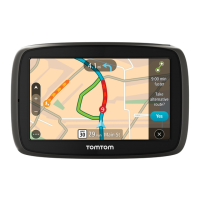
Tip: Select an incident on the map to see more detailed information.
1. Traffic incident that affects your route in your direction of travel.
A symbol or number at the start of the incident shows the type of incident or the delay in minutes,
for example 5 minutes.
The colour of the incident indicates the speed of traffic relative to the maximum allowed speed at
that location, with red being the slowest. The stripes on the traffic jam are also animated to show
the speed of the traffic, where appropriate.
For a complete list of incident types, see Traffic incidents.
2. Traffic incident on your route but in the opposite direction of travel.
3. Traffic incidents on roads that are not visible at your current zoom level.
Looking at traffic on your route
Information about traffic incidents on your route is shown in the route bar on the right-hand side of the
map.
The route bar tells you about traffic delays while you are driving, using symbols to show you where
each traffic incident is located on your route.
Note: To make the route bar more readable some incidents may not be shown. These incidents will
always be of minor importance and only cause short delays.



 To Next Page