38
Manage maps
Manage POIs
Change car symbol
Change 2D/3D display / Turn on 2D display
When should I use this?
Manage maps
Tap this button to do the following:
• Download a map - tap this button to download a map you have bought
using TomTom HOME. It may not be possible to download maps on all
devices.
• Switch map - tap this button to change the map you are using.
• Download free map corrections - tap this button to download map
corrections provided as part of the Map Share service.
Use TomTom HOME to make backups, download, add and delete maps
from your navigation device.
Manage POIs
Tap this button to do the following:
• Set alerts for when you are near POIs.
For example, your NAVIGATOR can tell you when there is a petrol
station nearby.
• Create your own POI categories and add POIs to them.
For example, you could create a category of POIs called “Friends”, and
add all your friends’ addresses as POIs in the category. You can even add
your friends’ phone numbers with their address so you can call them
from your NAVIGATOR.
Change car
symbol
Tap this button to select a car symbol that will be used to show your current
position in the Driving view.
Turn on 2D
display
Tap Turn on 2D display to change the perspective for viewing the map.
For example, the 2D view shows a two dimensional view of the map as
though viewed from above.
Change 2D/3D
display
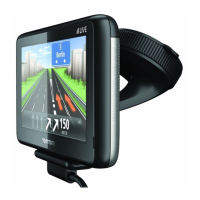
To switch the view to a three dimensional perspective, tap Change 2D/3D
display and select a view from the list.



 To Next Page
 Loading...