19
The T-1 Notebook : Reference & Guide
18
The T-1 Notebook : Reference & Guide
NOTES
NOTES
Step 5. Creating a Hi Hat Track
To create a natural sounding Hi Hat it is good to also apply a groove to vary
the velocity applied on each pulse.
▌ TRACK 3 - HI HATS
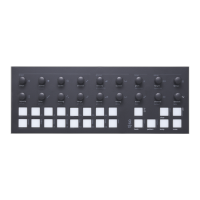
1. Select Track 3, Press the third value button [VB3]. The default mode is
track view, if this is not visible, press [BANK] to select the default ‘home’
track view. Value button 3 will be lit ORANGE ⬛.
2. Ensure the track has 16 Steps, although try other lengths to create
interesting polyrhythms. Press (STEPS) to view the value buttons. All
should be lit to indicate 16 steps. The lit steps indicate number of steps
selected. Turn (STEPS) to adjust the number.
3. Double Press (PULSE) or Turn (PULSE) to view and set how many
pulse note events are populated into the pattern. Active step notes will
be lit ORANGE ⬛. The Euclidean pulse placement with 8 pulses
selected will be spread evenly across the selected steps.
4. Ensure the MIDI Channel on T-1 for track 3 matches the Hi Hat drum
channel on the destination device. Press (CHANNEL) to view the
current track’s MIDI channel. The selected channel will be lit WHITE ⬛.
Turn (CHANNEL) to change channel. Value button [VB3] should be lit
for MIDI channel 3.
5. Press [PLAY]. The play button will ash indicating playback is active.
The kick, snare and hi hat sounds on the connected audio module
should be triggered on the set pulse beats. T-1 will loop the 16 step
playback. Track buttons will ash when a pulse is triggered.
6. It is good to add some variation rather than a xed level on the hats.
Hold [CTRL] + Press & Hold (GROOVE). Tap to select value button
[VB2]. This will select ‘groove’ pattern 2 - Timbales.
7. To further develop the groove variation, Turn (ACCENT) to set the
amount of velocity groove characteristic applied. It’s good to apply a
groove while playing.
Step 6. Creating a Bass Track
Although the Bass could be created in a melodic pattern, this example
keeps the bass line a simple element that helps drive the percussion.
▌ TRACK 4 - BASS
1. Select Track 4, Press the fourth value button [VB4]. The default mode is
track view, if this is not visible, press [BANK] to select the default ‘home’
track view. Value button 4 will be lit ORANGE ⬛.
2. Ensure the track has 16 Steps. Press (STEPS) to view the value
buttons. All should be lit to indicate 16 steps. The lit steps indicate
number of steps selected. Turn (STEPS) to adjust the number.
3. Turn (PULSE) to view and set how many note events are applied.
Active step notes will be lit ORANGE ⬛. Euclidean pulse placement sets
the pulses evenly. Turn until 3 pulses are applied to buttons [VB1],
[VB7], [VB12].
4. Ensure the MIDI Channel on T-1 for track 4 matches the bass or any
other melodic instrument, on the destination device. Press (CHANNEL)
to view the current track’s MIDI channel. The selected channel will be lit
WHITE ⬛. Turn (CHANNEL) to change channel. Value button [VB4]
should be lit for MIDI channel 4.
5. Press [PLAY] . The play button will ash indicating playback is active.
The dened sounds on the connected audio module should be triggered
on the set pulse beats. T-1 will loop the 16 step playback. Track buttons
will ash when a pulse is triggered.
6. This is a more melodic rather than a beat driven track. It is possible to
adjust the note duration using the (SUSTAIN) control if desired.
Getting Started
1
Getting Started
1


 To Next Page
 Loading...