205
The T-1 Notebook : Reference & Guide
204
The T-1 Notebook : Reference & Guide
NOTESNOTES
10.1 Accessing the Conguration Settings
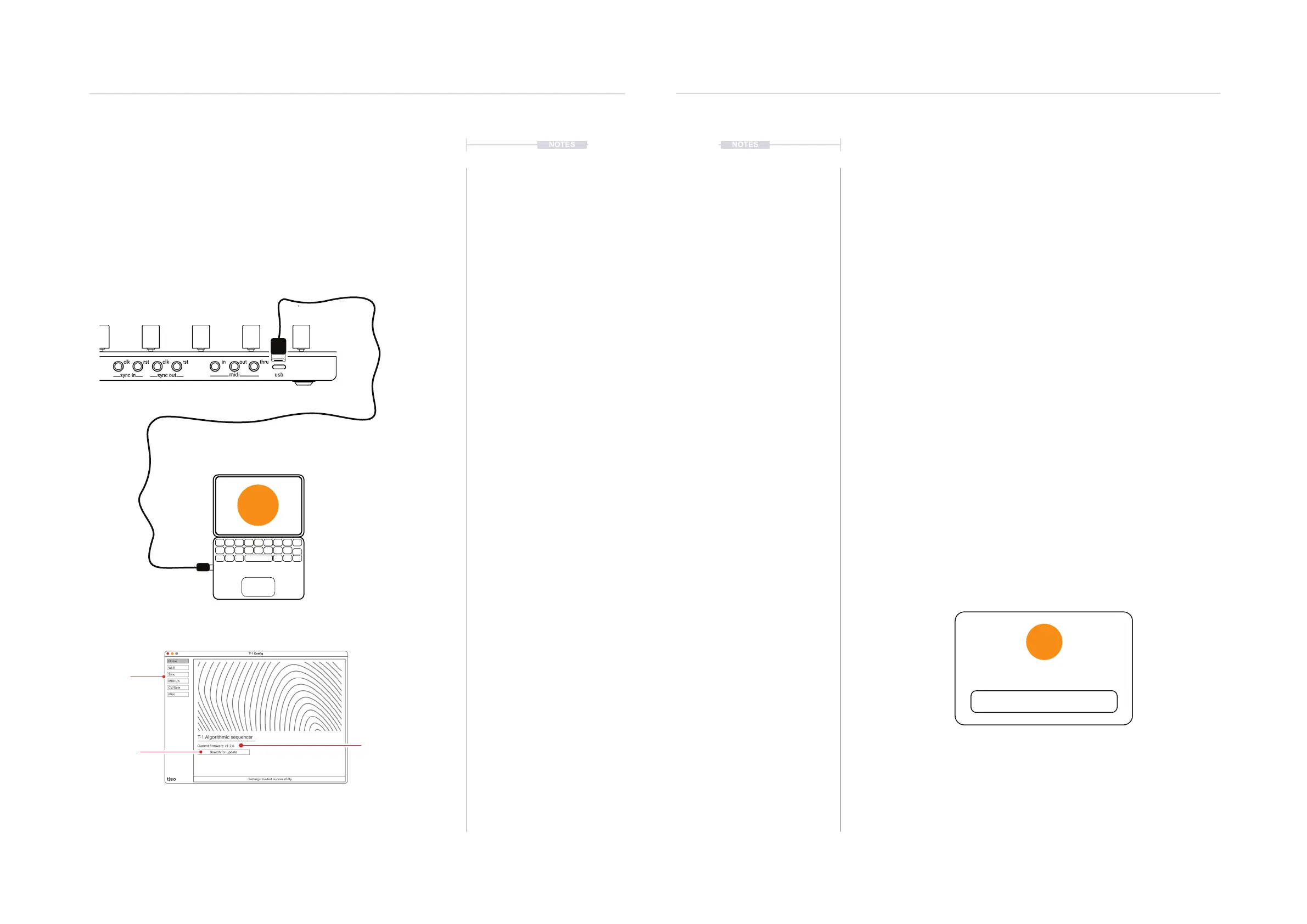
A PC or Mac should be connected to T-1 using the USB connection, which
will also power up the T-1. The Torso Electronics - T-1 Cong must be
downloaded and installed on the PC / Mac. Illustrations shown are based
on the Mac pages. PC pages are very similar. Click the menu option top left
to access the relevant conguration page.
10.2 Firmware Update
A Firmware update is performed within the T-1 Cong tool when connected
to a T-1 sequencer. The current Firmware is displayed on the ‘Home’ Page.
▌ AUTOMATIC UPDATING OF FIRMWARE
1. Connect T-1 to a PC or Mac hosting the T-1 Cong tool using the USB
cable and connections.
2. Remove all other connections such as MIDI, CV etc. Only the USB
should be connected.
3. Open the Torso ‘T-1 Cong’ Tool.
4. The T-1 Cong will automatically search for available updates and if
found will prompt to update.
5. Do not unplug or power down during rmware update.
6. Firmware will complete and the T-1 will restart ready for use.
7. Current rmware installed on the connected T-1 device is displayed
under the ‘T-1 Algorithmic sequencer’ title.
8. Mouse Click the ‘Search for Update’ button if required to perform a
manual check.
9. A pop-up will display that the rmware is up to date or will identify the
latest rmware and prompt to install.
t|so
Your T-1 is up to date
OK
t|so
MIDI USB-C
USB-C to USB-A cable
(supplied)
PC / Mac loaded with the T-1
Cong, Torso Electronics
Conguration Tool
Conguration
page menu
T-1 Cong Home Page
Firmware Update
Check
Currently Installed
Firmware Version
System Conguration
10
System Conguration
10


 To Next Page