49
The T-1 Notebook : Reference & Guide
48
The T-1 Notebook : Reference & Guide
3.1 Patterns v Tracks
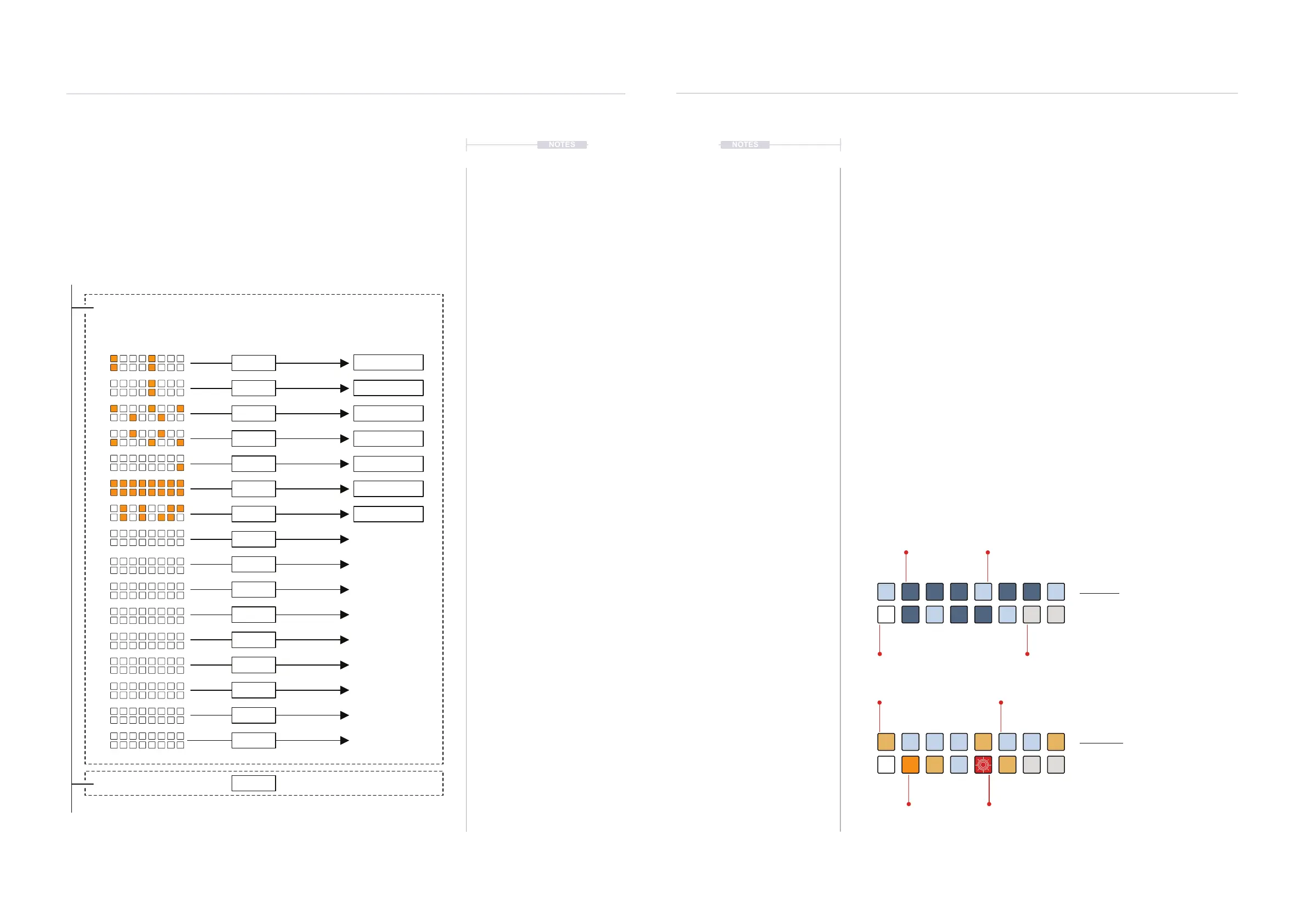
There are 16 patterns per bank, each pattern contains 16 tracks. Patterns
control the sequencing part while tracks control the musical part and the
nal output. Tracks can be set to control note information, MIDI CC -
Control Change messages or FX for incoming MIDI. Patterns can be
changed or chained in series to create a full arrangement for example intro,
verses, chorus etc.
Track 1
Track 2
Track 3
Track 4
Track 5
Track 6
Track 7
Track 8
Track 9
Track 10
Track 11
Track 12
Track 13
Track 14
Track 15
Track 16
Tracks
NOTESNOTES
Rhythmic Patterns
3
Rhythmic Patterns
3
MIDI Channel 1
Sequence Data
PATTERN 1
BANK 1
Tempo parameter stored at bank Level
Quantize parameter stored at pattern Level
PATTERN 2
etc
Music & Channel Data
Other parameters stored at track Level
Output
MIDI Channel 1
MIDI Channel 2
MIDI Channel 2
MIDI Channel 2
MIDI Channel 3
MIDI Channel 4
Tracks operate in parallel, patterns operate in series
When creating patterns the track must be selected to edit the specic part
of the pattern. The pattern can be created and edited over 4 visible pages
each with 16 steps. Therefore 64 steps in total.
What is a Step?
A step in T-1 is the location within a pattern where an event can be setup to
occur. This can be a note or control change event. Steps are laid out in the
dened divisions and are empty unless edited with a pulse or locked to
specic parameter values.
What is a Pulse?
In T-1 a pulse refers to an event which is applied to a step. The step is no
longer empty and when the play head reaches the pulse, an event is
triggered. This will typically play a melodic note or drum beat or contain a
parameter change.
Step Sequencer View.
The default view in T-1 is the Tracks view. When pressing or turning (STEP)
or (PULSE), the step or pulse sequencer view is displayed. The value
button view for the step sequencer will differ slightly depending on the
mode selected.
Sequencer View Modes.
Step View
Hold (STEP). Double tap (STEP) to
retain the value button display.
Pulse View
Hold (PULSE). Double tap (PULSE) to
retain the value button display.
WHITE ⬛
Playhead position
ORANGE ⬛
Manual Step Edits
GREY ⬛
Steps
DULL ORANGE ⬛
Euclidean Pulses
BLUE GREY ⬛
Euclidean Pulses
BLUE GREY ⬛
Active Steps
OFF
Inactive Steps
RED ⬛
Parameter Edited
Flashing step indicates
active step selected to edit


 To Next Page