55
The T-1 Notebook : Reference & Guide
54
The T-1 Notebook : Reference & Guide
NOTESNOTES
Rhythmic Patterns
3
Rhythmic Patterns
3
3.4 Selecting Tracks
Pattern segments that will control each of the 16 tracks. The default view
when powering T-1 up is the track view. Track selection would therefore be
the rst task in the process of building a sequence. Tracks can be edited
individually or multiple tracks edited together.
A track can operate in 3 modes; Default note sequencer mode, CC Mode
for controlling MIDI control change output messages and FX Mode to affect
incoming MIDI.
▌ SELECTING A PATTERN FOR EDITING - PATTERN PLAYING
1. Select and play a pattern. Hold [PATTERN] + Press [VBx], where ‘x’ is
the value button that represents the desired pattern.
2. While [PATTERN] is held, the state can be viewed on the value buttons.
Press [PATTERN] twice to lock the pattern view.
3. The currently selected and playing pattern will be represented by the
WHITE ⬛ ashing value button.
4. If T-1 is playing, the selected pattern will be queued to play following
conclusion of the current pattern. The selected and queued pattern will
be lit static WHITE ⬛ and can be edited.
5. To select without playing the pattern. While the pattern plays,
Hold [CTRL] + [PATTERN] + Press [VBx], where ‘x’ is the value button
that represents the desired pattern.
▌ CHAINING PATTERNS
1. Press [PLAY]. The selected pattern will play and loop.
2. The active playing pattern will be represented by the WHITE ⬛ ashing
value button. Viewed in the pattern page by holding [PATTERN] or
double press [PATTERN] to lock pattern view.
3. To create a chain of multiple patterns to play in order.
Hold [PATTERN] + Press [VBx] of the rst pattern + Press [VBx] of the
second pattern + Press [VBx] of the third pattern etc. All buttons must
be held simultaneously, but pressed in a dened order before releasing.
4. The chained patterns will be lit BRIGHT BLUE ⬛ until the previous
pattern concludes. The actively playing pattern will ash WHITE ⬛
when playing starts.
5. The chained patterns will loop playback in the order they were selected.
Track View
Track View
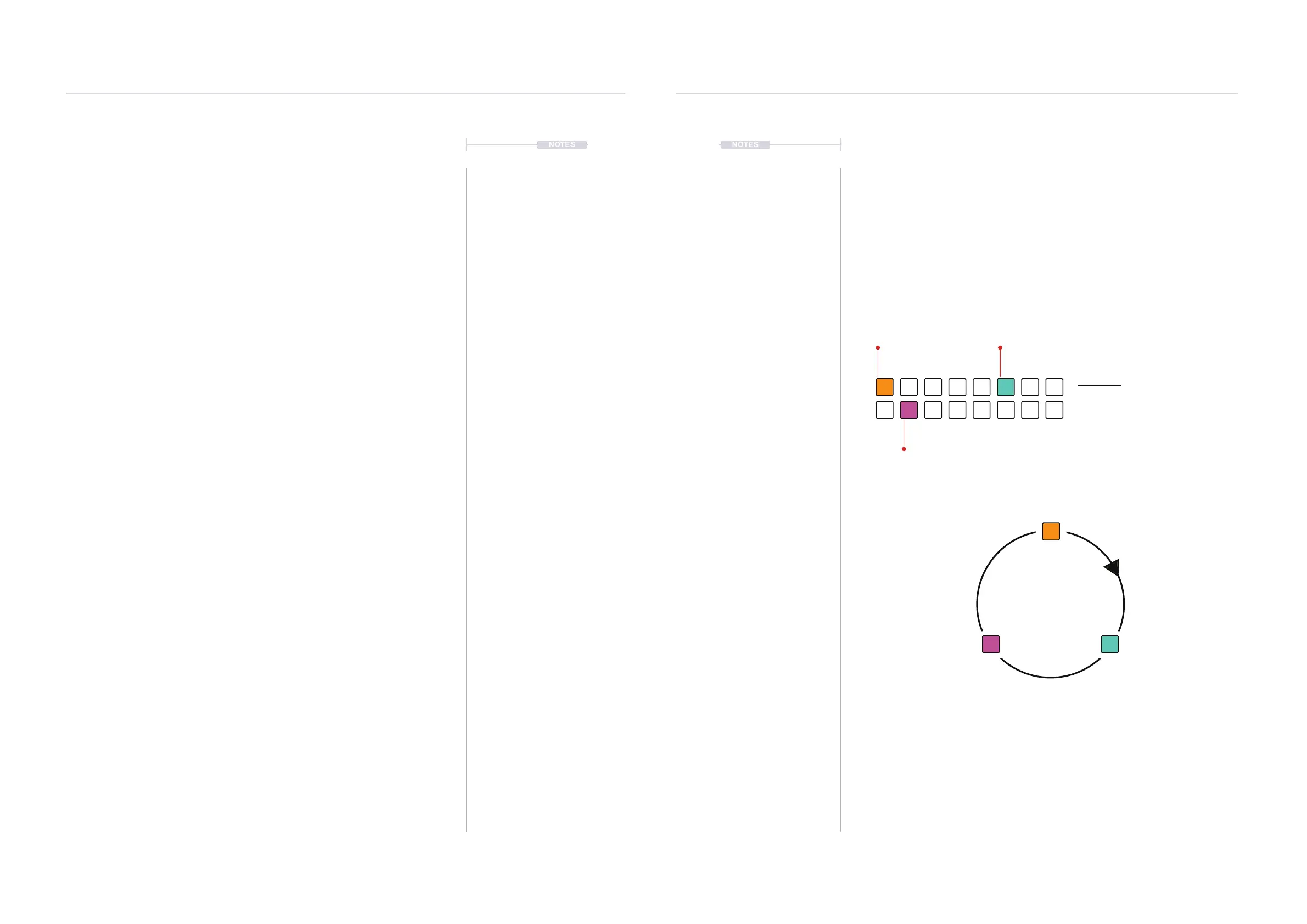
Default ‘home’ view. Shows the selected
track(s) on the value buttons.
Tracks that are not selected are shown unlit on the value buttons. One or more track can
be selected simultaneously and will illuminate in the colour representing the track mode.
In track view, double tapping the Track [VBx] will switch to the pulses sequencer view.
ORANGE ⬛
Selected Note Track(s)
MAGENTA ⬛
Selected FX Track(s)
CYAN ⬛
Selected CC Track(s)
ORANGE ⬛
Selected Note Track(s)
[CTRL] + [VBx]
MAGENTA ⬛
Selected FX Track(s)
CYAN ⬛
Selected CC Track(s)


 To Next Page