175
The T-1 Notebook : Reference & Guide
174
The T-1 Notebook : Reference & Guide
NOTES
8.12 Routing Between Tracks
MIDI data can be routed out of one track and into another. This allows
advanced MIDI congurations maximising the features of each track. This is
useful to also create alternate settings available for selection or accessed
by muting / unmuting.
8.11 FX Track as a MIDI Keyboard
The pitch menu becomes a playable keyboard from within FX tracks
allowing live play of any connected instrument or device.
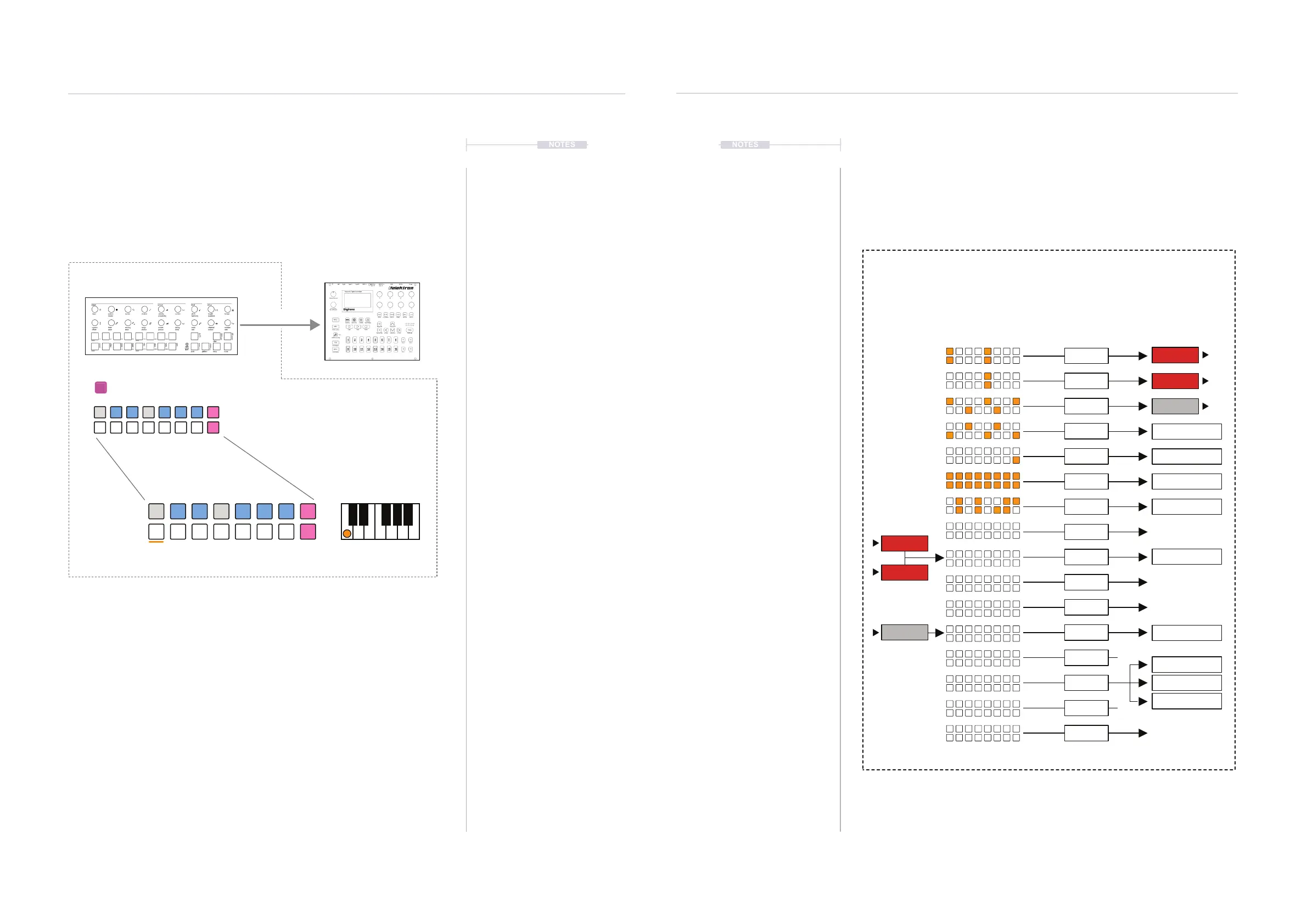
▌ FX TRACK AS A MIDI KEYBOARD CONTROLLER
1. Select or create an FX Track to edit. Press [VBx] where ‘x’ is the value
button for the track to select. An FX Track is lit MAGENTA ⬛.
2. Select the Pitch Menu. Double tap (PITCH) to lock the value button
display as the note keyboard layout.
3. Playing notes and chords will be transmitted to MIDI out.
4. The scale and root can be edited if required.
Chromatic
D#
E AD GC
G#
C#
F#
F B
A#
MIDI FX Track Keyboard Example
MIDI OUT
FX Track
Pitch menu operates as a live playback
controller, similar to a MIDI Keyboard.
NOTES
MIDI & WiFi Connectivity
8
MIDI & WiFi Connectivity
8
Track 1
Track 2
Track 3
Track 4
Track 5
Track 6
Track 7
Track 8
Track 9
Track 10
Track 11
Track 12
Track 13
Track 14
Track 15
Track 16
Track 9
Track 1
Track 9
Track 2
Track 12
Track 3
MIDI Channel 1
MIDI Channel 12
MIDI Channel 14
MIDI Channel 15
MIDI Channel 13
Sequence Data
PATTERN 1
Tracks
Select Track To Route to: Press [CTRL] + Turn (CHANNEL)
Select MIDI Channel Out: Turn (CHANNEL)
Routing
MIDI Channel 2
MIDI Channel 2
MIDI Channel 3
MIDI Channel 4


 To Next Page