173
The T-1 Notebook : Reference & Guide
172
The T-1 Notebook : Reference & Guide
NOTES
FX Tracks allow the processing of incoming MIDI through the track. The T-1
features can be applied therefore to the MIDI notes. Think of this as
replacing the pitch menu as the source of notes and chords.
▌ CREATING AN FX TRACK
1. Press [BANK] to ensure the ‘home’ track view is in focus.
2. Select a track to edit. Press [VBx] where ‘x’ is the value button for the
track to select. By default a Note track is lit ORANGE ⬛.
3. Press [CTRL] + [VBx] where ‘x’ is the value button for the track to
assign as a FX Track. This will cycle through the assigned modes
between Note, CC Track and FX Track. Set the track to an FX Track
where the value button will illuminate MAGENTA ⬛.
4. Any incoming MIDI is processed through any assigned FX track and the
associated parameter settings. If pulses are present the incoming notes
or chords are applied to the pulse. If no pulses are set the MIDI will be
monitored real time as it is received.
5. The MIDI output will be fed to all of the assigned MIDI Channels. Set
the channels by holding (CHANNELS) + [VBx]. Multiple channels can
be assigned to the same track.
6. An audio device connected to the MIDI output will be controlled.
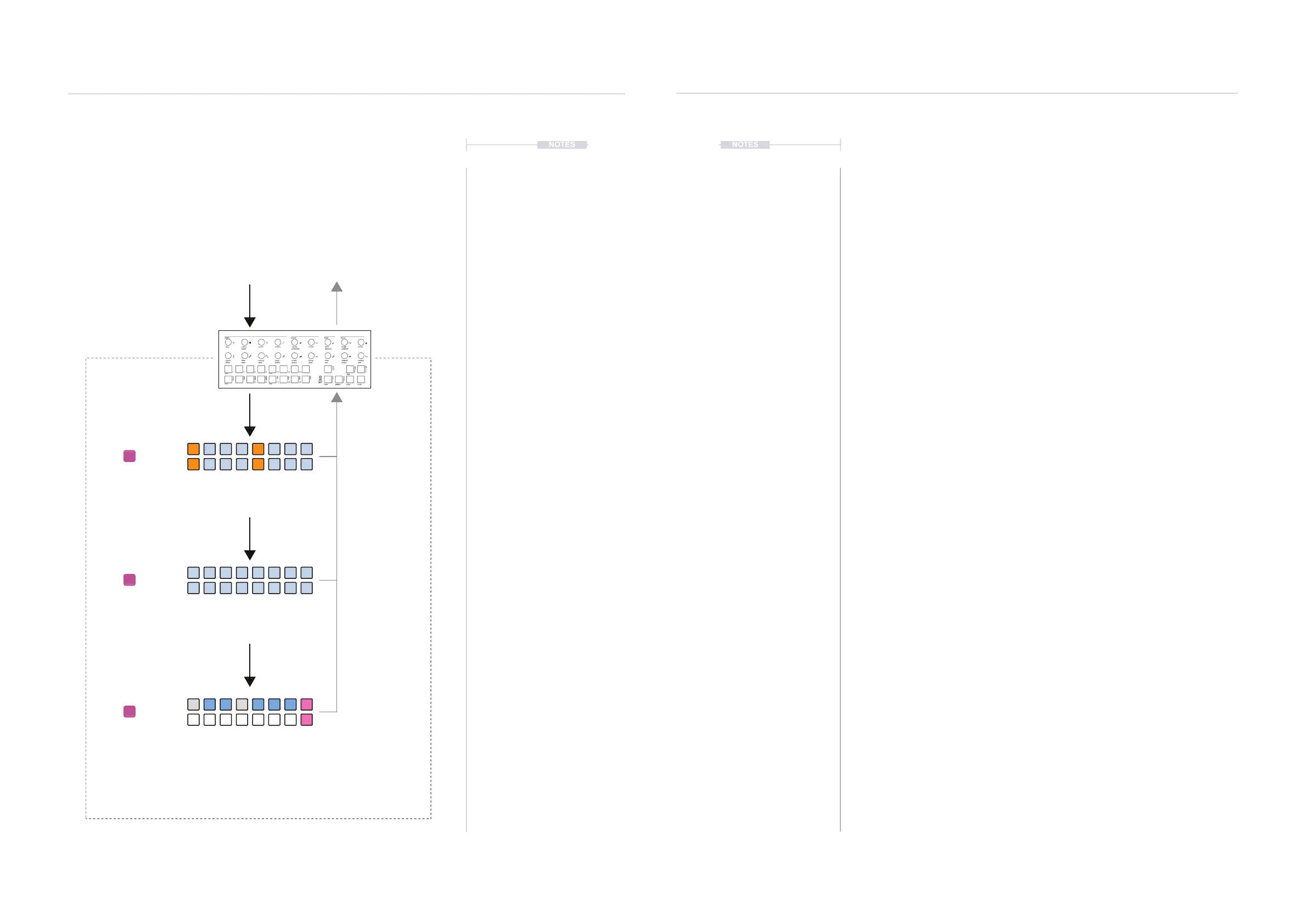
8.10 FX Track as a MIDI Effect Processor
Three track modes are available; Note, CC and FX. The FX mode for a
track allows all incoming MIDI messages to be processed. All of the pattern
tracks assigned as FX tracks will have the incoming MIDI routed through.
MIDI FX Track Routing Example
MIDI IN
Pattern Tracks
MIDI OUT
FX Track
FX Track
FX Track
Chords for the pulses are determined by the
incoming MIDI notes and not the pitch menu.
The track parameters are applied to notes.
Incoming MIDI notes are passed straight into
the track real time. The track parameters are
applied to the MIDI notes before output.
Option to use the pitch menu as a live play
keyboard. The MIDI notes manually played will
be transmitted out.
NOTES
MIDI & WiFi Connectivity
8
MIDI & WiFi Connectivity
8


 To Next Page