179
The T-1 Notebook : Reference & Guide
178
The T-1 Notebook : Reference & Guide
NOTES
8.14 WiFi Connection
T-1 can connect on WiFi networks which is used exclusively to connect with
other gear across Ableton Link. Only 2.4GHz networks are recognised. In
addition, T-1 can operate as a WiFi Hotspot allowing other devices to
search, nd and connect to T-1 as the central WiFi hub in a network of
connected devices.
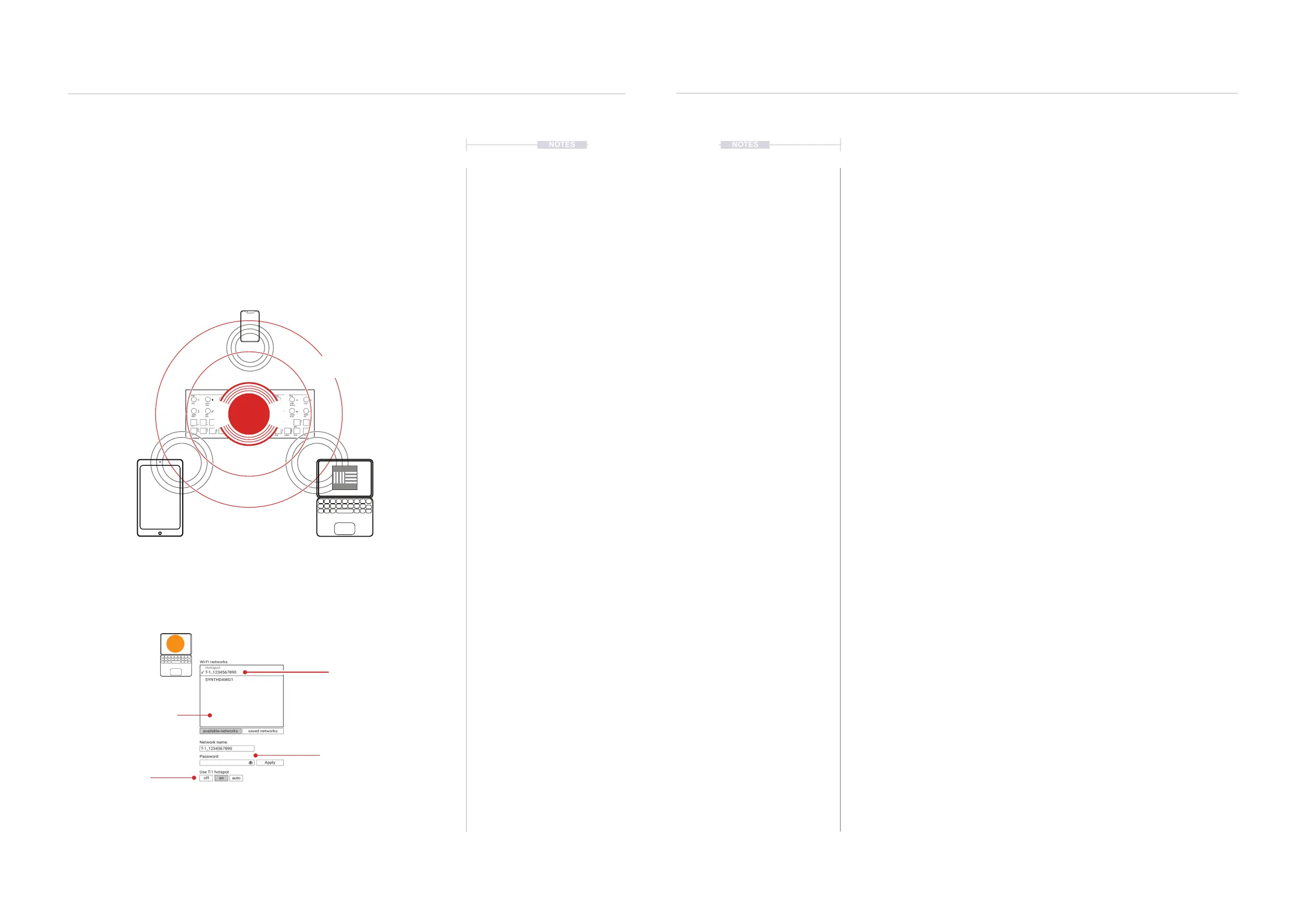
Checked when
selected as hotspot
Network and password.
Set for Hotspot or apply to
other networks
Other networks, ltered
as saved or available
Hotspot
conguration
t|so
T-1 Hotspot
Example of wireless connected devices
T-1 can be congured as an hotspot enabled device within the Torso T-1 Cong app. T-
1 then is searchable over its WiFi network. Other devices such as iPad, Macbook,
iPhone, and other WiFi compatible audio gear can be connected to the network and
can operate in a synchronised way using Ableton Link.
Phone
Hotspot
Wireless
Network
Tablet PC/Mac
NOTES
MIDI & WiFi Connectivity
8
MIDI & WiFi Connectivity
8
▌ CREATING A WIRELESS HOTSPOT
1. Connect T-1 to the T-1 Cong host PC/Mac using the USB connection.
2. Open T-1 Cong and select the ‘Wi-Fi’ Page.
3. Click on the ‘Hotspot’ named device to set up. This is in the Wi-Fi
Networks section, within the available network list. The T-1 Hotspot
name will be similar to, T-1_1234567890 but can be renamed.
4. The selected active hotspot is indicated as checked in the network list.
5. With the hotspot selected, the options to congure will be displayed.
Select the conguration option Off, On or Auto. Select On to use T-1 as
the WiFi hotspot allowing other connections. Set to Off to never use as
a hotspot. Auto will allow the hotspot to be used when other saved
networks are not available.
6. Optionally create a password to improve security and only allow devices
to connect using the dened password.
▌ CONNECTING T-1 TO A WIRELESS NETWORK
1. Connect T-1 to the T-1 Cong host PC/Mac using the USB connection.
2. Open T-1 Cong and select the ‘Wi-Fi’ Page.
3. Any available networks detected in the vicinity will be listed when
displaying the ‘available networks’ lter.
4. Select the network, enter the password and select ‘connect’.
5. Other devices connected to the same network will be able to
communicate on Ableton Link.
6. Previously connected networks will be available for future selection from
the saved network ltered list. Click the ‘X” on a network to forget and
disconnect from this connection.


 To Next Page