
 Need help?
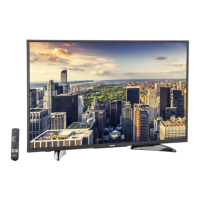
Do you have a question about the Toshiba 47L6200U and is the answer not in the manual?
Highlights safety cautions and their seriousness levels.
Lists the key capabilities and technologies of the television.
Provides a step-by-step guide for initial TV setup and operation.
Details the physical buttons, sensors, and ports on the TV's front and sides.
Explains the buttons and various input/output ports located on the TV's rear panel.
Describes various cables for connecting external devices to the TV.
Guides on connecting broadcast sources like antennas and cable boxes.
Instructions for connecting older analog video sources like DVD players and VCRs.
Explains how to use the IR blaster to control other entertainment devices.
Details on connecting external audio systems for enhanced sound output.
Guide for connecting high-definition digital devices via HDMI or DVI.
Enables controlling connected devices using the TV's remote via HDMI CEC.
Instructions for connecting a PC to the TV for display and audio output.
Steps for connecting the TV to a home network for media sharing and internet.
Instructions on how to insert batteries into the TV remote control.
Details the optimal range and conditions for remote control operation.
Explains the functions and layout of each button on the TV remote.
Guides the user through the first-time setup process upon turning on the TV.
Configures the IR blaster to control external devices like set-top boxes and DVD players.
Guides the user through connecting the TV to a wired or wireless home network.
Assists in setting up the MediaGuide service for TV program listings.
Explains how to open, navigate, and select options within the TV's menu system.
Provides a hierarchical view of the TV's main menu structure and related page numbers.
Offers faster access to frequently used TV settings and options.
Details the process of navigating through the TV's various menu screens and options.
Guides on modifying default TV settings during or after the initial setup.
Configures the antenna and cable input source for channel scanning.
Explains how to save preferred channels for easy tuning and channel surfing.
Allows users to hide specific channels and unused video input sources.
Enables custom naming of TV channels and video inputs for easier identification.
Configures shared audio settings and automatic input switching.
Provides information and requirements for viewing 3D content on the TV.
Explains how to activate and manage 3D viewing modes and settings.
Details viewing modes (3D, 2D) and 3D signal formats (SBS, TAB).
Describes how the 3D button functions vary based on the input mode.
Instructions on switching between 3D, 2D, and native display modes.
Guides on choosing 3D/2D formats from the Quick menu.
Guides on setting a PIN for 3D safety features and parental controls.
Instructions for changing, deleting, or recovering PINs and managing 3D start messages.
Configures 3D lock for PIN entry and sets timers for 3D viewing duration.
Allows customization of the depth level for 2D to 3D conversion.
Covers methods for selecting TV channels, including next, specific, and channel return.
Guides on how to choose the active video source displayed on the TV.
Explains how to turn on and configure closed captioning for TV programs.
Allows customization of the appearance of digital closed captions.
Covers features for blocking content based on ratings (V-Chip) and setting PINs.
Instructions for downloading alternative content rating systems.
Allows locking specific TV channels and video input sources, requiring a PIN.
Sets time limits for games and prevents accidental changes to TV settings.
Explains how to choose different aspect ratios for optimal viewing of various program formats.
Allows picture position adjustment and automatic aspect ratio selection.
Guides on choosing different picture settings modes like Dynamic, Standard, and Movie.
Explains how to adjust settings like Backlight, Contrast, and Brightness.
Provides access to enhanced picture adjustments like Edge Enhancer and Dynamic Contrast.
Details features like DynaLight, Static Gamma, ClearScan, Cinema Mode, MPEG NR, and DNR.
Covers Auto Brightness Sensor, Backlight Pro, ColorMaster, and Base Color Adjustment.
Provides access to advanced settings like Color Temperature, Test Pattern, RGB Filter, and White Balance.
Covers muting, stereo/SAP selection, audio balance, range, and optical output format.
Details Audyssey EQ, Dynamic Volume, ABX, and surround sound for enhanced audio.
Guides on connecting the TV to a home network for media sharing and internet services.
Provides instructions for configuring wired and wireless network connections.
Details methods for connecting the TV wirelessly via WPS, Assisted Setup, or Manual Setup.
Displays details about the TV's wireless network connection status and configuration.
Covers manual configuration of network settings like IP address, DNS, and MAC address.
Instructions for updating the TV's firmware via the network connection.
Overview of Smart TV capabilities including apps, internet browsing, and media sharing.
Lists available bonus content applications accessible through the ePORTAL.
Provides integrated access to TV programming and internet content via MediaGuide.
Enables sharing and playback of media files from storage or network devices.
Covers configuring external control, media renderers, and device names for network access.
Information on using Toshiba's mobile apps (Remote, Send & Play, MediaGuide) with your TV.
Guides on setting up the profile for connecting companion devices and managing app settings.
Details on using the A/V Remote app for controlling the TV and connected devices.
Information about the Toshiba MediaGuide app for channel listings on mobile devices.
Provides initial steps and common solutions for TV problems before contacting support.
Addresses common problems related to image display, including input selection.
Covers issues related to audio output, including connections and muted sound.
Troubleshooting steps for issues with the TV remote control's functionality.
Addresses problems with tuning channels, including auto tuning and lock features.
Troubleshooting for issues with closed caption display, including text modes and signal reception.
Addresses common problems with HDMI connections and network connectivity.
Troubleshooting steps for wireless network connections and router/AP issues.
Addresses issues with media sharing and playback from USB or media servers.
Explains the meaning of the TV's power indicator light states.
Details the TV's compatibility with NTSC, ATSC, and Digital Cable standards.
Lists the frequency ranges supported for VHF, UHF, and Cable TV channels.
Specifies electrical requirements, power usage, audio power, and speaker details.
Details the types and specifications of the TV's video, audio, PC, and wireless terminals.
Provides physical measurements and weight of the TV with its stand.
Specifies operating ranges and lists all items included in the TV package.
Details the supported resolution and frequency formats for PC, HDMI, and 3D inputs.
Explains how to use button combinations for direct TV operation.
 General
| Comb filter | 2D/3D |
|---|---|
| Display diagonal | 47 \ |
| Native aspect ratio | 16:9 |
| LED backlighting type | - |
| Supported video modes | 1080p |
| Supported graphics resolutions | 1920 x 1080 (HD 1080) |
| 3D | Yes |
| 3D type | Passive |
| 3D glasses quantity | 4 |
| Product color | Black |
| Panel mounting interface | 400 x 400 mm |
| RMS rated power | 20 W |
| Number of speakers | 2 |
| DVI port | No |
| DVI-D ports quantity | 0 |
| USB 2.0 ports quantity | USB 2.0 ports have a data transmission speed of 480 Mbps, and are backwards compatible with USB 1.1 ports. You can connect all kinds of peripheral devices to them. |
| Component video (YPbPr/YCbCr) in | 1 |
| AC input voltage | 100 - 240 V |
| AC input frequency | 50 - 60 Hz |
| Cables included | AC, AV |
| Operating temperature (T-T) | 5 - 35 °C |
 Weight and Dimensions
| Depth (with stand) | 232 mm |
|---|---|
| Height (with stand) | 695 mm |
| Weight (with stand) | 16300 g |
| Depth (without stand) | 44 mm |
| Width (without stand) | 1064 mm |
| Height (without stand) | 640.5 mm |
| Weight (without stand) | 14400 g |



 To Next Page
