

 Need help?
Do you have a question about the Toshiba SATELLITE 2750 Series and is the answer not in the manual?
Lists all items included with the computer for setup verification.
Describes the computer's key hardware components and their capabilities.
Highlights unique and advanced functionalities that enhance user convenience.
Details preinstalled software programs for system management and customization.
Explains optional devices to enhance computer power and versatility.
Identifies components visible on the computer's front panel when the display is closed.
Details the ports and buttons located on the left side of the computer.
Details the ports and controls located on the right side of the computer.
Shows and describes the connectors and vents on the computer's back panel.
Identifies parts located on the underside of the computer, including the battery access.
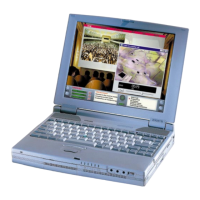
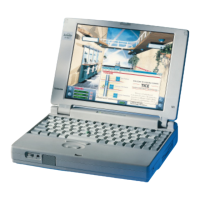
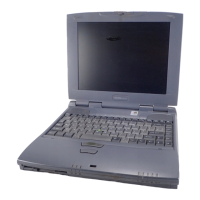
Illustrates components visible on the front when the display is open, including keyboard and screen.
Describes the function and meaning of various system status lights on the computer.
Provides details on the diskette and DVD-ROM drives, including their operation.
Explains the function and specifications of the computer's AC power adapter.
Guides on creating a comfortable and safe environment for computer use and health.
Step-by-step instructions for connecting the AC adapter to power the computer.
Explains how to turn on the computer for the first time and during normal operation.
Details the procedures for shutting down, hibernating, or standing by the computer.
Covers how to restart the system and restore preinstalled software if needed.
Instructions on how to use the integrated pointing device for cursor control.
Guides on loading and removing CD/DVD discs from the drive.
Provides tips on protecting data stored on CDs, DVDs, and diskettes.
Instructions on how to safely clean the computer's exterior components.
Precautions to take when transporting the computer to ensure safe operation.
Explains different categories of keys on the keyboard, such as typewriter and function keys.
Details how to use Fn key combinations to access special features and system functions.
Explains keyboard shortcuts for quick system configuration and feature control.
Describes how to activate and use the numeric keypad overlay for input and control.
Explains the meaning of power status lights and different operating conditions.
Covers care, safety, charging, and replacement of the computer's battery pack.
Details the process of logging into the system using user or supervisor passwords.
Explains different modes like Boot, Hibernation, and Standby for starting the computer.
Guides on accessing and modifying system settings using the TSETUP utility.
Explains how to set, reset, and manage user and supervisor passwords for system security.
Step-by-step instructions for managing PCMCIA cards in the expansion slot.
Guides on how to open the computer and install or remove memory modules.
Instructions for connecting devices like printers, monitors, and TVs to the computer.
Details on connecting external PS/2 compatible mice and keyboards.
Explains how to use a security cable to prevent unauthorized removal of the computer.
Outlines a systematic approach to diagnosing and resolving computer issues.
Addresses issues related to the computer failing to start properly or during the self-test.
Discusses problems concerning AC power, battery, and overheating.
Provides solutions for common problems with keyboard, LCD, drives, and peripherals.
Lists the computer's physical dimensions and operational environmental requirements.
Details specifications for the processor, memory, storage, and display systems.
Lists the types and functions of all available ports for connecting external devices.
Outlines the required length, wire size, current, and voltage rating for the AC power cord.
Explains what the international warranty covers and the process for registration.
Displays diagrams of various keyboard language layouts available for the computer.
Explains how the display controller interprets commands and supports video output.
Lists various video modes, resolutions, and colour depths supported by the computer.
Provides instructions on what information to gather and how to report a stolen computer to Toshiba.
Lists decimal, hex, and IBM character representations for ASCII codes.
Defines technical terms and concepts used throughout the manual.
Provides an alphabetical listing of topics and their corresponding page numbers for quick reference.

 To Next Page
 General